
TABLE OF CONTENTS
- 1. Overview
- 2. Where This Applies
- 3. How It Works
- 4. How to Change Camera or Microphone
- 5. What Happens After Switching
- 6. Best Practices
- 7. Notes
1. Overview
Switch your camera and microphone instantly during live sessions without leaving the stage. This feature enables speakers and hosts to adjust their audio and video setup in real time, ensuring a smooth and professional experience.
2. Where This Applies
This functionality is available in:
Live Sessions
Sessions hosted as Video Calls
3. How It Works
You can change your active camera or microphone directly from the session controls while you are on stage, without interrupting the session.
4. How to Change Camera or Microphone
Step 1: Join the session as a host, co-host, or speaker.
Step 2: Locate the camera and microphone controls at the bottom of the screen.
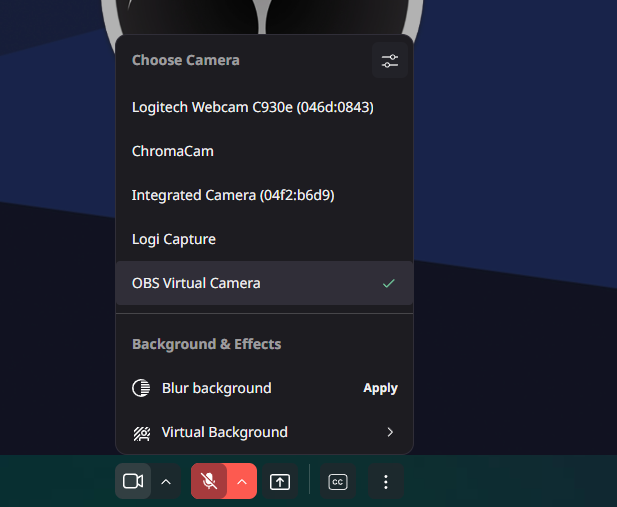
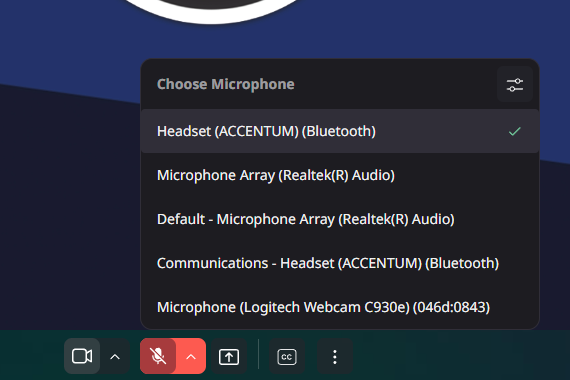
Step 3: Click on the arrow (^) icon next to the camera or mic button.
Step 4: Select your preferred camera or microphone from the list.
Step 5 (Optional): Adjust additional settings such as:
Background blur
Virtual background
5. What Happens After Switching
- Your selected device is applied instantly.
- There is no need to leave or rejoin the session.
- The change is reflected in real time for all participants.
6. Best Practices
Test your devices before going live for a smoother experience.
Switch devices only when necessary to avoid frequent disruptions.
Use high-quality microphones for better audio clarity.
7. Notes
- Only available for participants on stage (hosts, co-hosts, speakers).
- Device options depend on the hardware connected to your system.
- Performance may vary based on browser and system capabilities.
Need more help? Contact support@airmeet.com or visit our Customer Support Lounge.
Was this article helpful?
That’s Great!
Thank you for your feedback
Sorry! We couldn't be helpful
Thank you for your feedback
Feedback sent
We appreciate your effort and will try to fix the article