TABLE OF CONTENTS
1. Overview
AirGenie allows organizers to generate AI-powered summaries for an entire event or a specific session. These summaries can help organizers quickly capture key discussions, highlights, and takeaways without manually reviewing the full event or session content.
You can customize the summary by selecting the format, tone, word limit, and relevant keywords before generating the output.
You can use AI-generated summaries to:
- Create post-event recaps
- Share key takeaways with internal teams
- Prepare attendee follow-up communication
- Summarize session discussions for reporting
- Capture event highlights for marketing or documentation
2. How to generate an AI Summary
Step 1: Go to your event dashboard and click AirGenie from the top navigation menu.
Step 2: By default, AirGenie will show the currently selected event or session.
To change the source, click Change next to the event/session name. A side panel will open where you can choose from:
Event : Select this option to generate a summary for the complete event.
Session : Select this option to generate a summary for a specific session.
You can use the search bar and filters to quickly find the required event or session.
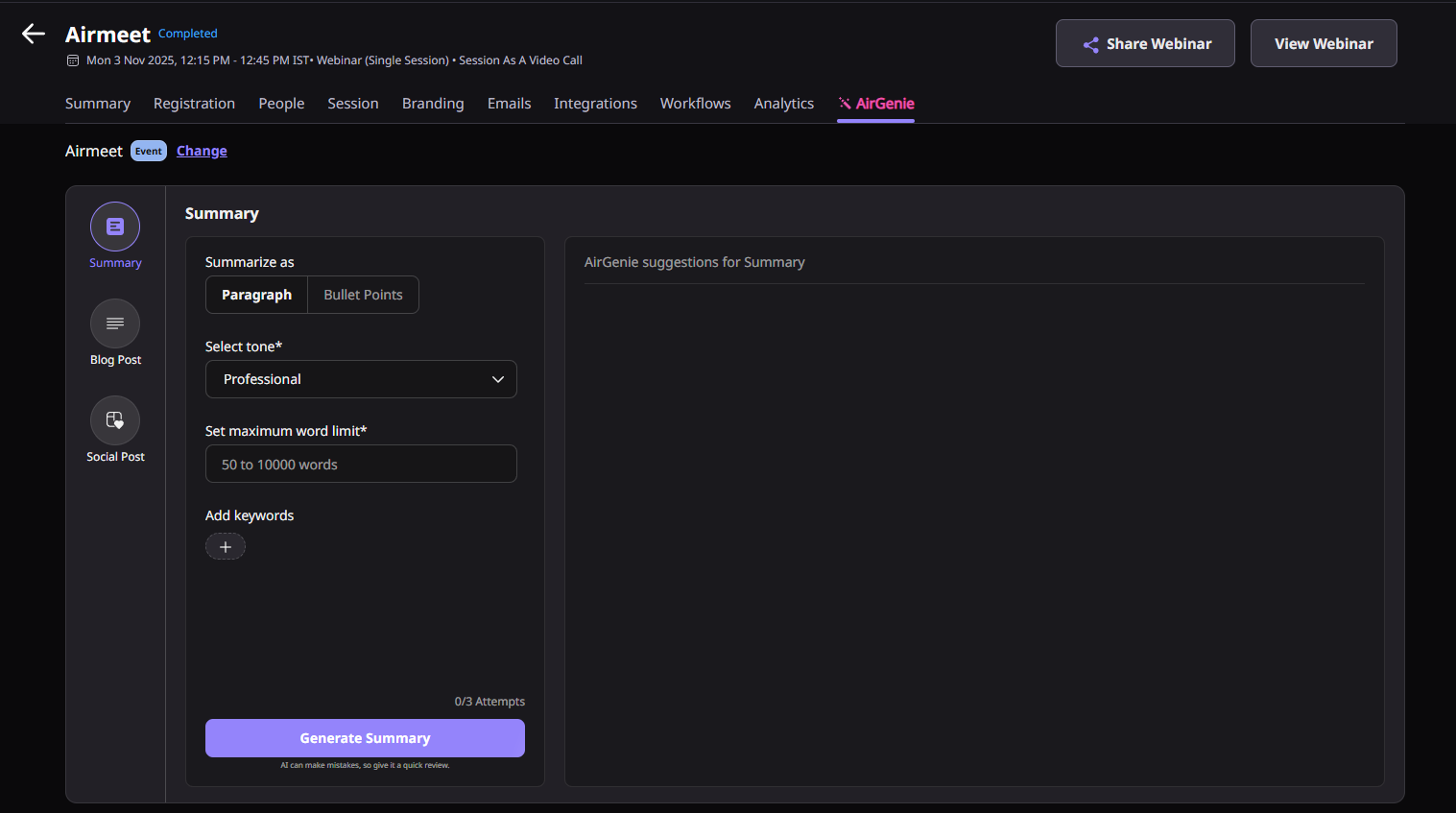
Step 3: From the left-side menu, click Summary.
Step 4: Under Summary tab, select the preferred format, Select the tone, Set the maximum word limit, Enter the maximum word limit for the summary & Add keywords
Step 5: Click Generate Summary.
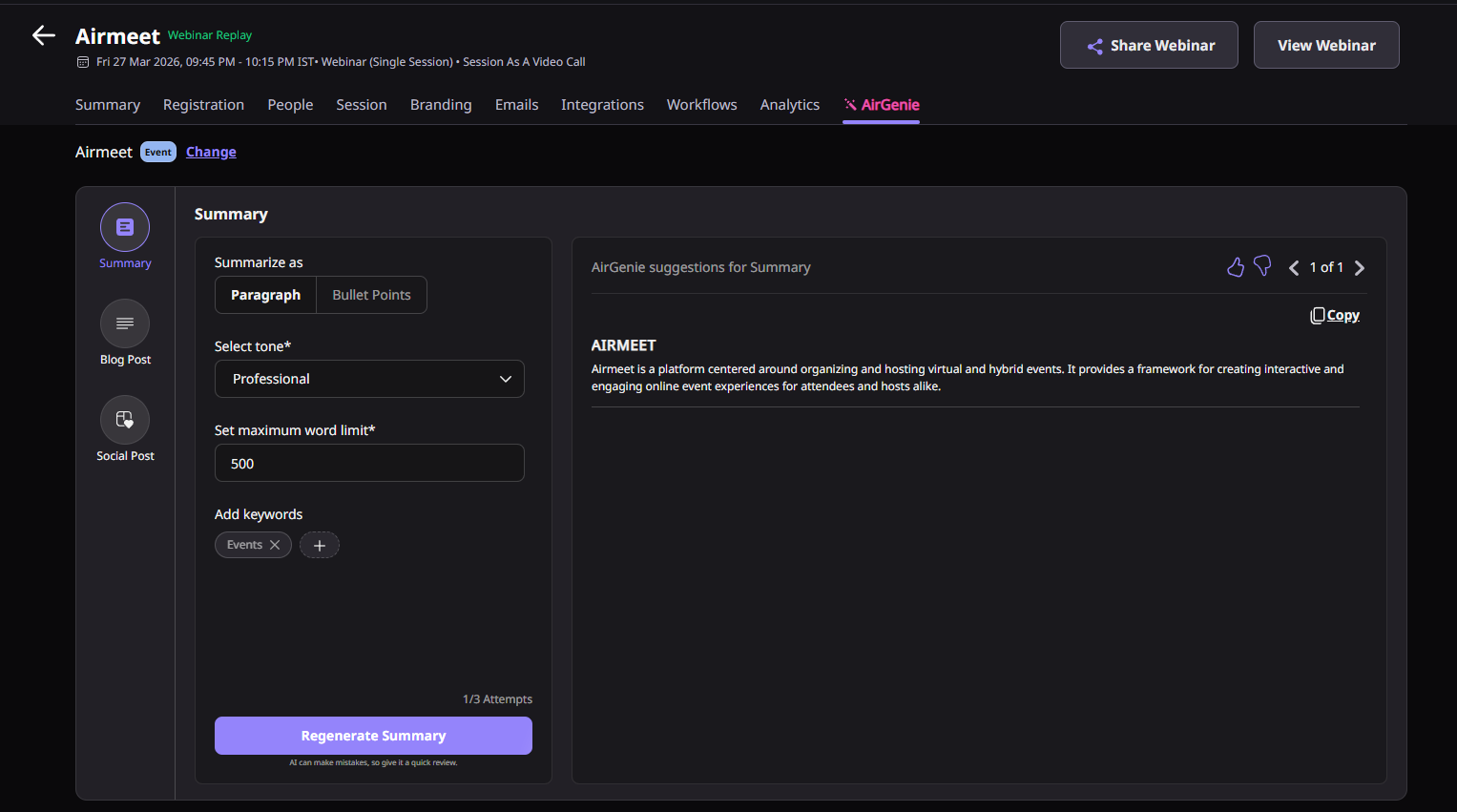
AirGenie will generate the summary and display it in the suggestions panel.
3. Others
3.1. Generation attempts
Each event and each session includes 3 content generation attempts by default.
The attempts are counted separately for every event and session.
For example:
- An event has 3 attempts for summary generation.
- A specific session under the same event also has its own 3 attempts.
3.2. Copying generated content
Once the summary is generated, you can copy the content and use it for your communication, documentation, reports, or marketing material.
3.3. Viewing previously generated content
AirGenie allows you to view older generated outputs for the selected event or session. This helps you refer to earlier versions without using another generation attempt.
Important Note

AI-generated content can contain errors or may require edits. Review the output before publishing, sharing, or using it for official communication.
Need more help? Contact support@airmeet.com or visit our Customer Support Lounge.
Was this article helpful?
That’s Great!
Thank you for your feedback
Sorry! We couldn't be helpful
Thank you for your feedback
Feedback sent
We appreciate your effort and will try to fix the article