
1. Overview
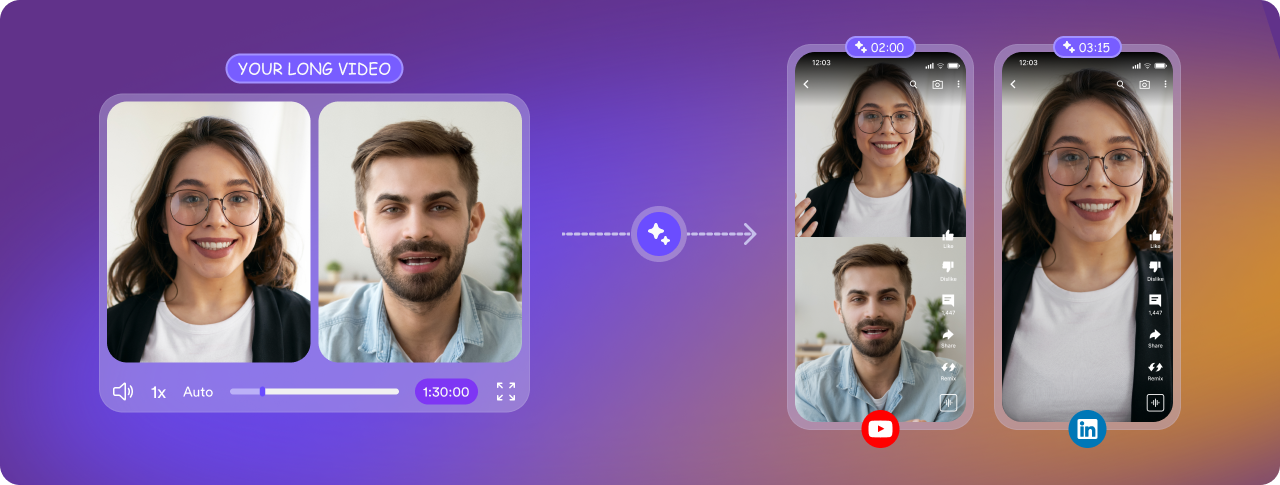
The Airshots AI integration allows you to seamlessly send your Airmeet session recordings to Airshots AI, where AI automatically transforms them into short, engaging video clips ready for editing and sharing.
Once connected, you can access Airshots AI directly from your Airmeet dashboard without signing in every time.
2. Connect Airshots AI to Airmeet
Option 1
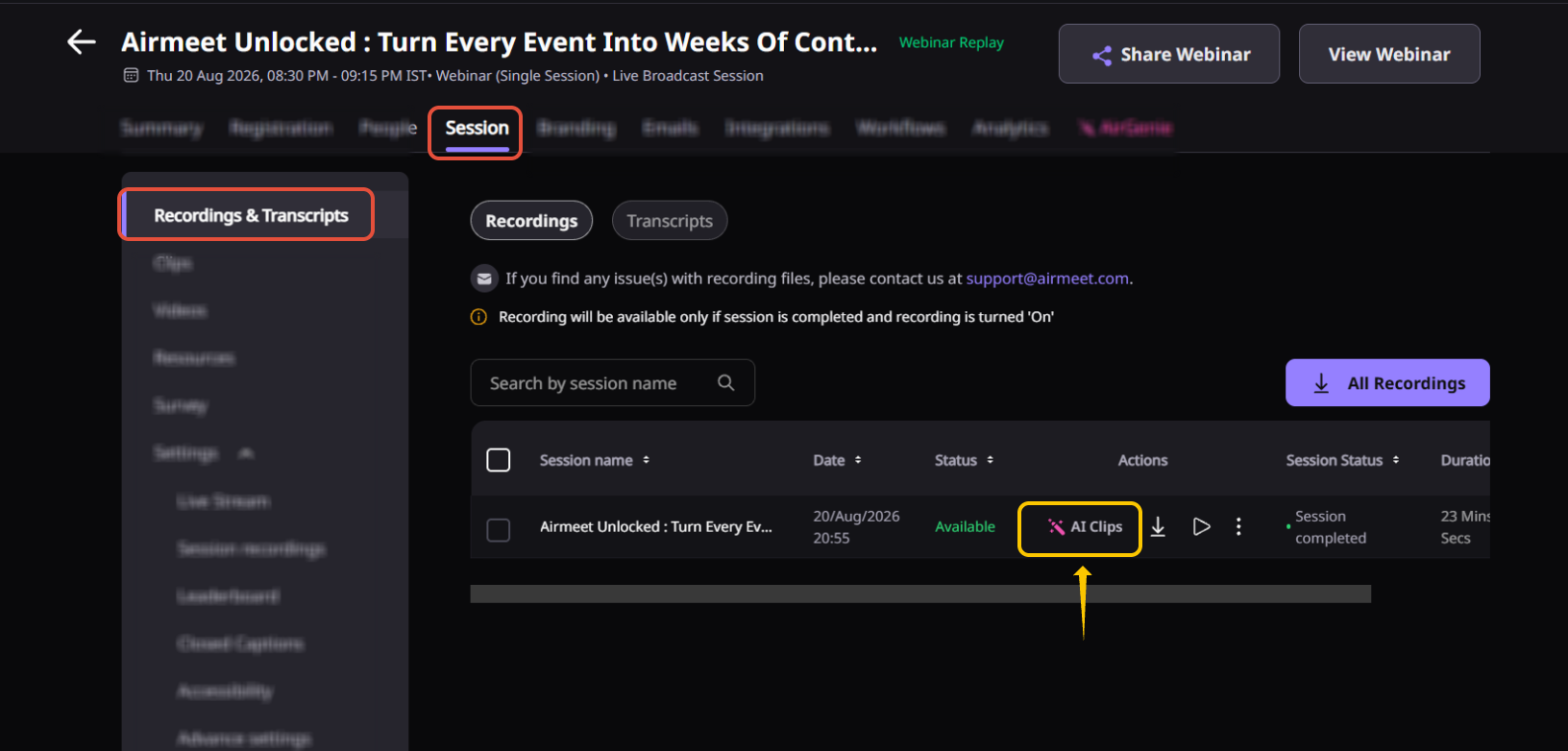
Step 1: Go to recordings tab of your event or community dashboard.
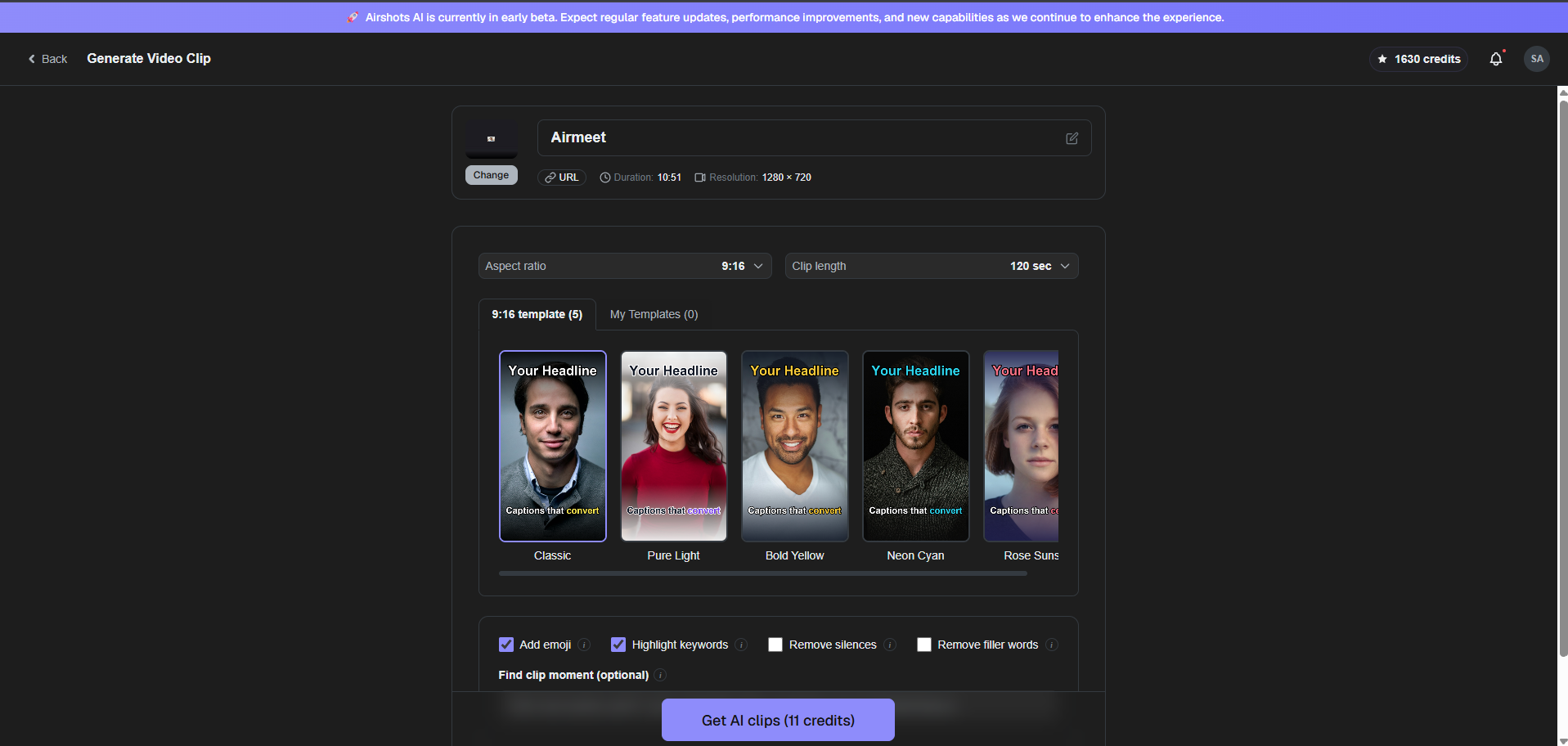
Step 2: Click on Ai clips button beside your recording and provide the consent (one time)
Step 3: Airmeet securely transfers the recording to Airshots AI.
Step 4: Automatic Sign-in
After the transfer begins:
You will be redirected to Airshots AI.
You'll be automatically signed in using your connected account.
The uploaded recording will appear in your Airshots AI workspace.
From here, you can generate AI clips, edit them, add branding, captions, and publish them to your preferred social media platforms.
Option 2
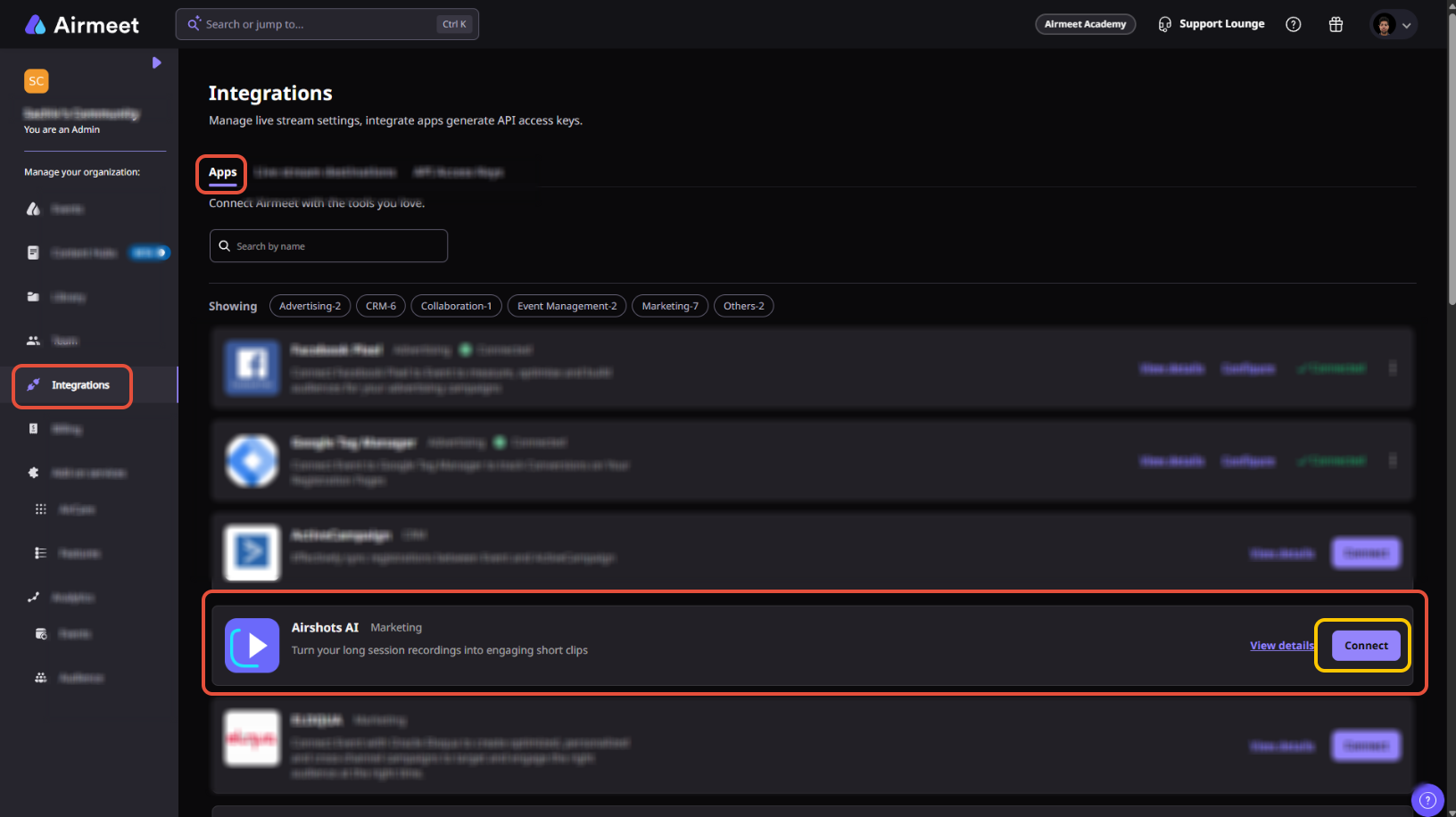
Step 1: Open Integrations
Log in to your Airmeet Dashboard > Open the event you want to work with > From the left navigation menu, click Integrations.
Step 2: Locate Airshots AI
Browse the available integrations > Find Airshots AI. > Click Connect.
Step 3: Review the Consent
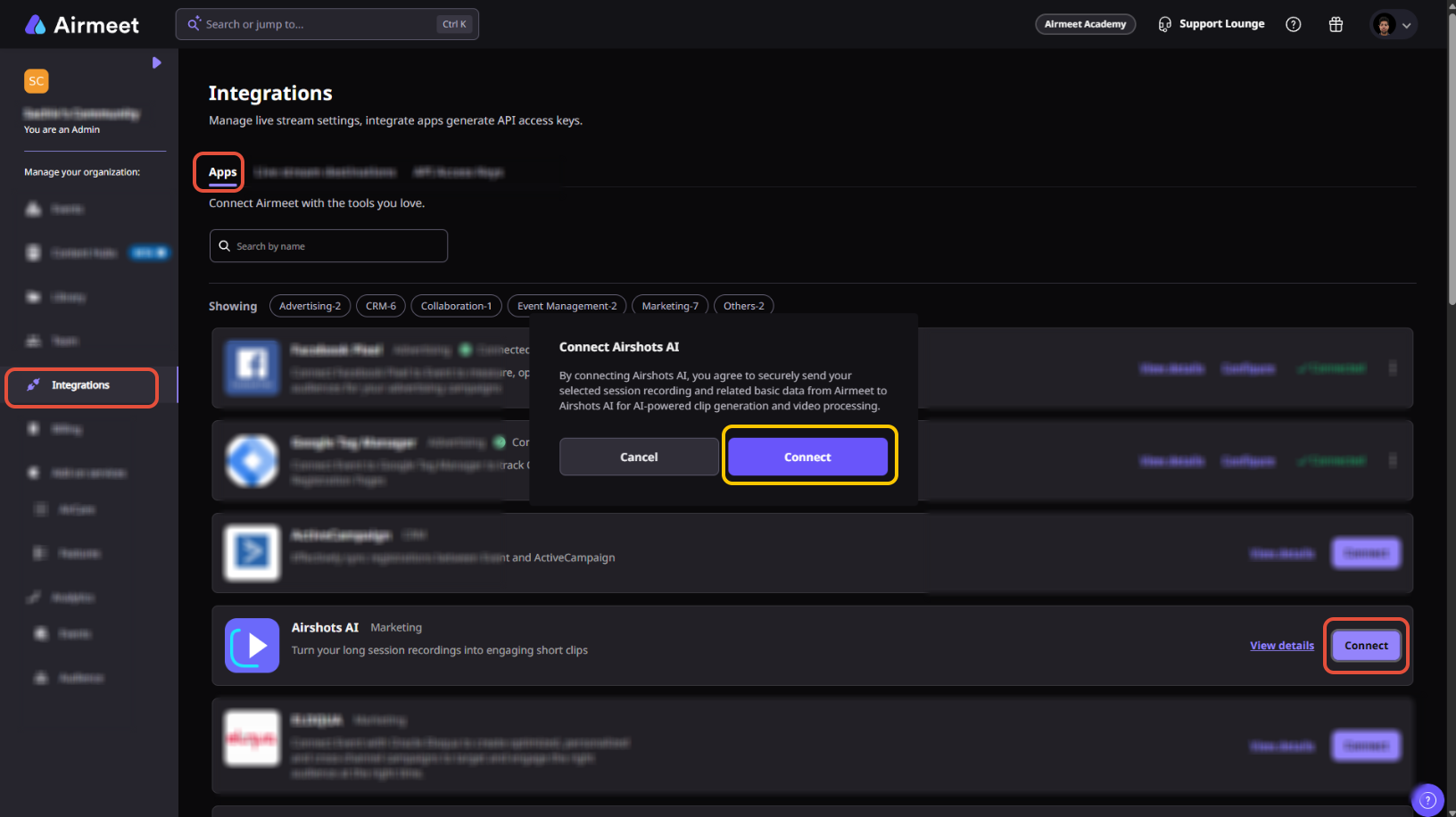
A consent dialog will appear explaining that:
Your selected recording will be securely shared with Airshots AI.
Airshots AI will process the recording to generate AI-powered video clips.
Click Connect to continue, By continuing, you agree to transfer the recording to Airshots AI.
Step 4: Access Your Recordings
Return to your Airmeet dashboard.
Navigate to Session.
Open the Recordings tab.
Locate the recording you want to repurpose.
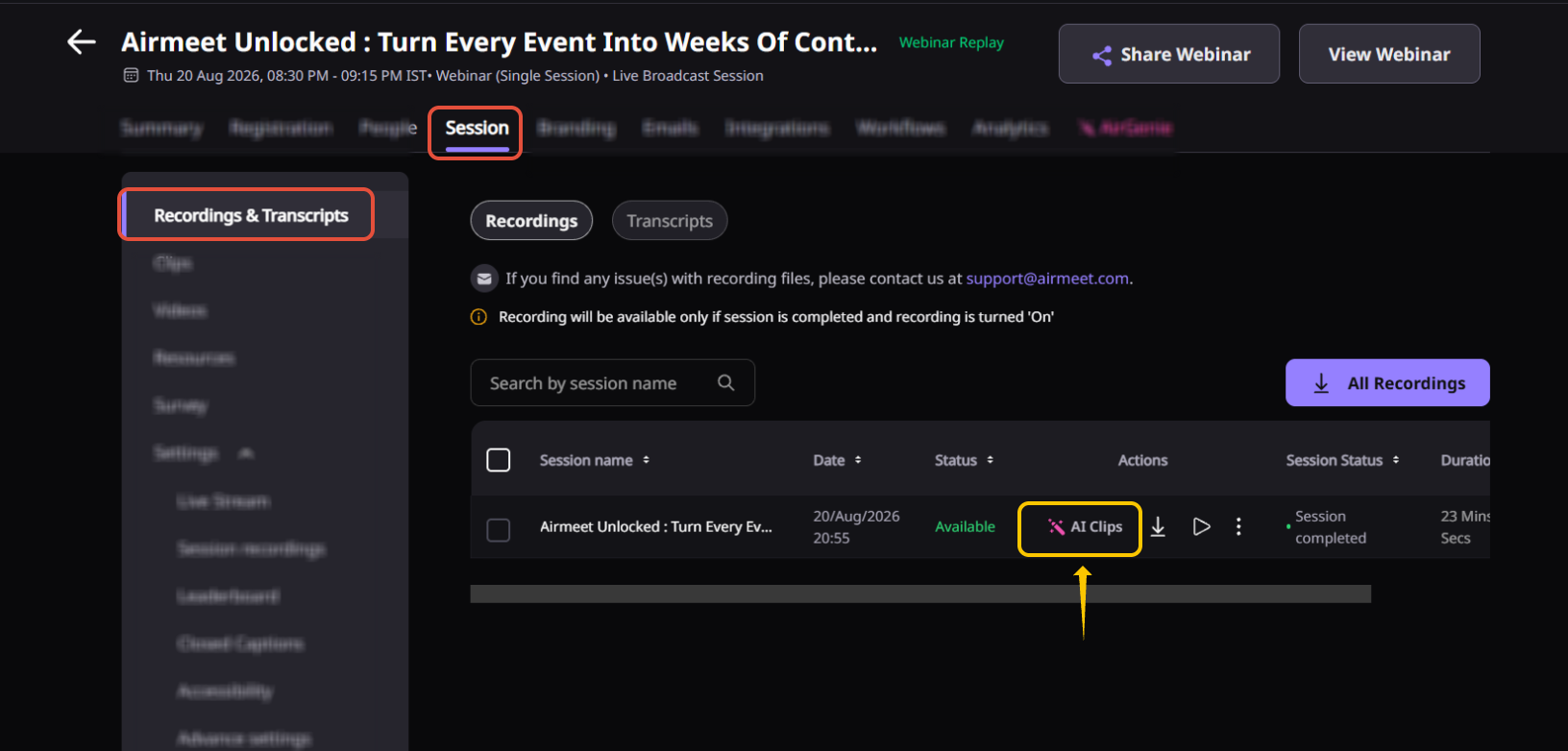
Step 5: Send a Recording to Airshots AI
Hover over the recording.
Click the Airshots AI icon or Create with Airshots AI action.
Airmeet securely transfers the recording to Airshots AI.
Step 6: Automatic Sign-in
After the transfer begins:
You will be redirected to Airshots AI.
You'll be automatically signed in using your connected account.
The uploaded recording will appear in your Airshots AI workspace.
From here, you can generate AI clips, edit them, add branding, captions, and publish them to your preferred social media platforms.
3. Disconnect Airshots AI
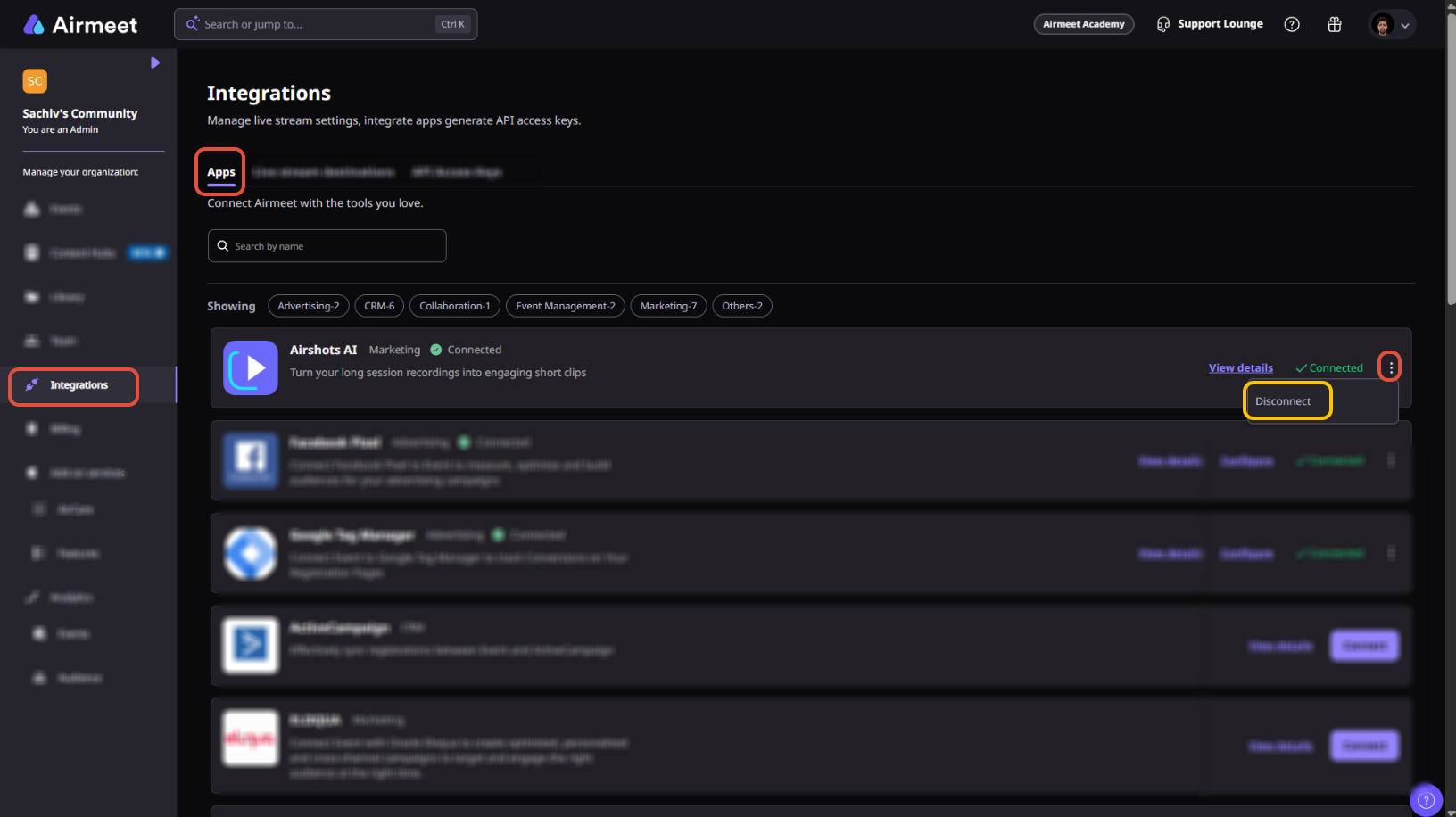
To disconnect the integration:
Go to Integrations.
Find Airshots AI.
Click Disconnect. Confirm the action.
You can reconnect at any time.
4. Frequently Asked Questions
Does connecting Airshots AI upload all my recordings?
No. Only the recordings that you explicitly choose to send to Airshots AI are transferred.
Can I disconnect Airshots AI later?
Yes. You can disconnect the integration at any time from the Integrations page.
Will my recordings remain in Airmeet?
Yes. Sending a recording to Airshots AI creates a copy for AI processing. Your original recording remains available in Airmeet.
How long does it take for a recording to appear in Airshots AI?
The recording is transferred shortly after you initiate the upload. Processing time may vary depending on the recording size and duration.
Can multiple organizers use the same Airshots AI connection?
The connection is linked to the Airshots AI account that authorized the integration. Other organizers may need appropriate permissions or their own connection, depending on your organization's setup.
What happens if I disconnect Airshots AI?
Disconnecting the integration only removes the connection between Airmeet and Airshots AI. Existing projects and clips already created in Airshots AI are not deleted.
Is my recording securely transferred?
Yes. Recordings are securely transferred from Airmeet to Airshots AI for processing.
Can I reconnect Airshots AI after disconnecting it?
Yes. You can reconnect your Airshots AI account at any time from the Integrations page.
Does Airshots AI support recordings from past events?
Yes. As long as the recording is available in your Airmeet recording library, you can send it to Airshots AI.
Will deleting a recording from Airmeet delete it from Airshots AI?
No. Once a recording has been successfully uploaded to Airshots AI, it is managed independently. Deleting the original recording from Airmeet does not remove the copy or generated clips in Airshots AI.
Where can I manage my AI-generated clips?
All generated clips, transcripts, and editing tools are available within your Airshots AI workspace after processing is complete.
Airshots Ai integration is not available on EU & US database community, hence the integration option will not be visible on those respective communities.
Need more help? Contact support@airmeet.com or visit our Customer Support Lounge.
Was this article helpful?
That’s Great!
Thank you for your feedback
Sorry! We couldn't be helpful
Thank you for your feedback
Feedback sent
We appreciate your effort and will try to fix the article