

TABLE OF CONTENTS
1. Overview
Highlight important sessions with custom colors to make them stand out in the agenda and help attendees quickly identify key moments in your event.
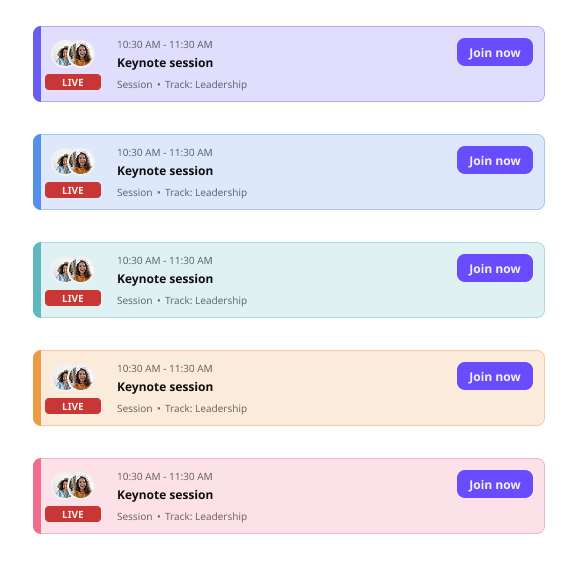
2. Apply Branding
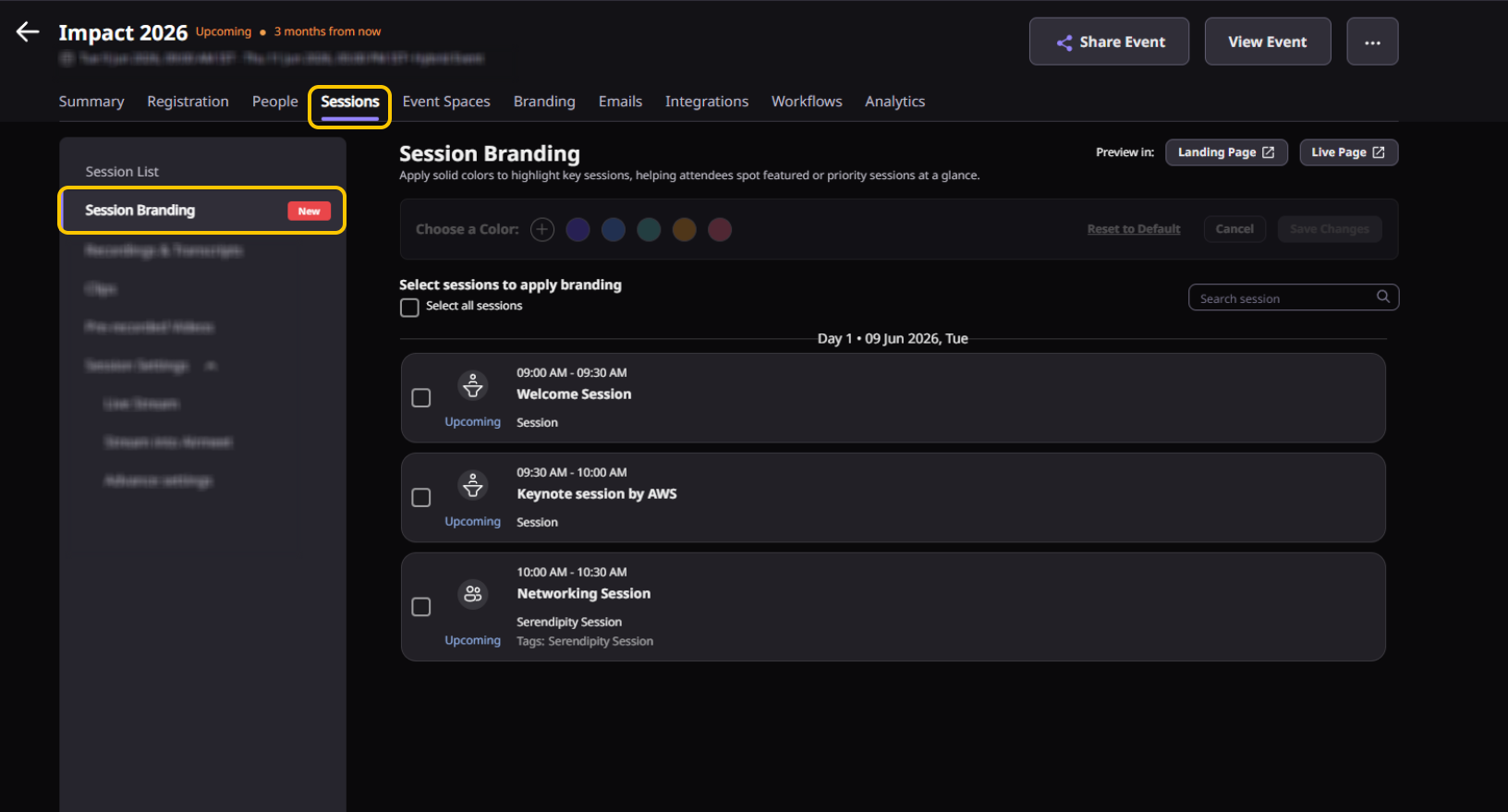
Step 1: Go to your event dashboard and navigate to the Sessions tab. Then click on Session Branding.
Step 2: Select the session(s) to which you want to apply branding.
Step 3: Choose a color from the panel and click Save Changes.
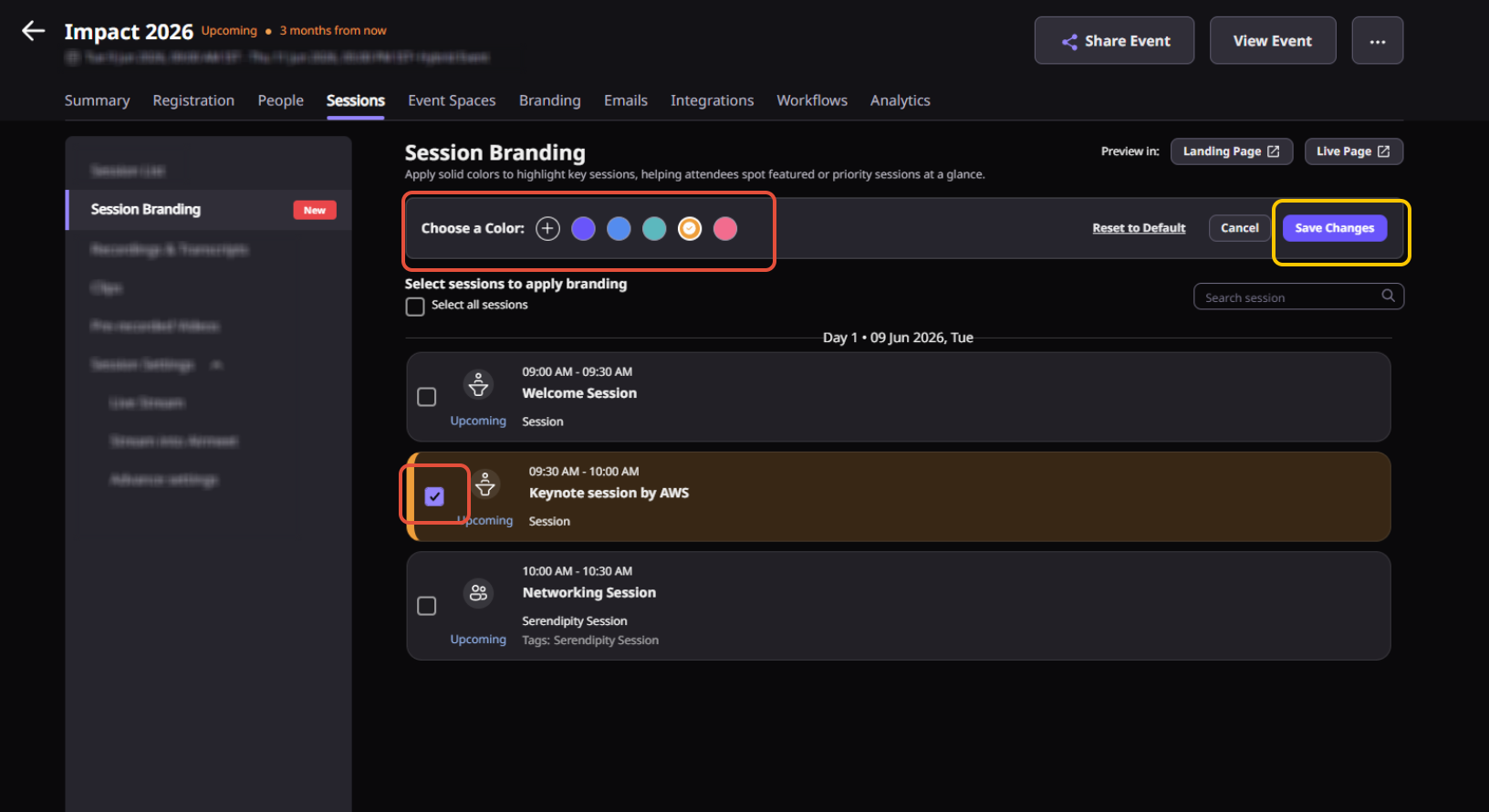
Note: You can select one or multiple sessions at a time and apply branding to all selected sessions simultaneously.
3. Preview
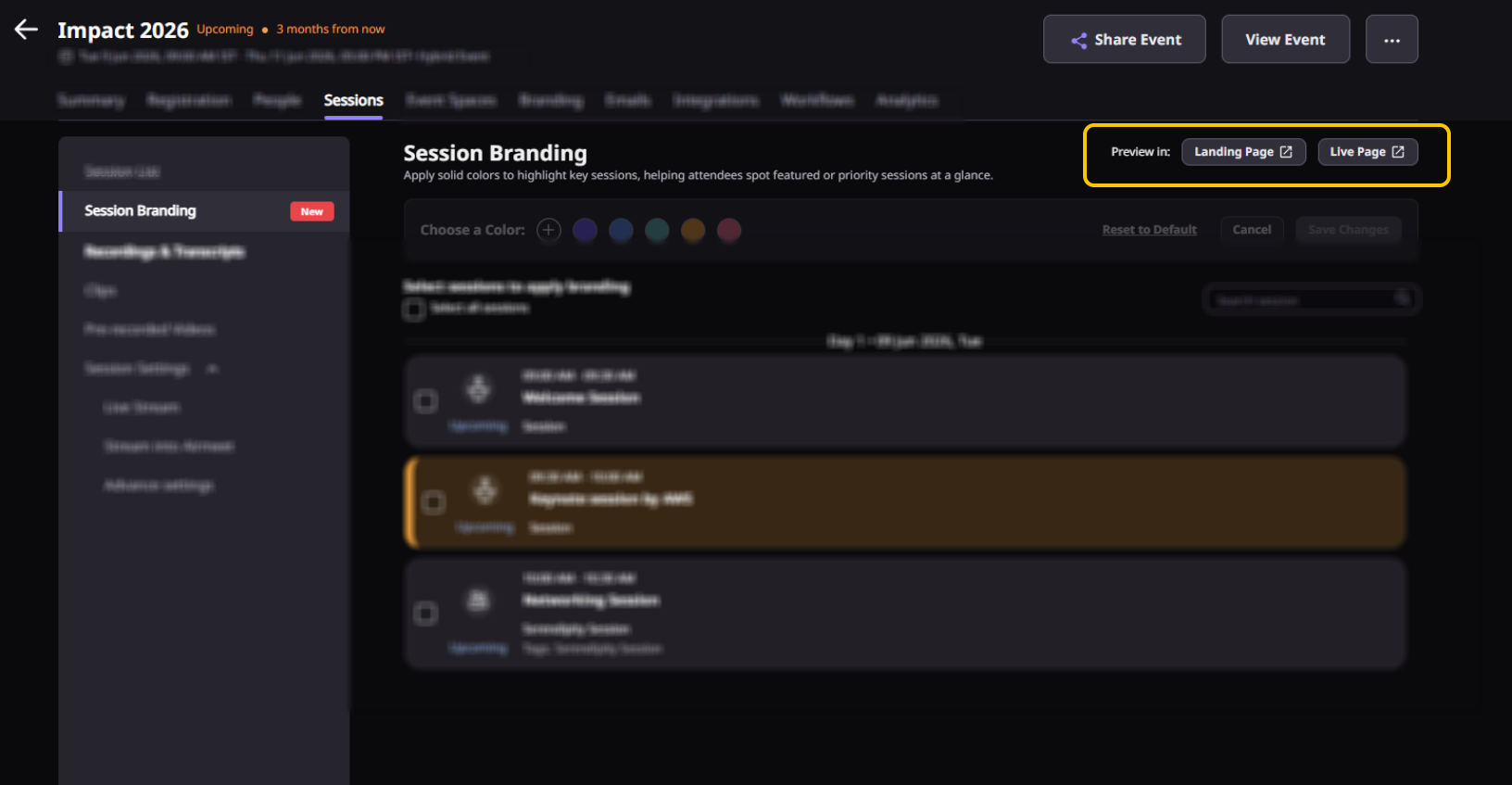
After saving your changes, you can preview them on the Landing Page or Live Event Page using the preview options at the top.
Note: This feature is supported on web and mobile browsers. It is not available on hybrid or in-person mobile apps.Need more help? Contact support@airmeet.com or visit our 24*7 Support Lounge.
Was this article helpful?
That’s Great!
Thank you for your feedback
Sorry! We couldn't be helpful
Thank you for your feedback
Feedback sent
We appreciate your effort and will try to fix the article