
TABLE OF CONTENTS
- 1. Overview
- 2. How to set up a Web Embed
- 3. Preview and publish your Web Embed
- 4. Important considerations
- 5. Frequently Asked Questions
1. Overview
Web Embeds lets you create customized, interactive web experiences and make them available directly within your Airmeet event.
You can combine images, videos, and third-party websites or applications using iFrames to create experiences tailored to your event and audience.
For example, you can embed:
AI-powered photo booths
AI chatbots
Gamification experiences
Social walls
Surveys and feedback tools
Interactive product demos
Sponsor experiences
Custom webpages and microsites
Other supported third-party web applications
Instead of directing attendees to multiple external websites, Web Embeds helps you bring these experiences closer to the event experience.
Example: Create an AI Photo Booth Web Embed and add the photo booth provider's iFrames URL. Attendees can access the experience without having to manually navigate to the provider's website.
2. How to set up a Web Embed
To create a Web Embed:
Step 1: Go to your Airmeet Event Dashboard.
Step 2: Navigate to Event Spaces > Web Embeds.
Step 3: Click Edit Web Embed.
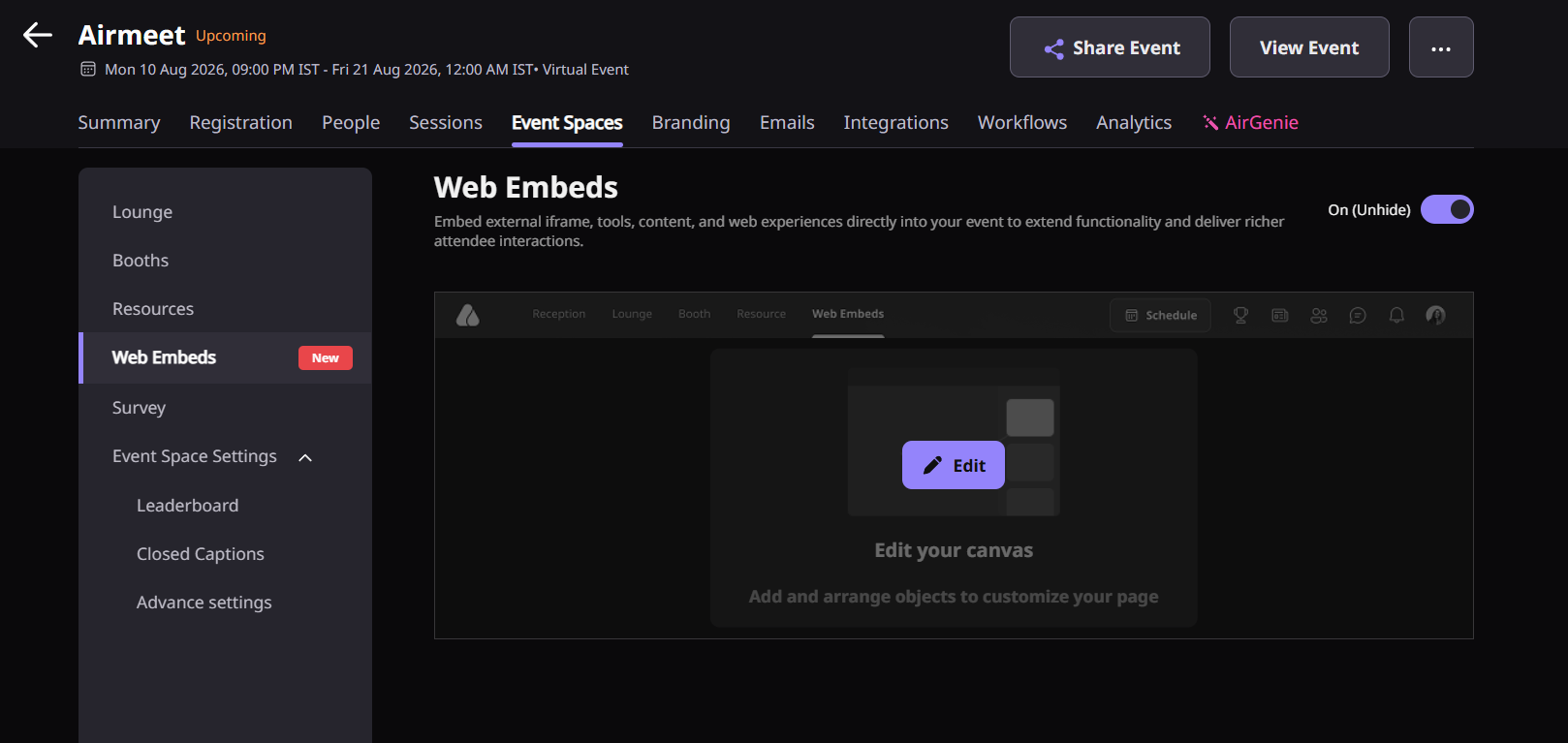
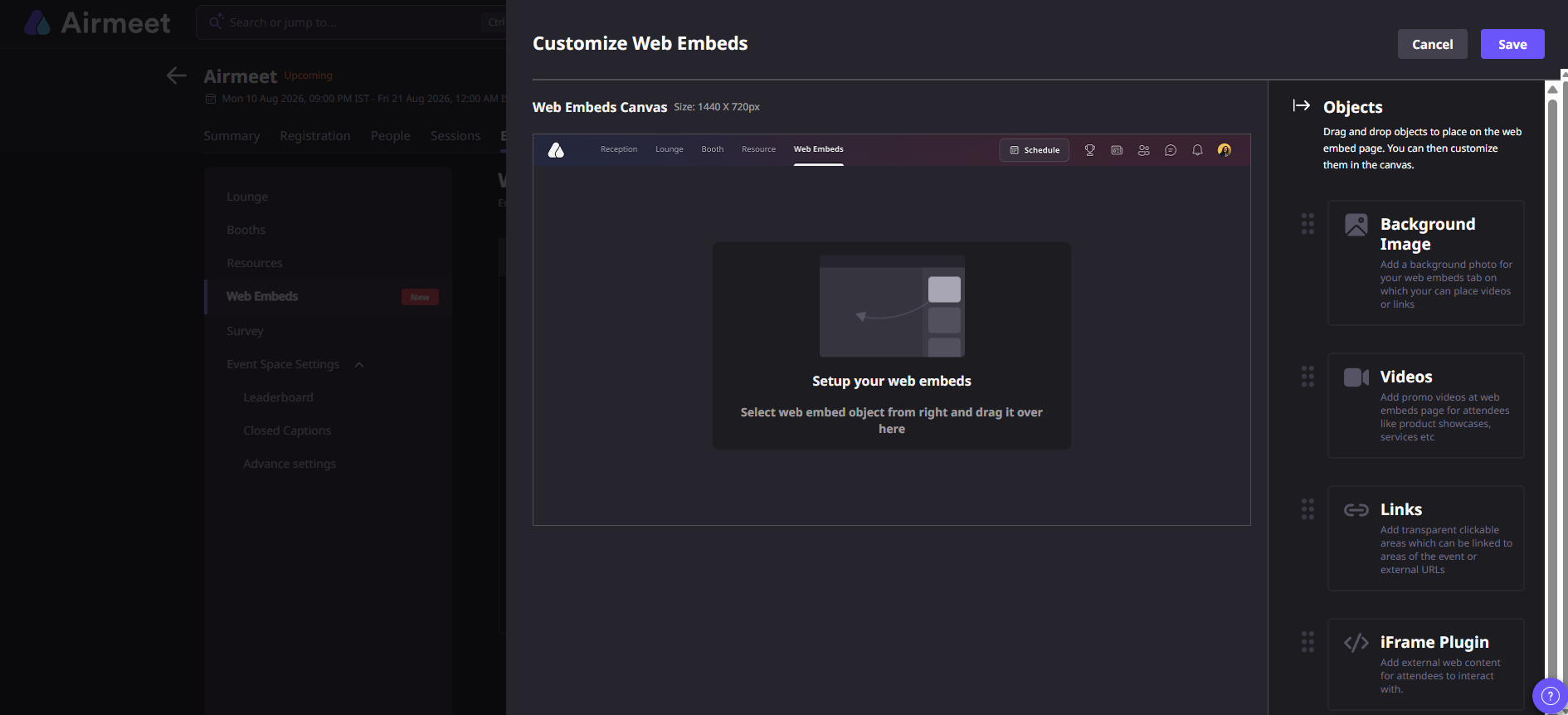
Step 4: Start customizing your Web Embed by adding the required content.
You can add:
Image
Video
Links
iFrame Plugins
Arrange and resize the elements on the canvas based on how you want the page to appear to attendees.
2.1. Add an Image
Images can be used to add branding, banners, instructions, sponsor creatives, or other visual elements to your Web Embed.
To add an image:
Step 1: Select Image from the available objects.
Step 2: Upload the required image.
Step 3: Place the image at the desired position on the canvas.
Step 4: Resize or reposition the image as required.
You can use images alongside videos and iFrames to create a more customized experience.
Tip: Use an image to provide instructions or context around an embedded experience. For example, you can add a branded header above an AI photo booth explaining how attendees can participate.
2.2. Add a Video
Videos can be added to provide instructions, showcase content, promote sponsors, or introduce an embedded experience.
To add a video:
Step 1: Select Video from the available objects.
Step 2: Upload the video.
Step 3: Position the video on the canvas.
Step 4: Resize the video based on your preferred layout.
Videos can be combined with images and iFrames to create richer attendee experiences.
For example, an organizer creating a product experience could add:
Product introduction video → Product information → Interactive product demo
2.3. Add an iFrame
The iFrame option allows you to embed supported third-party websites and web applications into your Web Embed.
This is particularly useful for interactive experiences such as:
AI photo booths
AI chatbots
Social walls
Games and gamification tools
Surveys
Feedback forms
Product demos
Sponsor experiences
Other embeddable web applications
How to add an iFrame
Step 1: Select the iFrame object.
Step 2: Obtain the iFrame or embed URL from the third-party platform you want to use.
Step 3: Enter the URL in the iFrame URL field.
Step 4: Add the iFrame to your canvas.
Step 5: Resize and reposition the embedded experience based on your preferred layout.
Step 6: Preview the Web Embed to confirm that the third-party application loads and functions correctly.
Important: Not every website supports iFrame embedding. The third-party provider must allow its webpage or application to be embedded on another website.
3. Preview and publish your Web Embed
Before making the Web Embed available to attendees, preview it to verify the complete experience.
Check that:
Images are displayed correctly.
Videos load and play as expected.
Embedded applications load correctly.
Interactive elements inside the iFrame work as expected.
The layout and positioning of elements are correct.
The experience works across the devices and browsers you expect attendees to use.
Once everything looks correct, Save the Web Embed.
The Web Embed can then be made available to attendees from the configured location within your event.
4. Important considerations
Before embedding a third-party website or application, make sure the provider supports iFrame embedding.
Some websites prevent their content from being displayed inside an iFrame for security reasons. If this restriction is enabled by the third-party website, the content may not load inside the Web Embed.
We recommend testing every third-party integration before the event.
Also verify:
The embedded experience works without requiring unsupported browser permissions.
The experience is optimized for the expected screen size.
Authentication or login requirements work correctly.
The third-party service can handle the expected attendee traffic.
The content works across supported browsers.
Any required permissions for camera, microphone, or other browser capabilities have been tested.
Note: Airmeet hosts the Web Embed experience, but the functionality and availability of third-party applications are controlled by their respective providers.
5. Frequently Asked Questions
- What can I add to a Web Embed?
You can add supported images, videos, and iFrame-based third-party web experiences. - Can I embed any website?
Only websites and applications that allow themselves to be embedded using an iFrame can be displayed. Some websites block iFrame embedding for security or privacy reasons. - Can I add an AI photo booth?
Yes. If your AI photo booth provider supports web embedding and provides a compatible URL, you can add it using the iFrame option. - Can I embed an AI chatbot?
Yes. AI chatbots and similar web applications can be embedded when the provider supports iFrame-based embedding. - Can attendees interact with the embedded website?
Yes. Interactive applications embedded through an iFrame can allow attendees to interact with the third-party experience, subject to the capabilities and restrictions of the third-party provider. - Can I use Web Embeds for sponsors?
Yes. You can create sponsor-specific Web Embeds containing branding, videos, product information, interactive demos, or supported sponsor webpages. - What should I do if an iFrame isn't loading?
First, verify that the URL is correct. If the URL works independently but does not load inside the Web Embed, check with the third-party provider whether their website allows iFrame embedding. - Should I test my Web Embed before the event?
Yes. We strongly recommend previewing and testing the complete experience before making it available to attendees, particularly when using third-party applications.
Need more help? Contact support@airmeet.com or visit our Customer Support Lounge.
Was this article helpful?
That’s Great!
Thank you for your feedback
Sorry! We couldn't be helpful
Thank you for your feedback
Feedback sent
We appreciate your effort and will try to fix the article