TABLE OF CONTENTS
- 1. Overview
- 2. Customize Speaker Tiles
- 3. Choose a display style
- 4. Customize background and text colors
- 5. Apply Speaker Tile settings to all sessions
- 6. Preview and update Speaker Tiles
- 7. Frequently Asked Questions
1. Overview
Speaker Tiles allow organizers to customize how participant names and video headlines appear on stage during an Airmeet session.
Choose from different display styles and customize the background and text colors to match your event branding and improve the on-stage experience.
You can customize Speaker Tiles for an individual session or apply the same design across all sessions in your event with a single action.
Tip : Keep video headlines short and concise for better visibility on the speaker tile.2. Customize Speaker Tiles
To customize Speaker Tiles:
Step 1: Go to your Airmeet Event Session.
Step 2: Go to session backstage.
Step 3: Navigate to the session's Stage Branding settings.
Step 4: Find and expand the Speaker Title section.
Here, you can customize the display style and colors used for speaker information on stage.
3. Choose a display style
Speaker Tiles provide multiple styles for displaying the speaker's name and video headline.
Choose from the available styles:
- Default
Displays the speaker information in a simple, minimal format. - Classic
Displays the speaker information inside a rectangular label for a more prominent appearance. - Spotlight
Uses a highlighted treatment behind the speaker name while keeping the video headline visually separate. - Capsule
Displays the speaker name in a rounded capsule-style label for a modern on-stage appearance.
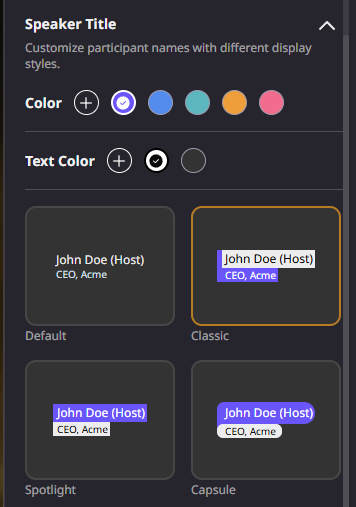
Select a style to preview how the speaker name and video headline will appear.
Changes to the selected style are reflected in the preview before you apply them.
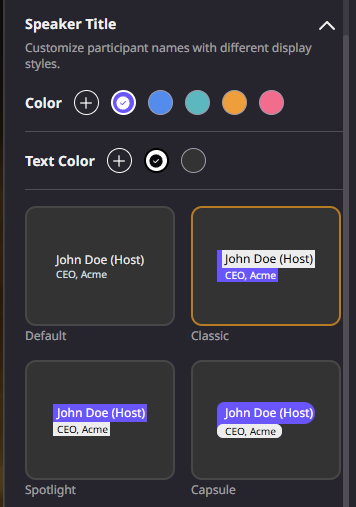
4. Customize background and text colors
You can further customize Speaker Tiles to match your event's visual identity.
Background Color
Choose the background color used for the Speaker Tile styling.
You can select one of the available colors or use the + option to choose a custom color.
Text Color
Choose a suitable text color for the speaker name and video headline.
Select a color that provides sufficient contrast against the selected background to keep speaker information easy to read.
Best practice: Use contrasting background and text colors to maintain readability across different video backgrounds.
5. Apply Speaker Tile settings to all sessions
If your event has multiple sessions, you don't need to configure Speaker Tiles individually for every session.
After customizing your Speaker Tile:
Step 1: Select your preferred style, background color, and text color.
Step 2: Enable Apply this to all sessions.
Step 3: Click Apply.
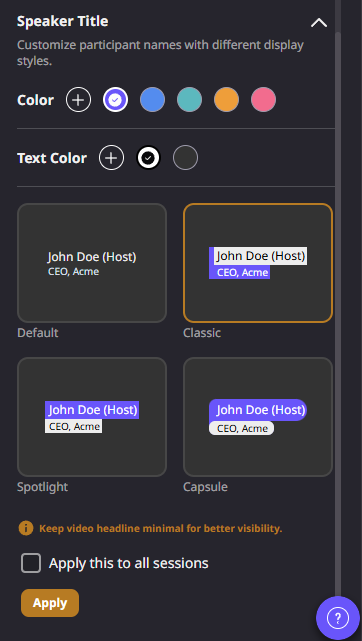
The selected Speaker Tile configuration will be applied across all sessions in the event.
This is particularly useful when you want to maintain a consistent stage design and branding throughout your event.
Note: If Apply this to all sessions is not selected, the changes will apply only to the session you are currently configuring.
6. Preview and update Speaker Tiles
The Speaker Title settings provide a preview of each available style so you can see how the speaker's information will appear before applying your changes.
Before applying the configuration, check:
The selected Speaker Tile style
Background color
Text color
Readability of the speaker name
Readability of the video headline
Whether the configuration should apply to the current session or all sessions
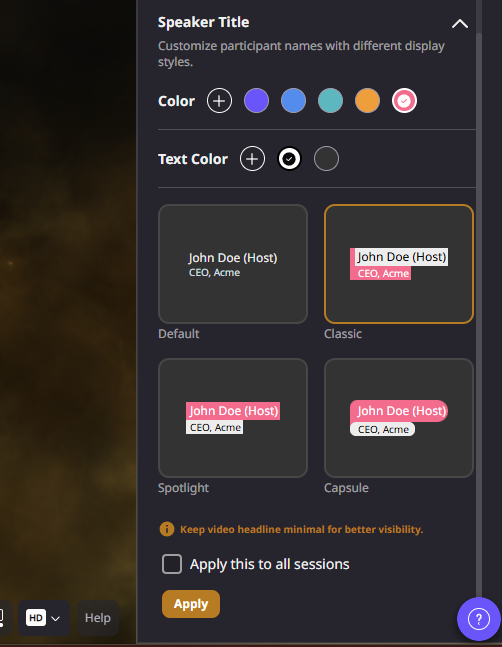
Once you're satisfied with the configuration, click Apply to save your changes.
You can return to the Speaker Title settings and update the design whenever required.
7. Frequently Asked Questions
- What can I customize using Speaker Tiles?
You can customize the display style, background color, and text color used for the speaker name and video headline displayed on stage. - What Speaker Tile styles are available?
You can choose from:- Default
- Classic
- Spotlight
- Capsule
- Can I customize the colors?
Yes. You can customize both the background color and text color of your Speaker Tile. - Can I use the same Speaker Tile design across my entire event?
Yes. Enable Apply this to all sessions before clicking Apply to use the selected configuration across all sessions in your event. - What happens if I don't select "Apply this to all sessions"?
The Speaker Tile configuration will only be applied to the session you are currently customizing. - Can I change the Speaker Tile design later?
Yes. You can return to the Speaker Title settings and update the style or colors whenever required. - What should I keep in mind when adding a video headline?
Keep video headlines short and concise so they remain easy to read when displayed on the participant's video tile.
Need more help? Contact support@airmeet.com or visit our Customer Support Lounge.
Was this article helpful?
That’s Great!
Thank you for your feedback
Sorry! We couldn't be helpful
Thank you for your feedback
Feedback sent
We appreciate your effort and will try to fix the article