The Layout feature in AirStudio lets you customize how presenters and video feeds appear during live streams, recordings, and podcasts. You can choose layouts, customize speaker labels, add borders and backgrounds, and adjust spacing for each shot.
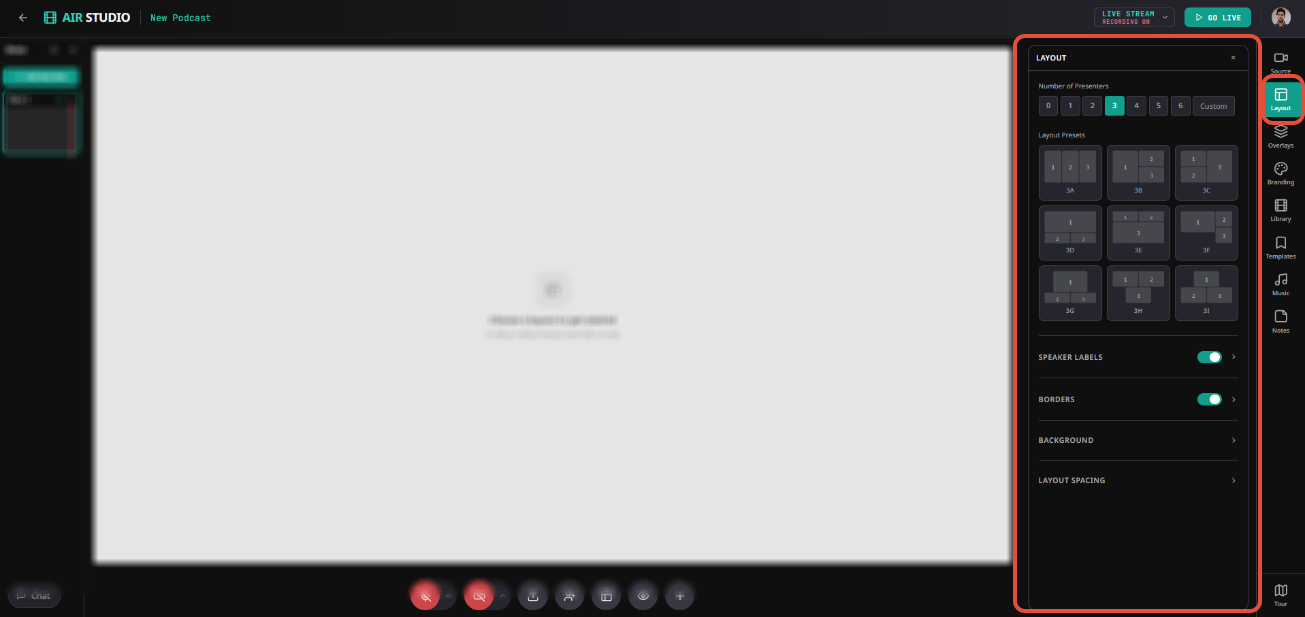
1. Access Layout Settings
Enter AirStudio and select a shot.
Click Layout from the right-hand toolbar.
Configure the available layout settings.
2. Layout
Choose how presenters appear on the stage.
Number of Presenters: Select 0–6 presenters or choose Custom.
Layout Presets: Select a predefined arrangement, such as 1A, 1B, or 1C.
Custom Layout: Manually resize and reposition video feeds, then save your arrangement as a custom layout.
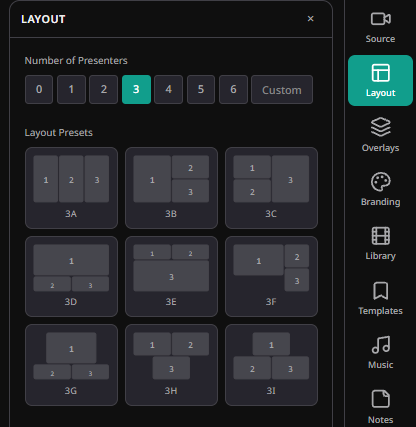
Note: Layout configurations apply to the selected shot, allowing different shots to have different arrangements.
3. Speaker Labels
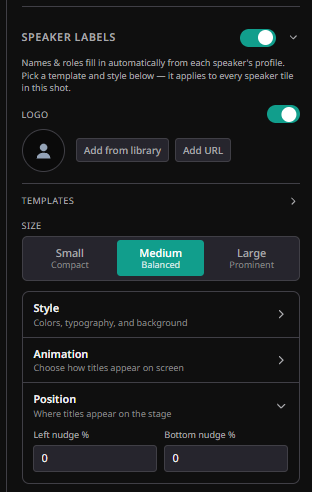
Enable Speaker Labels to display speaker names and roles on their video tiles.
Names and roles are automatically populated from each speaker's profile. The selected template and styling apply to all speaker tiles within the current shot.
3.1. Logo and Templates
Logo: Add a logo from your Library or using a URL.
Templates: Choose from the available speaker label designs.
3.2. Size
Choose from three label sizes:
Small: Compact
Medium: Balanced
Large: Prominent
3.3. Style
Customize the appearance of speaker labels.
| Setting | Description |
|---|---|
| Name Font | Customize the name's font, color, and text formatting. |
| Role Font | Customize the role's font, color, and text formatting. |
| Accent | Set the accent color. |
| BG 1 & BG 2 | Configure the label's background colors. |
| Panel Opacity | Adjust background transparency. |
3.4. Animation
Configure how speaker labels appear on screen.
Entry: Select an entrance animation, such as Slide Left.
Visible For: Set the label's visibility behavior, such as Always On.
Click Apply to save the animation settings.
3.5. Position
Adjust the label's placement using:
Left Nudge (%): Horizontal positioning.
Bottom Nudge (%): Vertical positioning.
4. Borders
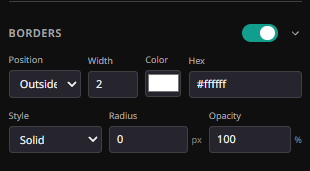
Enable Borders to add and customize borders around video feeds.
| Setting | Description |
|---|---|
| Position | Inside or outside the video feed. |
| Width | Border thickness. |
| Color / Hex | Border color or custom HEX value. |
| Style | Border style, such as Solid. |
| Radius | Corner roundness in pixels. |
| Opacity | Border transparency. |
5. Background
Customize the background behind your video feeds.
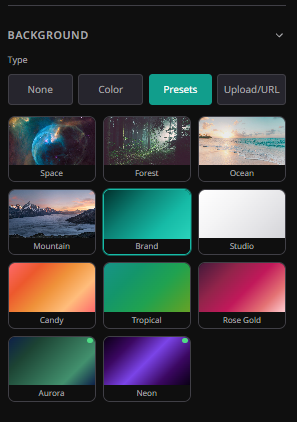
Choose from the following options:
None: No additional background.
Color: Apply a solid background color.
Presets: Select a predefined background, such as Space, Forest, Ocean, Mountain, Brand, Studio, Candy, Tropical, Rose Gold, Aurora, or Neon.
Upload/URL: Add your own background image.
6. Layout Spacing
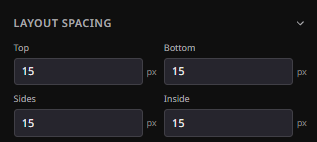
Adjust the spacing around and between video feeds.
| Setting | Description |
|---|---|
| Top | Space above the video feeds. |
| Bottom | Space below the video feeds. |
| Sides | Space along the left and right edges. |
| Inside | Gap between individual video feeds. |
All spacing values are configured in pixels (px).
Layout Workflow at a Glance
Enter Studio → Select Shot → Open Layout → Choose Layout → Customize Speaker Labels → Borders → Background → Layout Spacing
AirStudio Layout settings help you create consistent, branded stage arrangements tailored to each shot in your production.
Need more help? Contact support@airmeet.com or visit our 24*5 Customer Support Lounge.
Was this article helpful?
That’s Great!
Thank you for your feedback
Sorry! We couldn't be helpful
Thank you for your feedback
Feedback sent
We appreciate your effort and will try to fix the article