AirStudio is your all-in-one studio for creating professional video content directly from your browser. Whether you're hosting a live stream, recording high-quality videos, or producing podcasts, AirStudio brings everything together in one place.
With AirStudio, you can manage participants, customize your production, add media and branding, and create engaging content without switching between multiple tools. This article introduces the AirStudio interface and its key features to help you get started.
1. Access AirStudio
To get started:
- Log in to your Airmeet dashboard.
- Click Studio from the top navigation.
- From My Studio, select New Stream, New Record, or New Podcast.
- Enter the required details and create your session.
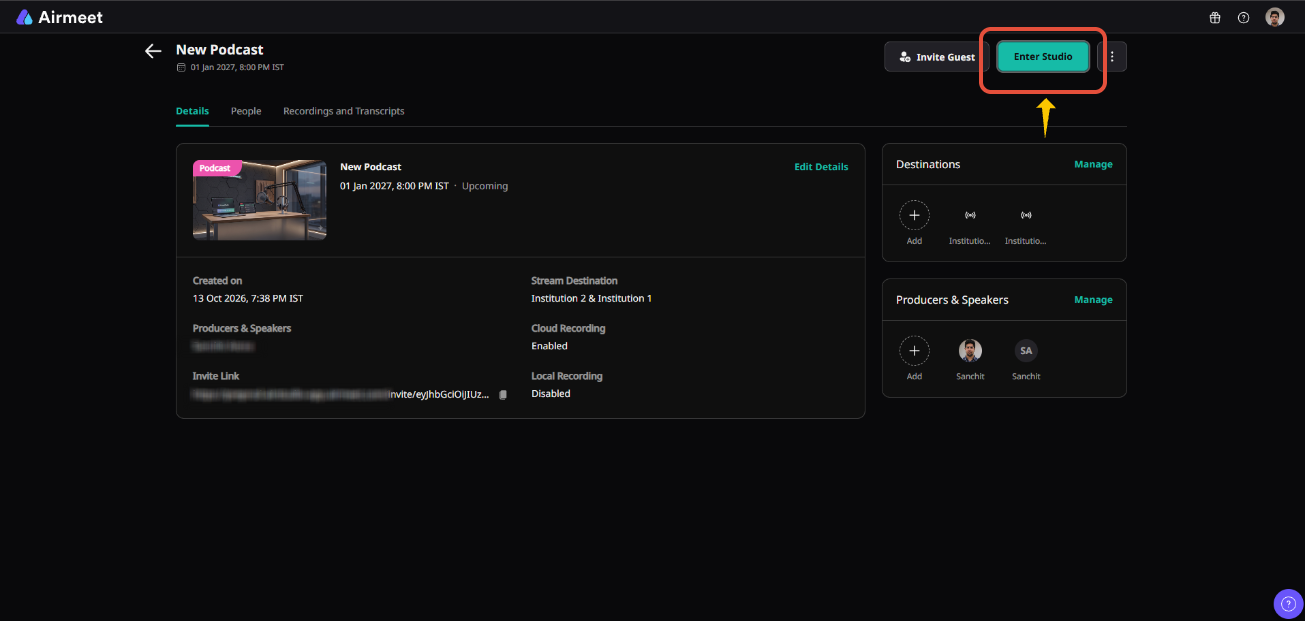
- Click Enter Studio to access the production environment.
2. Explore the AirStudio interface
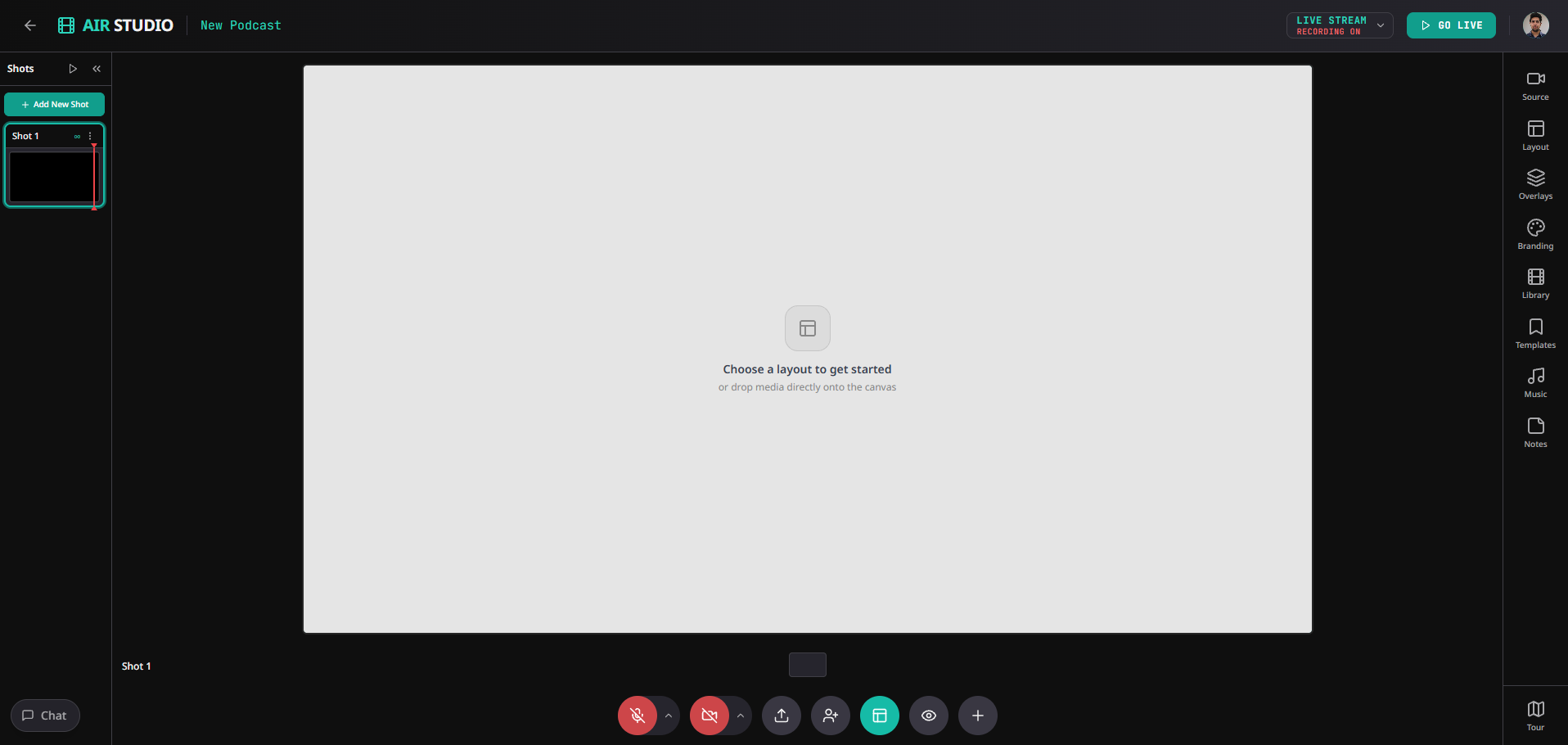
When you enter AirStudio, you'll find a workspace designed to help you manage your entire production. The Studio interface is organized into several key sections, each serving a different purpose.
2.1. Shots
Shots allow you to create and manage different scenes within your production.
You can create multiple shots, switch between them, and organize your content to deliver a more dynamic viewing experience.
2.2. Private Chat
Use Private Chat to communicate with guests, speakers, and other team members during your session.
This helps your production team coordinate without interrupting the recording or live broadcast.
2.3. Studio Controls
The bottom toolbar provides quick access to essential production controls.
From here, you can:
- Mute or unmute your microphone.
- Turn your camera on or off.
- Share your screen.
- Invite guests.
- Manage available production controls.
2.4. Creative Tools
The right-side toolbar provides access to tools for customizing your production.
| Tool | Description |
|---|---|
| Media | Add and manage media assets for your production. |
| Source/Layout | Customize how participants and content appear on screen. |
| Overlays | Add visual elements to enhance your production. |
| Branding | Customize your production with brand elements. |
| Library | Access and reuse uploaded media files. |
| Templates | Use available templates to simplify content creation. |
| Audio | Manage audio assets used during your production. |
| Notes | Keep important information accessible during your session. |
Each tool will be covered in detail in a separate Knowledge Base article.
3. Take a guided tour of AirStudio
When you first enter AirStudio, a guided tour introduces you to the main sections of the interface.
The tour consists of six steps:
Welcome to AirStudio: Get an introduction to your production workspace.
Shots: Learn how to create, switch, and organize shots.
Private Chat: Discover how to communicate privately with guests and team members.
Controls: Explore microphone, camera, screen-sharing, and other production controls.
Right Toolbar: Get familiar with media, layouts, overlays, branding, and other creative tools.
You're all set!: Complete the tour and start creating content.
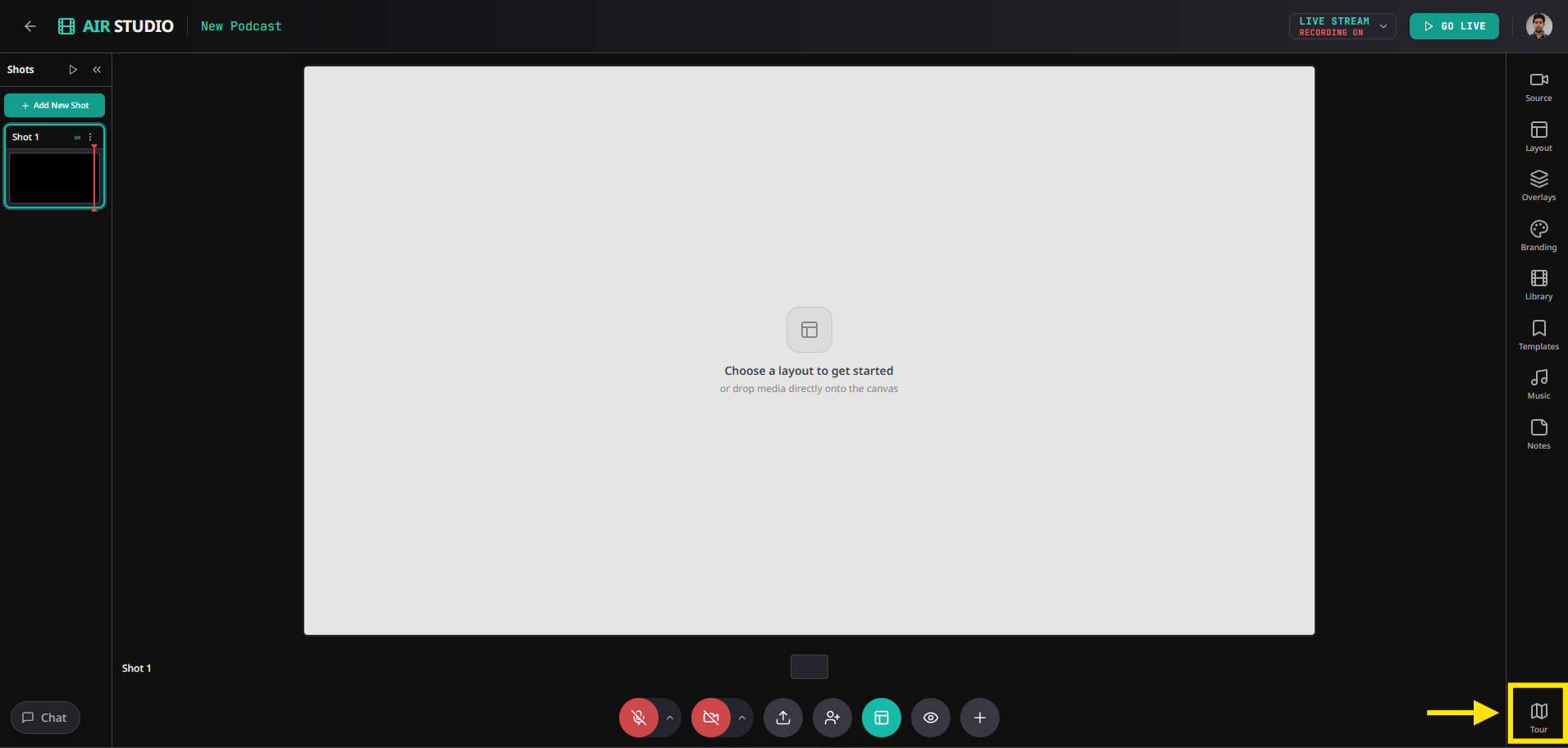
Click Next Step to continue through the tour or Skip Tour to exit. Once you reach the final step, click Let's Go! to start using AirStudio.
4. Start recording or broadcasting
Once your Studio is set up, you can begin creating content based on the format you selected.
Stream: Broadcast live to your configured destinations.
Record: Capture professional video recordings.
Podcast: Record your Podcast, broadcast it live, or do both simultaneously.
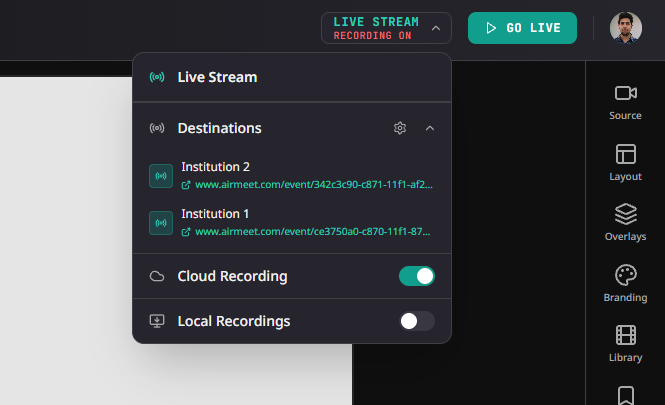
Use the production controls to prepare your content before starting your session.
5. Manage your content after the session
Once your session ends, you can return to the AirStudio dashboard to access your content.
Depending on your session configuration, you can access:
Cloud recordings
Individual local recordings
Transcripts, when available
Recording preview and download options
Navigate to My Studio → Select your session → Recordings and Transcripts to access the available files.
6. Explore more AirStudio features
AirStudio offers additional features to help you create and manage professional content.
Explore the individual Knowledge Base articles to learn more about Shots, Private Chat, Studio Controls, Media, Layouts, Overlays, Branding, Library, Templates, Audio, and Notes.
Each article provides detailed instructions for using the respective feature.
AirStudio workflow at a glance
Airmeet Dashboard → Studio → Create Stream/Record/Podcast → Enter Studio → Set Up Production → Start Recording/Broadcasting → End Session → Access Recordings
AirStudio provides a unified workspace for creating, producing, and managing professional video content. Explore the available tools to customize your production and create engaging experiences for your audience.
Need more help? Contact support@airmeet.com or visit our 24*5 Customer Support Lounge.
Was this article helpful?
That’s Great!
Thank you for your feedback
Sorry! We couldn't be helpful
Thank you for your feedback
Feedback sent
We appreciate your effort and will try to fix the article