The AirStudio Producer Toolbar provides quick access to essential production controls for managing your live streams, recordings, and podcasts.
Located at the bottom of the Studio interface, the toolbar allows producers to manage audio and video, share content, invite guests, customize stage layouts, manage shot elements, and add creative assets.
This article explains each toolbar control and how to use it during your production.
1. Access the Producer Toolbar
When you enter AirStudio, the Producer Toolbar appears at the bottom of your Studio workspace.
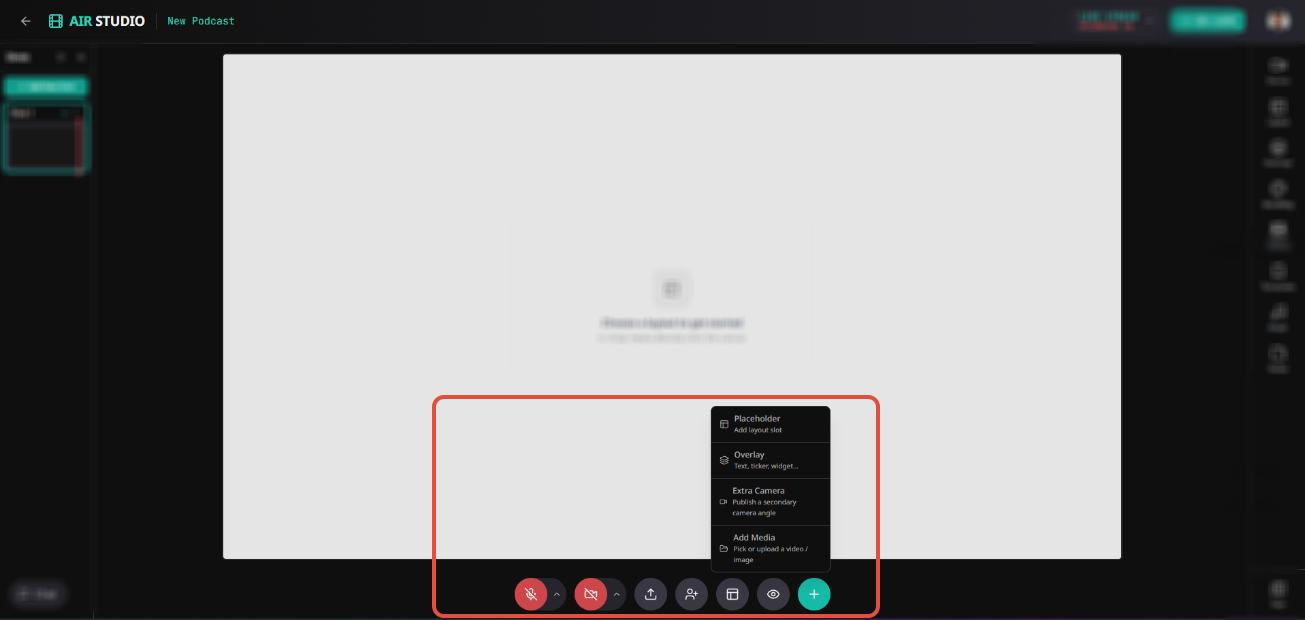
The toolbar includes the following controls:
| Control | Description |
|---|---|
| Microphone | Mute or unmute your microphone. |
| Audio Settings | Configure your microphone, speakers, and noise cancellation. |
| Camera | Turn your camera on or off. |
| Video Settings | Configure your camera, video resolution, and virtual background. |
| Share Content | Share your screen or present a PDF file. |
| Invite Guest | Invite participants to your Studio. |
| Stage Layout | Show or hide stage layout options. |
| Shot Elements | Show or hide the elements associated with the current shot. |
| Add Elements | Add placeholders, overlays, extra cameras, or media to your shot. |
2. Audio Controls
The Microphone control allows you to manage your audio during a Studio session.
Click the Microphone icon to mute or unmute yourself.
The tooltip changes based on the microphone's current state:
Unmute Microphone: Turn on your microphone.
Mute Microphone: Turn off your microphone.
2.1. Audio Settings
Click the arrow (⌃) next to the Microphone icon to access Audio Settings.
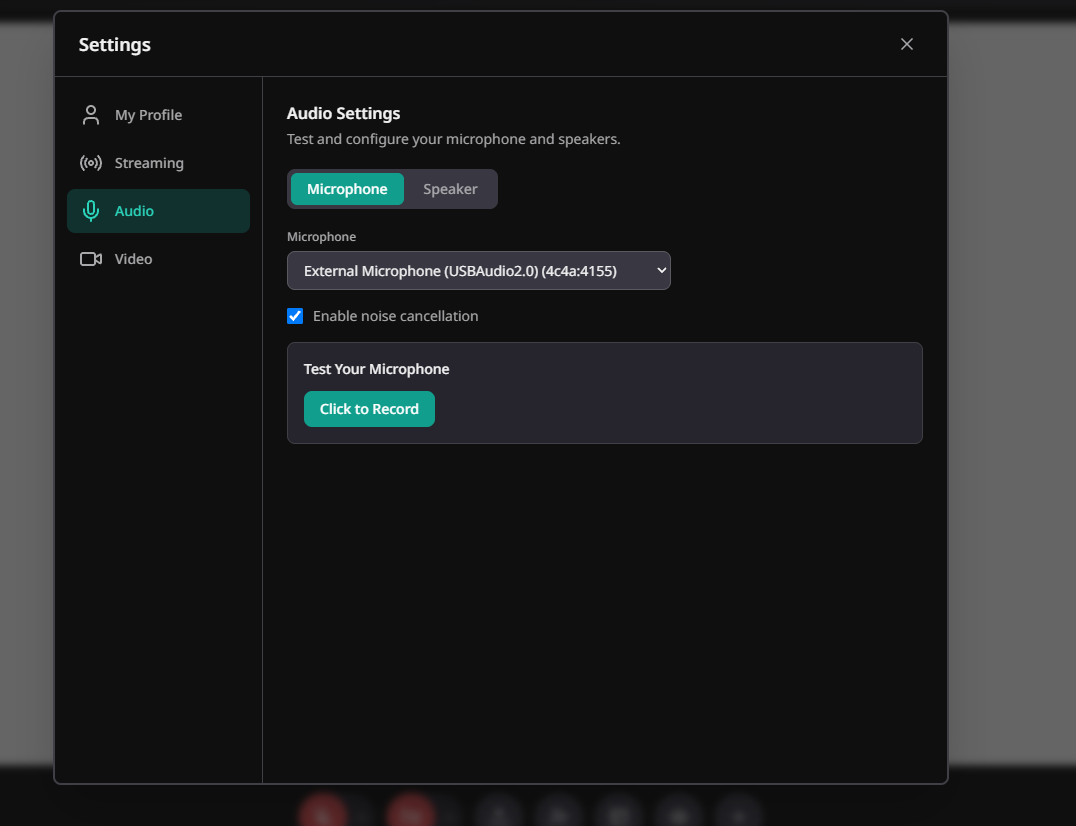
From here, you can configure:
a. Microphone Selection
Select your preferred microphone from the available devices, including built-in or external microphones.
b. Noise Cancellation
Enable Noise Cancellation to reduce unwanted background noise and improve audio clarity.
c. Test Your Microphone
Before starting your production, you can test your microphone.
Navigate to Audio Settings → Microphone.
Click Click to Record.
Record a short audio sample.
Review the recording to verify your microphone quality.
d. Speaker Settings
Switch to the Speaker tab to select your preferred audio output device, such as headphones or external speakers.
3. Video Controls
The Camera control allows you to manage your video during a Studio session.
Click the Camera icon to turn your camera on or off.
The tooltip changes based on your camera's current state:
Turn On Camera: Enable your video.
Turn Off Camera: Disable your video.
3.1. Video Settings
Click the arrow (⌃) next to the Camera icon to access Video Settings.
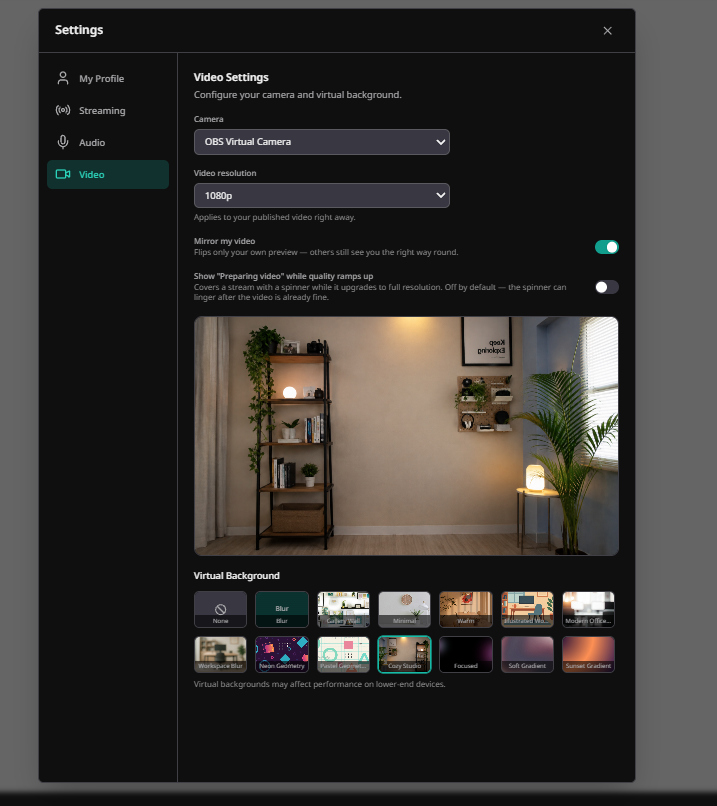
The following options are available:
a. Camera Selection
Select your preferred camera from the available devices, including built-in webcams, external cameras, or supported virtual cameras.
b. Video Resolution
Choose your preferred video resolution from the available options.
Changes to the resolution are applied to your published video.
c. Mirror My Video
Enable Mirror my video to flip your own camera preview horizontally.
This only changes your local preview. Other participants continue to see your video in its normal orientation.
d. Preparing Video Indicator
Enable Show "Preparing video" while quality ramps up to display a loading indicator while your video reaches the selected resolution.
e. Virtual Background
Apply an available virtual background to customize your on-screen appearance and maintain a professional-looking production environment.
4. Share Content
The Share Content control allows you to share your screen or present a PDF document directly from your computer.
Click the Share Content icon in the bottom toolbar.
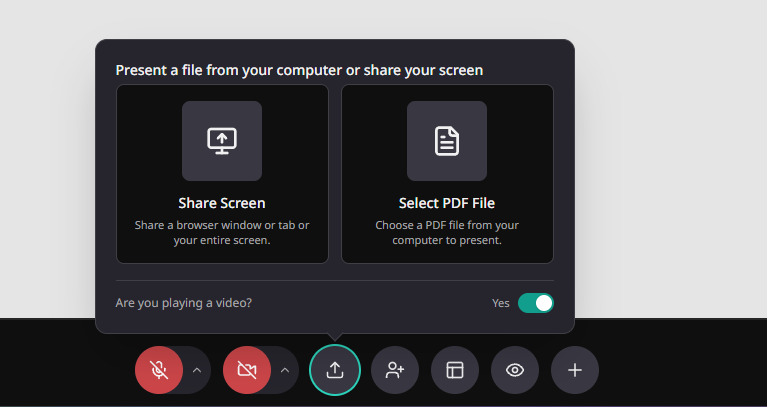
You can choose between the following options:
4.1. Share Screen
Select Share Screen to present content from your computer.
Depending on your browser, you can share:
Your entire screen.
A specific application window.
A browser tab.
Follow the browser prompts to select the content you want to share.
4.2. Select PDF File
Select Select PDF File to present a PDF document directly from your computer.
Click Select PDF File.
Choose the PDF document from your device.
Open the file to present it in your Studio.
4.3. Playing a Video
If you're sharing video content, use the Are you playing a video? toggle to indicate that your shared content includes video playback.
5. Invite Guest
The Invite Guest control allows producers to invite participants to their Studio.
Click the Invite Guest icon (person with a plus sign) in the bottom toolbar to access the available invitation options.
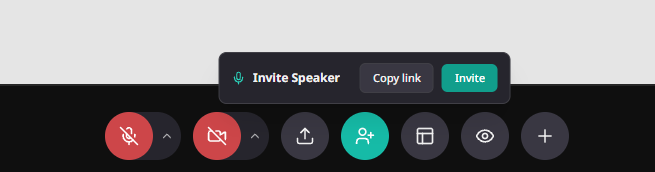
Guests can join the Studio and participate in your recording, live stream, or podcast.
This is useful when collaborating with speakers, interviewees, or other participants during your production.
6. Stage Layout
The Stage Layout control allows you to show or hide the layout options available at the bottom of your Studio stage.
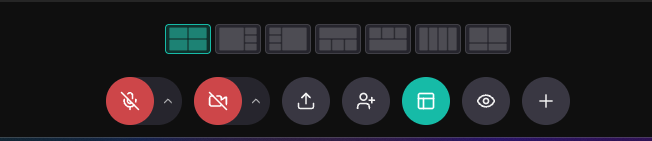
Click the Stage Layout icon to toggle the available layout options. The tooltip changes based on the current state:
Show Stage Layout: Display the available stage layout options.
Hide Stage Layout: Hide the stage layout options.
This helps producers manage the arrangement of content and participants while keeping the production workspace organized.
7. Shot Overlay Elements
The Shot Elements control allows you to show or hide the panel containing all elements associated with the currently selected shot.
Click the Shot Elements icon (eye symbol) in the bottom toolbar. The tooltip changes based on the panel's current state:
Show Shot Elements: Display the elements associated with the current shot.
Hide Shot Elements: Hide the Shot Elements panel.

This panel helps producers access and manage the elements added to a particular shot without leaving the production workspace.
Note: Hiding the Shot Elements panel only hides the management panel from your workspace. It does not remove elements from the shot or affect the broadcast output.
8. Add Elements
The Add Elements control allows producers to add new creative and production elements to the currently selected shot.
Click the Add Elements (+) icon in the bottom toolbar.
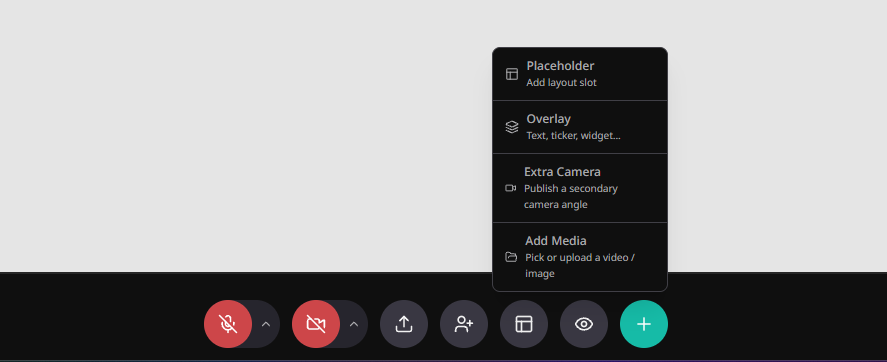
The following options are available:
8.1. Placeholder
Select Placeholder to add a new layout slot to your shot. Placeholders help organize where participants or content will appear within the stage layout.
8.2. Overlay
Select Overlay to add visual elements to your production. You can enhance your shot with elements such as:
Text
Tickers
Widgets
8.3. Extra Camera
Select Extra Camera to add a secondary camera angle to your production.
This is useful when you want to display multiple perspectives during a recording, podcast, or live stream.
8.4. Add Media
Select Add Media to add video or image content to your shot.
You can choose existing media or upload new assets to enhance your production.
9. Producer Toolbar Quick Reference
| Control | Tooltip / Action |
|---|---|
| Microphone | Mute Microphone / Unmute Microphone |
| Audio Settings | Open Audio Settings |
| Camera | Turn On Camera / Turn Off Camera |
| Video Settings | Open Video Settings |
| Share Content | Share Content |
| Invite Guest | Invite Guest |
| Stage Layout | Show Stage Layout / Hide Stage Layout |
| Shot Elements | Show Shot Elements / Hide Shot Elements |
| Add Elements | Add Elements |
The AirStudio Producer Toolbar brings together essential production controls in one place, helping you manage audio, video, participants, layouts, and creative elements while producing professional live streams, recordings, and podcasts.
Need more help? Contact support@airmeet.com or visit our 24*5 Customer Support Lounge.
Was this article helpful?
That’s Great!
Thank you for your feedback
Sorry! We couldn't be helpful
Thank you for your feedback
Feedback sent
We appreciate your effort and will try to fix the article