Shots in AirStudio allow you to create, organize, and manage different scenes within your production. You can create multiple shots, switch between them, set automatic transitions, and customize how each shot appears during your recording or live broadcast.
This article explains how to create, edit, duplicate, save, and manage Shots in AirStudio.
1. Access Shots
When you enter AirStudio, the Shots panel appears on the left side of your Studio workspace.
The panel displays all the shots created for your current production.
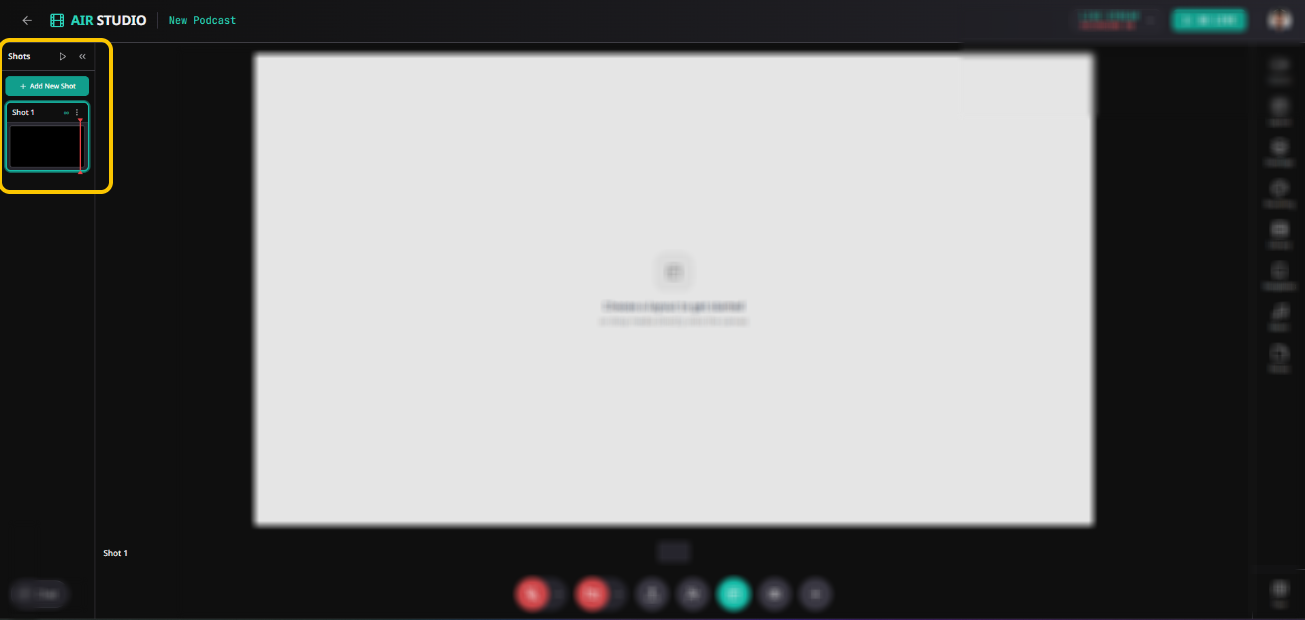
From here, you can:
Create new shots.
Switch between existing shots.
Edit shot settings.
Duplicate or delete shots.
Save shots as reusable templates.
2. Create a new Shot
To create a Shot:
Open the Shots panel on the left side of AirStudio.
Click + Add New Shot.
A new shot will be added to your Shots list.
Select the shot to configure its content and layout.
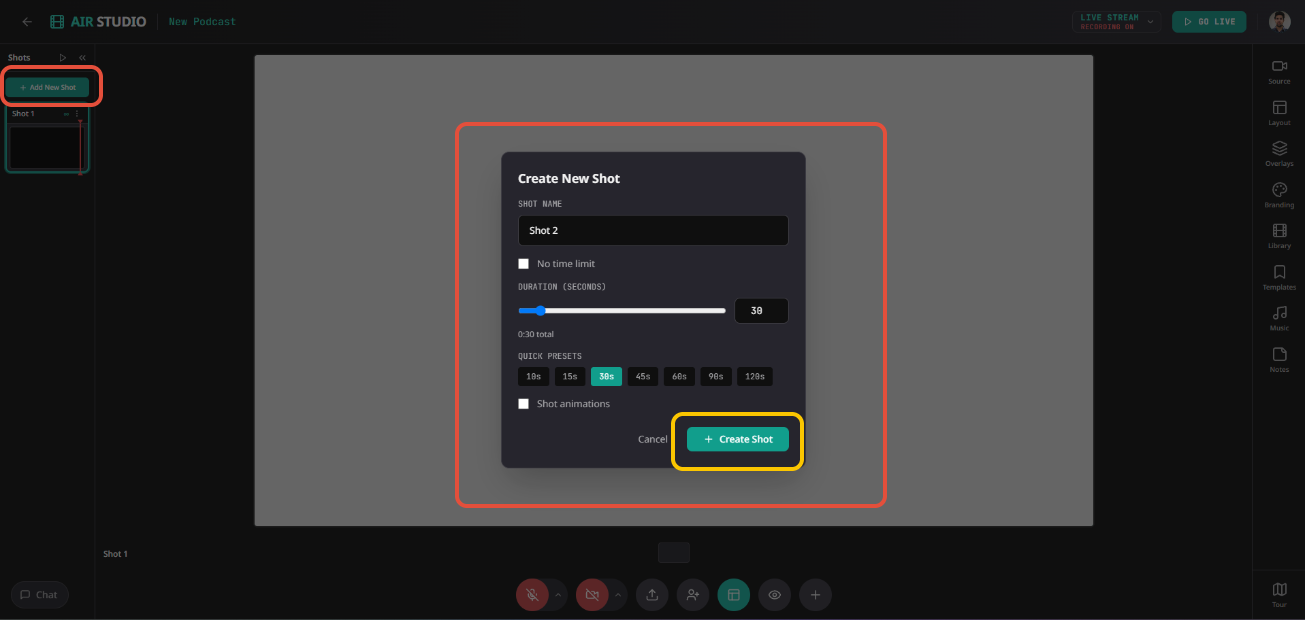
You can create multiple shots to organize different parts of your production.
For example, you can create separate shots for an introduction, speaker discussion, screen sharing, and closing remarks.
3. Manage your Shots
Each shot has an Actions (•••) menu that provides additional management options.
To access these options:
Navigate to the Shots panel.
Locate the shot you want to manage.
Click the three-dot (•••) menu.
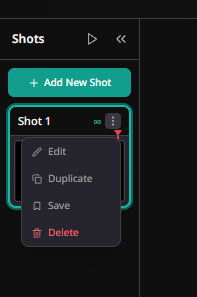
The following options are available:
3.1. Edit Shot
Select Edit to customize the shot's name, duration, and animations.
The Edit Shot window provides the following settings:
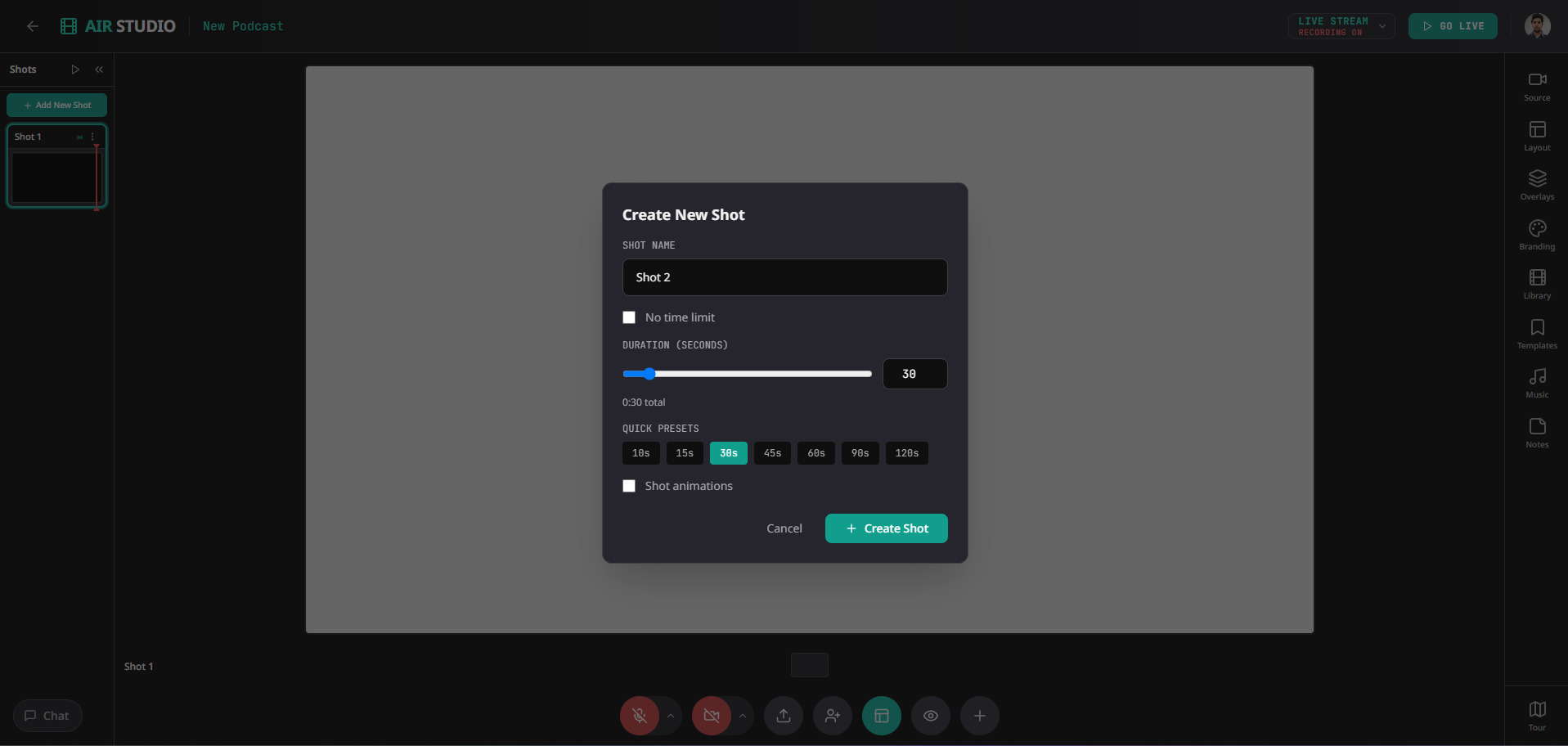
A. Shot Name
Enter a recognizable name for your shot to easily identify it during production.
For example: Introduction, Speaker Discussion, Product Demo, or Closing.
B. Shot Duration
Set how long a shot should remain active before automatically switching to the next shot.
You can configure the duration using:
No time limit: The shot remains active until you manually switch to another shot.
Custom duration: Use the slider or enter the duration in seconds.
Quick Presets: Select from predefined durations of 10s, 15s, 30s, 45s, 60s, 90s, or 120s.
Once the configured duration is reached, AirStudio automatically switches to the next shot.
Note: Automatic switching is based on the configured shot duration. Enable No time limit if you want to control shot changes manually.
C. Shot Animations
Shot animations control how a shot appears and transitions during your production.
Enable Shot animations to configure:
Start Animation: Defines how the shot appears when it becomes active, such as Fade In.
End Animation: Defines how the shot disappears when transitioning away, such as Fade Out.
You can select the preferred animation from the available dropdown options.
Once you've configured the settings, click Save Changes.
3.2. Duplicate Shot
Use Duplicate to create a copy of an existing shot.
This is useful when you want to reuse the same layout or content setup without recreating it from scratch.
To duplicate a shot:
Click the Actions (•••) menu.
Select Duplicate.
A copy of the selected shot will be created.
You can then edit the duplicated shot independently.
3.3. Save as Template
Use Save to store a shot as a reusable template.
This allows you to reuse a configured shot in future productions without rebuilding its layout and content.
To save a shot:
Click the Actions (•••) menu.
Select Save.
The shot will be saved as a reusable template.
You can access saved templates from the Templates section in AirStudio.
3.4. Delete Shot
Use Delete to remove a shot that is no longer required.
To delete a shot:
Click the Actions (•••) menu.
Select Delete.
Confirm the deletion if prompted.
Note: Make sure the shot is no longer required before deleting it.
4. Switch between Shots
You can switch between shots to display different scenes during your recording or live broadcast.
There are two ways to manage shot transitions:
Manual Switching: Select the required shot from the Shots panel to switch between scenes.
Automatic Switching: Configure a time limit for a shot to automatically transition to the next shot when its duration is reached.
Note:

Make sure you click on "Play" icon when starting the shots.
Duration enabled shots will automatically ends the broadcast.
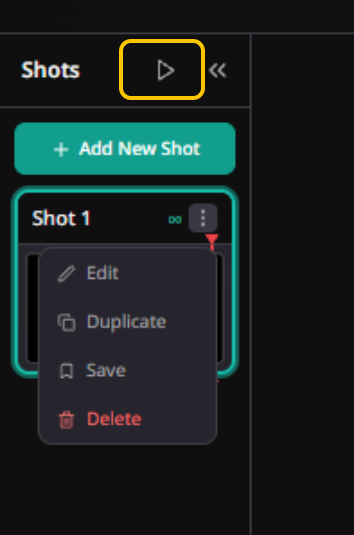
You can also enable shot animations to make transitions between scenes smoother.
5. Organize your production with Shots
Shots help you structure your production and create a more engaging viewing experience.
For example, during a product webinar, you can organize your shots as follows:
| Shot | Purpose |
|---|---|
| Shot 1 – Introduction | Welcome viewers and introduce the session. |
| Shot 2 – Speaker | Display the host or speaker. |
| Shot 3 – Product Demo | Present a screen share or demonstration. |
| Shot 4 – Discussion | Show multiple speakers during a conversation. |
| Shot 5 – Closing | Display closing remarks or a thank-you message. |
You can switch between these shots manually or configure timed transitions where appropriate.
Need more help? Contact support@airmeet.com or visit our 24*5 Customer Support Lounge.
Was this article helpful?
That’s Great!
Thank you for your feedback
Sorry! We couldn't be helpful
Thank you for your feedback
Feedback sent
We appreciate your effort and will try to fix the article