The Notes section in AirStudio helps producers and speakers stay organized during live streams, recordings, and podcasts.
It offers two options: Notes for keeping important information and talking points handy, and Teleprompter for displaying scripts that can scroll automatically during a production.
Both options allow you to customize content, control its availability across shots, and assign it to specific participants.
1. Access Notes and Teleprompter
To access these features:
- Enter AirStudio.
- Click Notes from the right-hand toolbar.
- Select either Notes or Teleprompter.
You can create multiple notes and scripts depending on your production requirements.
2. Notes
The Notes option allows you to create and manage talking points, reminders, and other important information during your production.
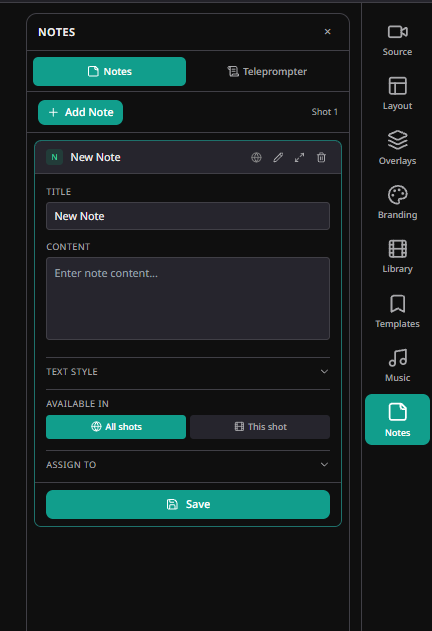
2.1. Add a Note
Navigate to Notes → Notes.
- Click + Add Note.
- Enter the following details:
- Title: Give your note a recognizable name.
- Content: Enter your talking points, reminders, or other information.
- Configure the available settings.
- Click Save.
2.2. Customize Note Settings
| Setting | Description |
|---|---|
| Text Style | Customize the appearance of your note text. |
| Available In | Choose whether the note is available in All shots or This shot. |
| Assign To | Assign the note to yourself, all participants, or specific participants. |
2.3. Manage Notes
Use the available actions on each note to edit, expand, or delete it.
You can create multiple notes and organize them based on different shots or production requirements.
3. Teleprompter
The Teleprompter feature allows producers and speakers to follow a prepared script during a recording, podcast, or live stream.
Scripts can scroll automatically at a configured speed, helping presenters deliver content smoothly.
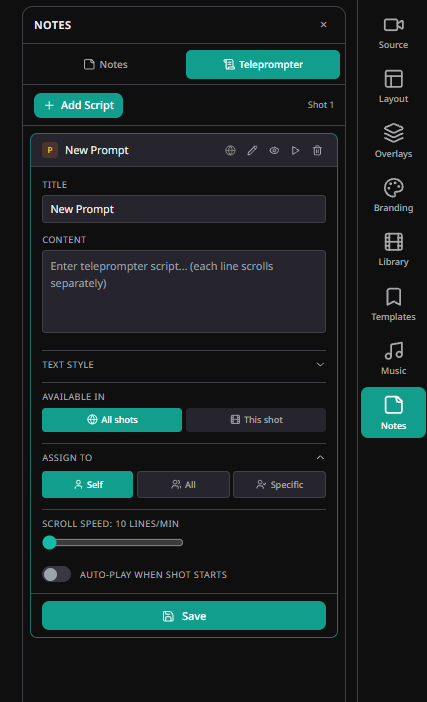
3.1. Add a Teleprompter Script
- Navigate to Notes → Teleprompter.
- Click + Add Script.
- Enter the following information:
- Title: Give your script a recognizable name.
- Content: Enter the script you want to display. Each line scrolls separately.
- Configure the teleprompter settings.
- Click Save.
3.2. Customize Teleprompter Settings
| Setting | Description |
|---|---|
| Text Style | Customize the appearance of the script text. |
| Available In | Make the script available in All shots or This shot. |
| Assign To | Assign the script to Self, All, or Specific participants. |
| Scroll Speed | Adjust the scrolling speed in lines per minute. |
| Auto-play When Shot Starts | Automatically start scrolling the script when the associated shot begins. |
3.3. Manage Teleprompter Scripts
Once a script is created, you can use the available actions to:
- Edit: Update the script title, content, or settings.
- Preview: View the script before using it.
- Play: Start the teleprompter manually.
- Delete: Remove a script that is no longer required.
Note: Enable Auto-play When Shot Starts if you want the teleprompter to begin automatically when switching to the associated shot.
4. Assign Notes and Scripts to Participants
Both Notes and Teleprompter support participant assignments. Under Assign To, choose one of the following options:
| Option | Description |
|---|---|
| Self | Make the note or script available to yourself. |
| All | Make it available to all participants. |
| Specific | Select specific participants who should have access. |
You can also control where the content is available:
- All shots: The note or script is available across all shots.
- This shot: The note or script is available only in the selected shot.
This is useful when different speakers require different talking points or scripts during the same production.
5. Troubleshooting
| Issue | Recommended Solution |
|---|---|
| Note or script is not visible | Check the selected shot and the Available In settings. |
| Participant cannot access a note or script | Verify the Assign To settings. |
| Teleprompter is not scrolling | Start it manually or enable Auto-play When Shot Starts. |
| Script scrolls too quickly or slowly | Adjust the Scroll Speed slider. |
| Changes are not reflected | Ensure you click Save after updating the content or settings. |
Workflow at a Glance
For Notes:
Enter Studio → Notes → Add Note → Enter Content → Configure Availability & Assignment → Save
For Teleprompter:
Enter Studio → Teleprompter → Add Script → Enter Content → Configure Scroll Speed & Auto-play → Assign Participants → Save
The Notes and Teleprompter features help producers and speakers stay prepared, coordinate their content, and deliver more structured presentations throughout their AirStudio productions.
Was this article helpful?
That’s Great!
Thank you for your feedback
Sorry! We couldn't be helpful
Thank you for your feedback
Feedback sent
We appreciate your effort and will try to fix the article