The Music feature in AirStudio allows you to add background music to individual shots during live streams, recordings, and podcasts.
You can choose from a collection of curated tracks or upload your own audio files. Music playback can be controlled manually or configured to start automatically when a shot goes live.
This article explains how to add, customize, and manage music in AirStudio.
1. Access Music
To access Music:
Enter AirStudio.
Select the shot where you want to add music.
Click Music from the right-hand toolbar.
Choose a curated track or upload your own audio file.
2. Add Music to a Shot
AirStudio provides two options for adding music.
2.1. Curated Music
AirStudio offers a selection of ready-to-use music tracks.
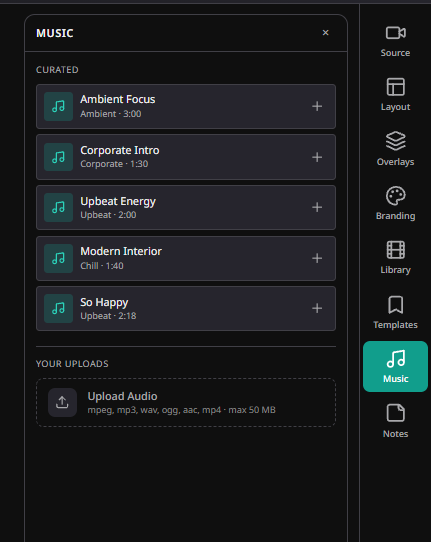
Navigate to Music → Curated.
Browse the available tracks.
Click the + icon beside your preferred track to add it to the selected shot.
Each track displays its name, category, and duration.
2.2. Upload Your Own Music
You can also use custom audio files.
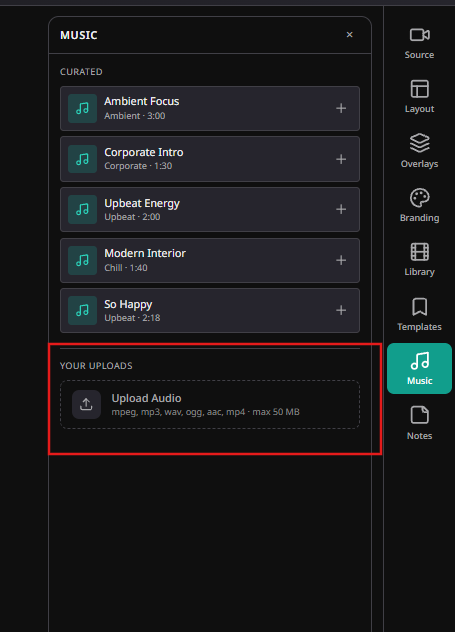
Navigate to Music → Your Uploads.
Click Upload Audio.
Select an audio file from your computer.
Once uploaded, add the track to your selected shot.
Supported file formats: MP3, WAV, OGG, AAC, and MP4.
Maximum file size: 50 MB.
3. Manage Music Playback
Once music is added, a playback control bar appears at the bottom of the Studio canvas.

The playback bar provides the following options:
| Control | Description |
|---|---|
| Play / Pause | Start or pause the selected music track. |
| Stop | Stop music playback. |
| Progress Bar | View playback progress and move to a specific point in the track. |
| Duration | View the current playback time and total track duration. |
| Loop | Enable or disable repeated playback. |
| Auto | Automatically play the music when the selected shot goes live. |
| Volume | Adjust the music volume. |
| Remove (×) | Remove the music track from the shot. |
4. Automatically Play Music When a Shot Goes Live
The Auto option allows music to start automatically when its associated shot goes live.
To enable automatic playback:
Add a music track to your selected shot.
Locate the playback controls at the bottom of the Studio canvas.
Enable Auto.
When the shot goes live, the music will start playing automatically.
Note: When Auto is disabled, you can control music playback manually using the Play and Stop controls.

5. Remove or Change Music
To remove music from a shot:
Select the shot containing the music.
Locate the music playback bar.
Click the × icon to remove the track.
To use another track, return to Music and select a different curated or uploaded audio file.
6. Troubleshooting
| Issue | Recommended Solution |
|---|---|
| Music is not playing | Check the playback controls and verify that the track has been added to the selected shot. |
| Music does not start automatically | Ensure Auto is enabled before the shot goes live. |
| Music is too loud or quiet | Adjust the volume using the playback controls. |
| Unable to upload audio | Verify that the file is in a supported format and does not exceed 50 MB. |
| Music is not repeating | Enable the Loop option. |
| Music is missing from a shot | Select the correct shot and check whether the track has been added. |
Music Workflow at a Glance
Enter Studio → Select Shot → Open Music → Choose Curated Track or Upload Audio → Add to Shot → Configure Playback → Go Live
The Music feature helps you enhance your AirStudio productions with background audio, introductions, transitions, and other sound elements while maintaining control over playback for each shot.
Was this article helpful?
That’s Great!
Thank you for your feedback
Sorry! We couldn't be helpful
Thank you for your feedback
Feedback sent
We appreciate your effort and will try to fix the article