The Library in AirStudio is a centralized space for uploading, organizing, and managing your media files. You can add videos, images, and audio files to your Library and easily access or import them directly into your Studio while creating Streams, Recordings, or Podcasts.
This article explains how to upload, import, and manage media files in AirStudio Library.
1. Access the Library
From your Airmeet dashboard:
Navigate to Studio from the top navigation.
Select Library from the left navigation.
The Library page displays all the media files available in your Studio.
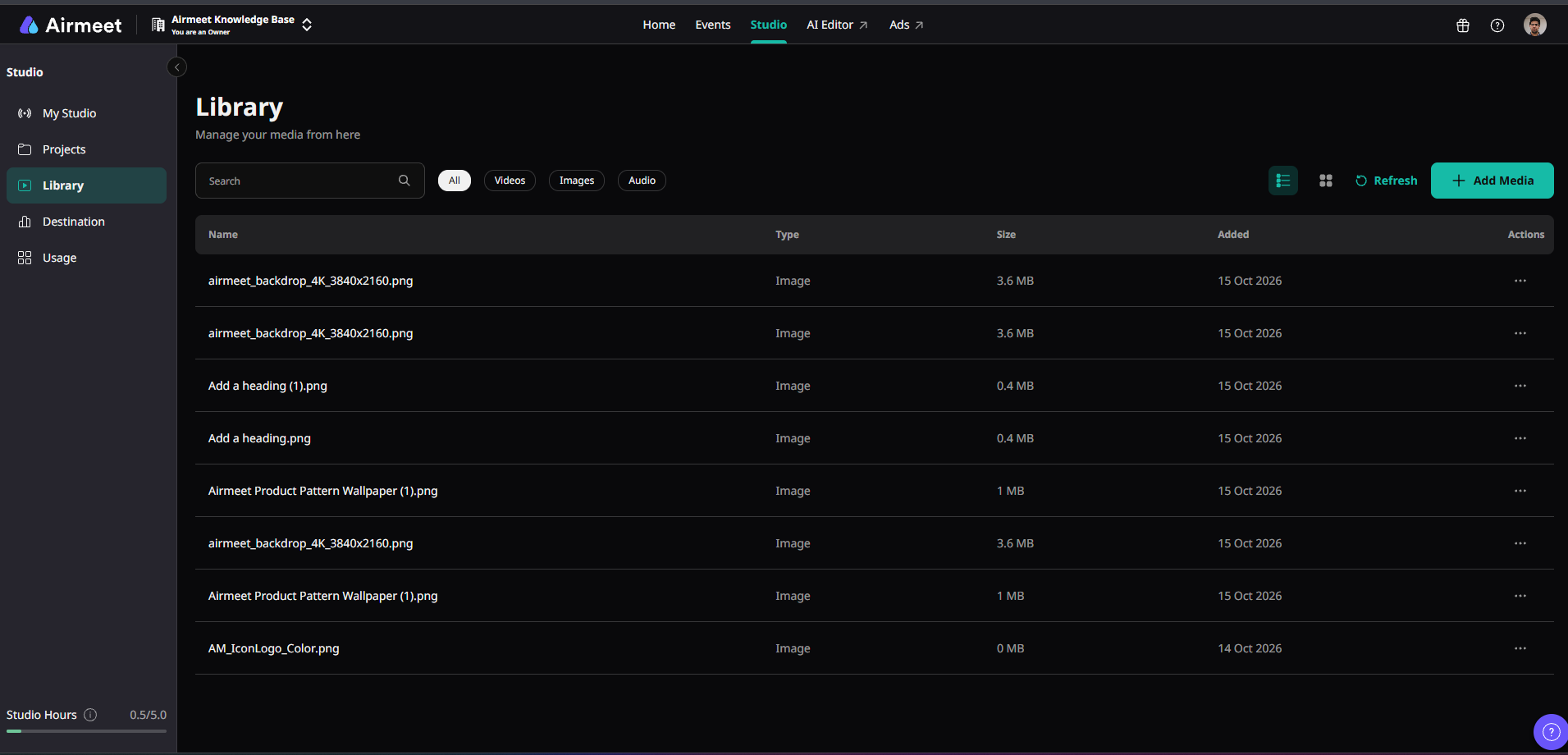
For each media file, you can view information such as:
Name: Name of the uploaded media file.
Type: Media category (Video, Image, or Audio).
Size: File size of the uploaded media.
Added: Date when the media was added.
Actions: Additional options for managing the media file.
You can also use Search to quickly locate a specific file.
2. Add media to your Library
To add media files:
Open Studio → Library.
Click + Add Media in the top-right corner.
The Add Media panel will appear.
Choose how you want to add your media.
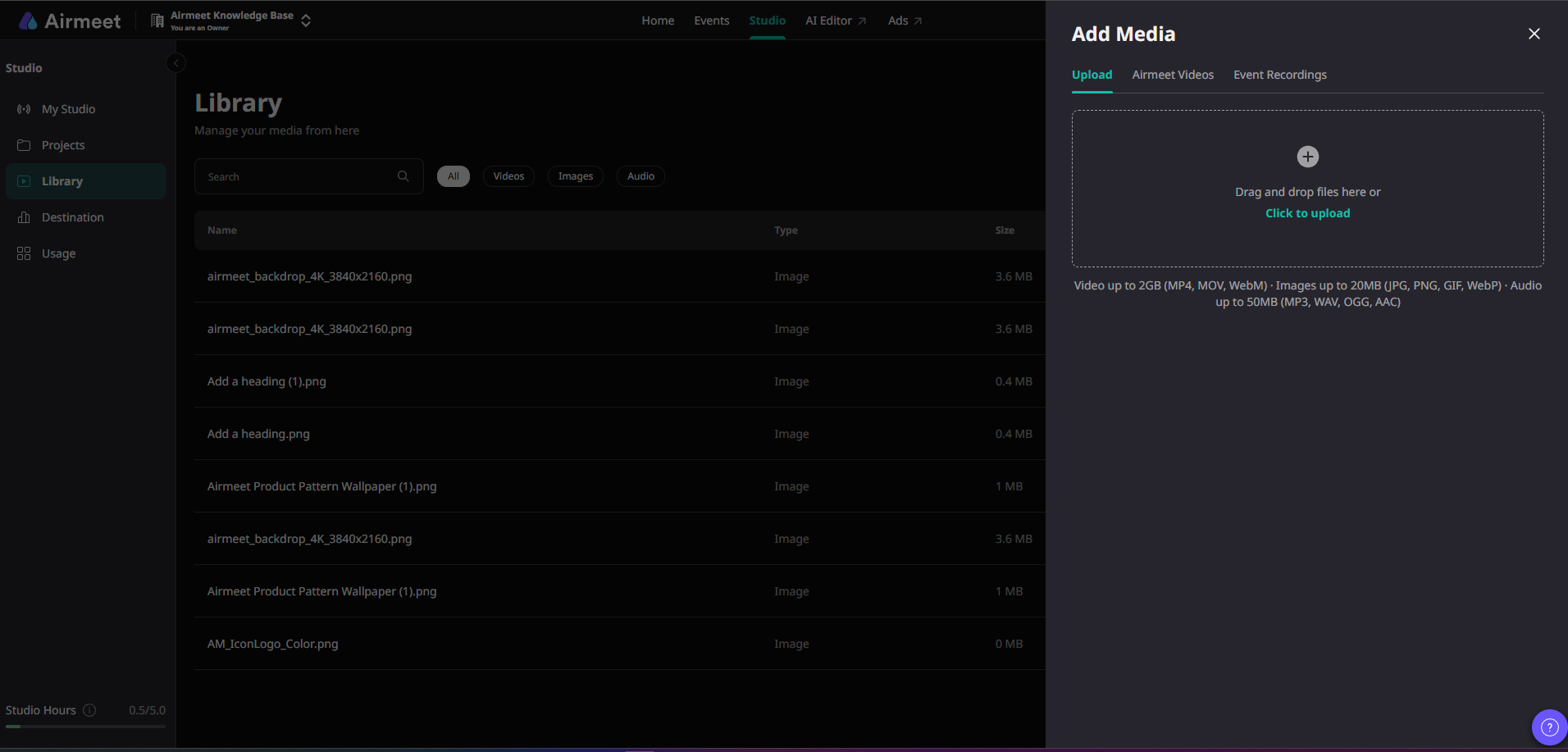
You can add media using three available options:
2.1. Upload media from your device
The Upload tab allows you to upload media files directly from your computer.
To upload a file:
Select the Upload tab.
Drag and drop your media files into the upload area, or click Click to upload.
Select the files from your device.
Wait for the upload to complete.
Once uploaded successfully, your media files will be available in your Library.
Supported file formats and size limits:
| Media Type | Supported Formats | Maximum File Size |
|---|---|---|
| Video | MP4, MOV, WebM | 2 GB |
| Image | JPG, PNG, GIF, WebP | 20 MB |
| Audio | MP3, WAV, OGG, AAC | 50 MB |
Note: Make sure your files meet the supported format and size requirements before uploading.
2.2. Import Airmeet Videos
The Airmeet Videos tab allows you to add existing videos from Airmeet to your Studio Library.
Click + Add Media.
Select the Airmeet Videos tab.
Browse the available videos.
Select the video you want to import.
Complete the import process.
This helps you reuse existing Airmeet video content without having to upload it again from your device.
2.3. Import Event Recordings
You can also import recordings from your Airmeet events into the Studio Library.
Click + Add Media.
Select Event Recordings.
Browse the available event recordings.
Select the recording you want to import.
Complete the import process.
This makes it easier to reuse event recordings in your Studio productions.
3. Search and filter media files
The Library provides search and filtering options to help you quickly locate your media.
You can filter your files using the following categories:
All: Displays all available media files.
Videos: Displays video files.
Images: Displays image files.
Audio: Displays audio files.
You can also use the Search bar to find files by name.
4. Switch between List and Grid views
AirStudio Library offers two ways to browse your media.
List View: Displays files in a table with their name, type, size, date added, and available actions.
Grid View: Displays media files in a visual layout for easier browsing.
Use the List or Grid icons at the top-right corner of the Library to switch between views.
5. Use Library media inside your Studio
Media files added to your Library can be accessed and imported directly into your AirStudio production.
For example, you can use Library media while creating:
Streams: Add media assets to enhance your live broadcasts.
Recordings: Use uploaded media during your recording sessions.
Podcasts: Access media assets while producing your Podcast.
This helps you reuse existing content across multiple Studio productions without repeatedly uploading the same files.
6. Manage your media files
You can manage your uploaded media directly from the Library.
Navigate to Studio → Library.
Locate the media file you want to manage.
Click the Actions (•••) menu beside the file.
Select the required action from the available options.
You can also click Refresh to update the Library and view the latest available media files.
Library workflow at a glance
Studio → Library → Add Media → Upload or Import → Manage Media → Use in Studio
AirStudio Library provides a centralized place to store and access your videos, images, and audio files, making it easier to prepare content and reuse media across Streams, Recordings, and Podcasts.
Was this article helpful?
That’s Great!
Thank you for your feedback
Sorry! We couldn't be helpful
Thank you for your feedback
Feedback sent
We appreciate your effort and will try to fix the article