AirStudio is Airmeet’s dedicated space for creating professional video content. From Studio, you can record high-quality videos, create podcasts, and broadcast live streams from one place. This article explains how to navigate from your Airmeet dashboard to Studio.
1. Open your Airmeet dashboard
After signing in and selecting your community, you’ll land on the Home tab by default.
The Home dashboard provides quick access to Airmeet’s products and your upcoming activities.
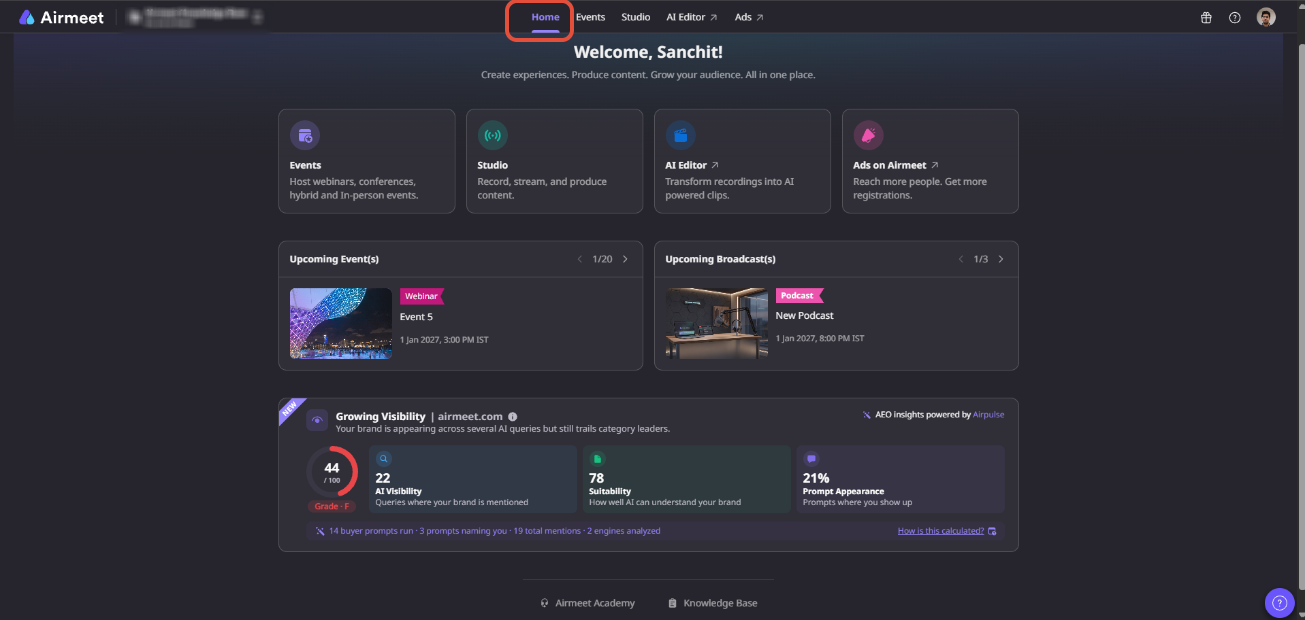
At the top of the dashboard, you’ll see the main product navigation:
Home | Events | Studio | AI Editor | Ads
2. Navigate to Studio
You can access AirStudio in either of the following ways:
- Click Studio in the top navigation bar.
- Click the Studio card displayed on the Home dashboard.
Both options take you to your My Studio dashboard.
3. Explore My Studio
Once you enter Studio, the My Studio page becomes your central workspace for creating and managing your video content.
From here, you can:
- New Stream: Broadcast live to your configured destinations.
- New Record: Capture studio-quality video.
- New Podcast: Create professional podcasts with recording and live broadcasting capabilities.
- View and manage your existing Streams, Recordings, and Podcasts.
- Search and filter your Studio content based on its status.
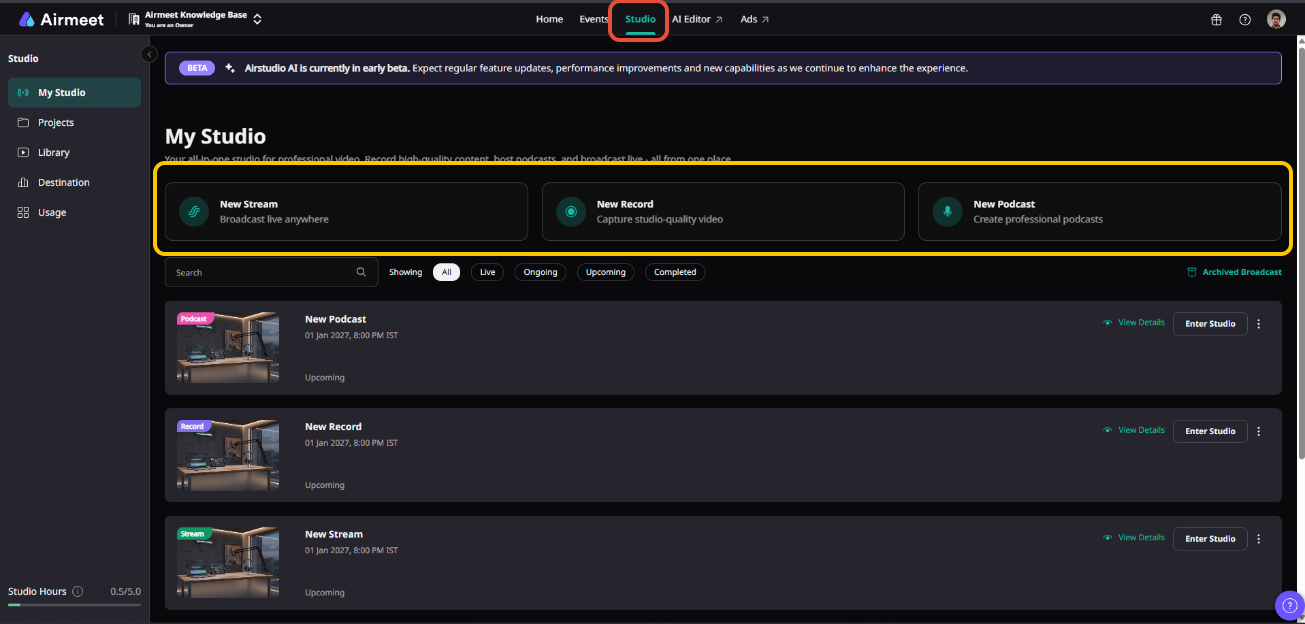
You can also access other Studio sections from the left navigation, including Projects, Library, Destination, and Usage.
Need more help? Contact support@airmeet.com or visit our 24*5 Customer Support Lounge.
Was this article helpful?
That’s Great!
Thank you for your feedback
Sorry! We couldn't be helpful
Thank you for your feedback
Feedback sent
We appreciate your effort and will try to fix the article