Projects in AirStudio help you organize related broadcasts in one place. A Project can contain any combination of Streams, Records, and Podcasts, making it easier to manage recurring content, campaigns, or a series of related productions.
For example, if you host a “Podcast with the CEO” every Friday, you can create one Project and add each weekly Podcast to it. This gives organizers a single place to access and manage the entire series.As new episodes are created, they can continue to be added to the same Project, giving organizers one place to access the entire Podcast series.
This article covers how to create and manage Projects in AirStudio.
1. Access Projects
From your AirStudio dashboard:
- Navigate to Studio.
- Select Projects from the left navigation.
The Projects page displays all the Projects created in your community.
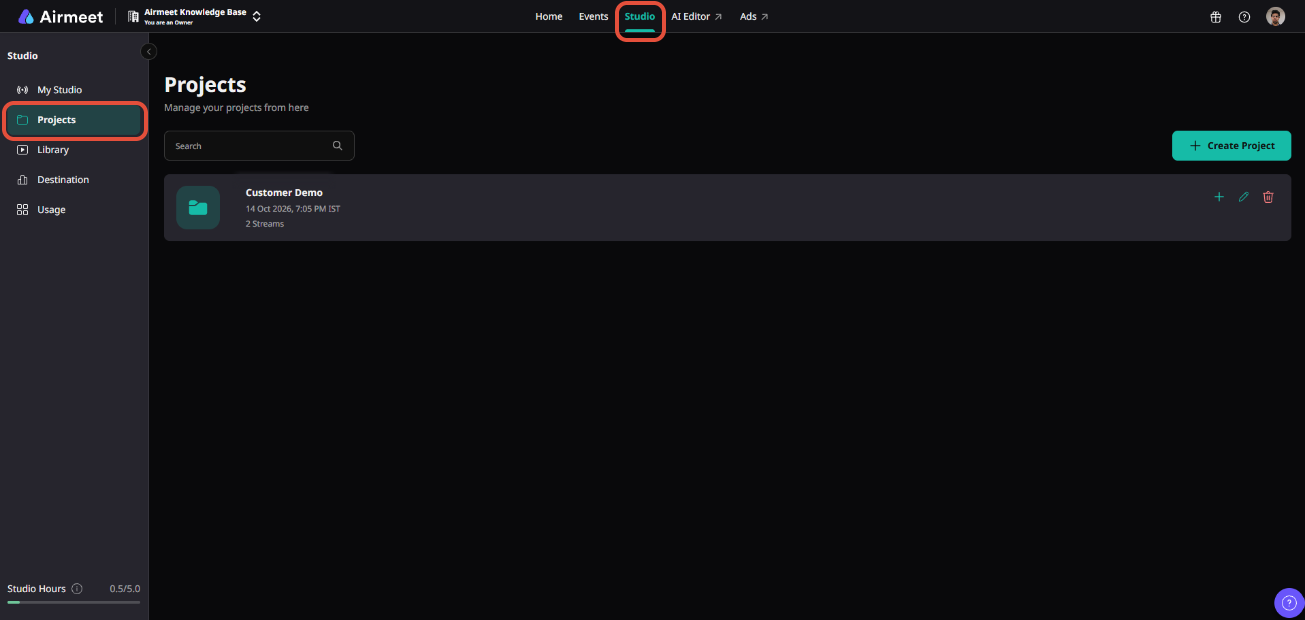
For each Project, you can see information such as:
- Project name
- Creation date
- Number of broadcasts added to the Project
You can also use Search to quickly find a specific Project.
2. Create a new Project
To create a Project:
- Click Create Project in the top-right corner.
- Enter a Project Name.
- Click Save.
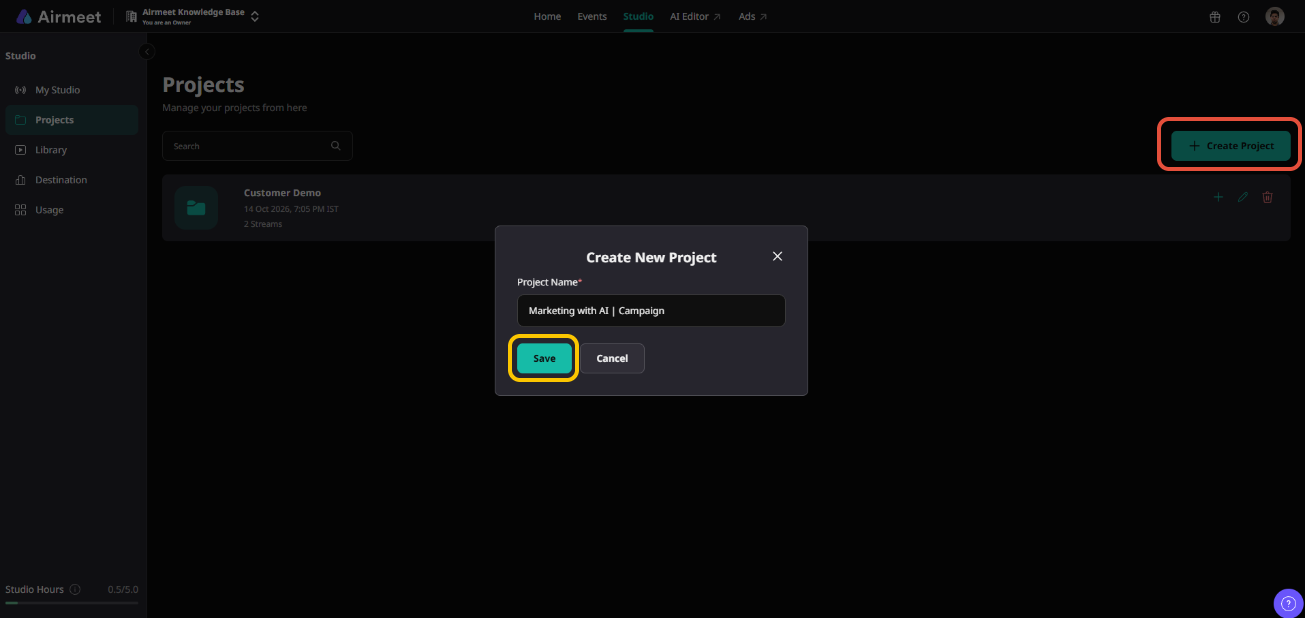
Use a name that makes the purpose of the Project easy to identify.
For example: Marketing with AI | Campaign
You can then use this Project to organize all current and future episodes of the series.
3. View broadcasts within a Project
Click a Project to open it. The Project page displays all the broadcasts that have been added to that Project.
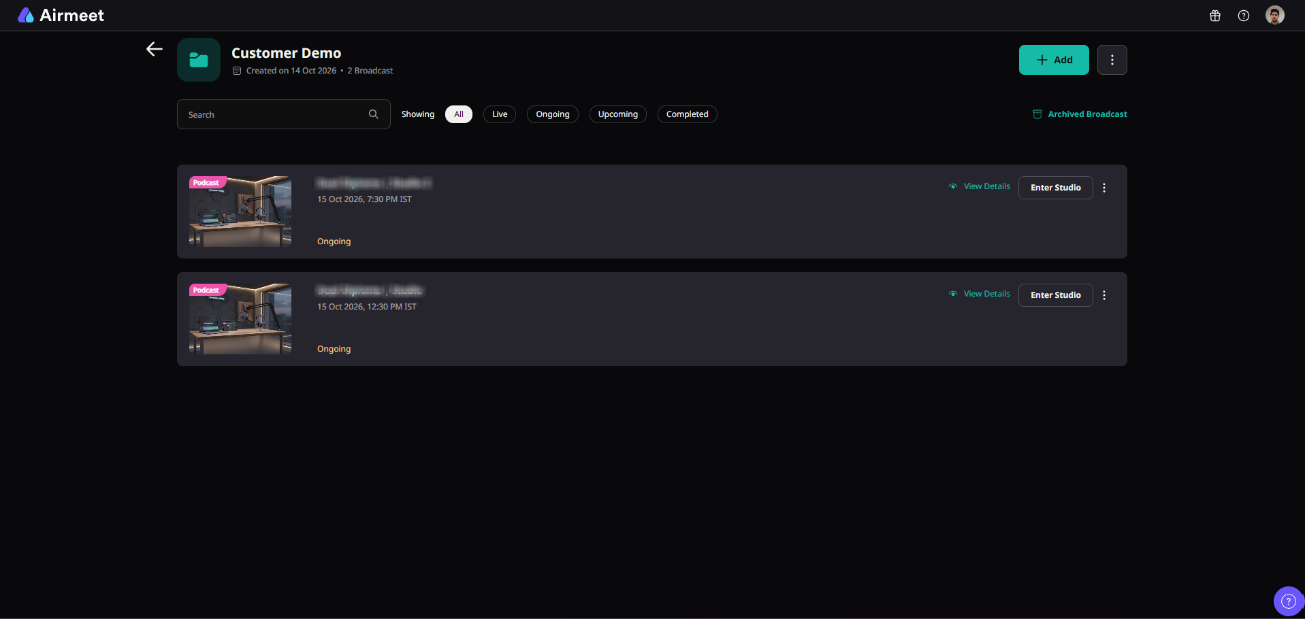
A single Project can contain different AirStudio formats:
- Stream – Live broadcasts to your configured destinations.
- Record – Studio-quality recording sessions.
- Podcast – Podcast sessions that can be recorded, streamed, or both.
This means you don't need to create separate Projects for different broadcast formats.
You can use the available filters to view broadcasts based on their status, such as Live, Ongoing, Upcoming, or Completed.
For each broadcast, you can also use View Details to access its details or Enter Studio when applicable.
4. Add broadcasts to a Project
To add existing broadcasts to a Project:
- Open the Project.
- Click + Add.
- A list of available broadcasts will appear.
- Select one or more broadcasts you want to add.
- Click Save.
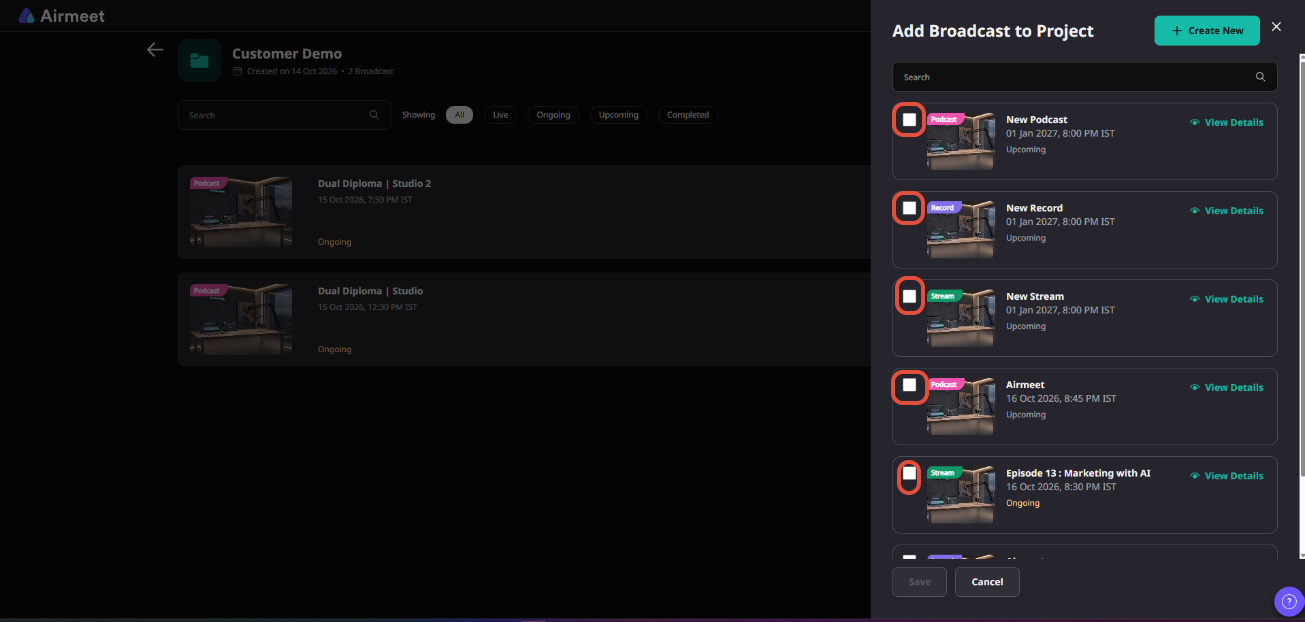
The list can include Streams, Records, and Podcasts, allowing you to organize different types of Studio content within the same Project. You can also use Search to quickly locate a specific broadcast before adding it.
5. Create a new broadcast from a Project
If the broadcast you need hasn't been created yet, click Create New from the Add Broadcast to Project panel.
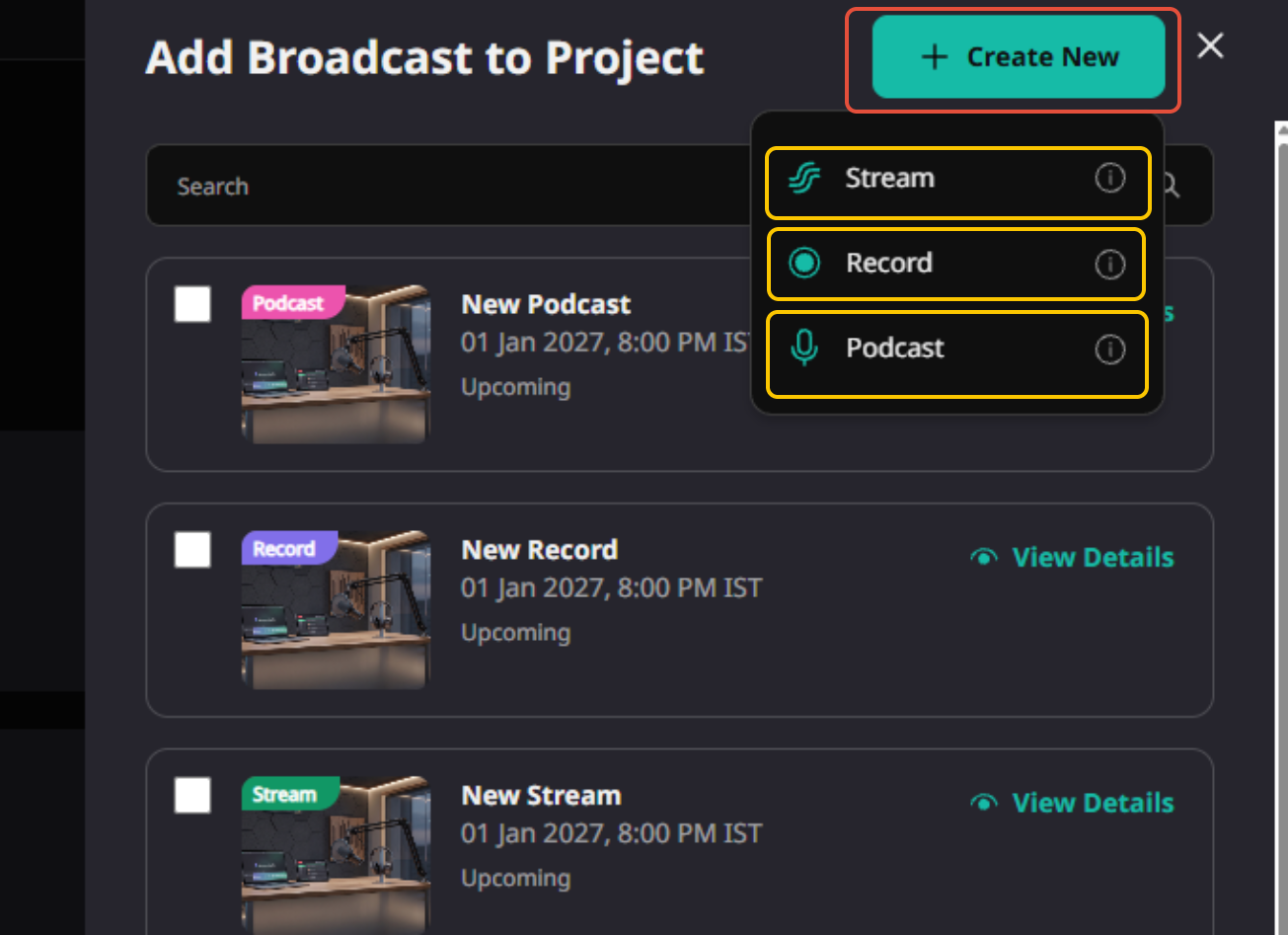
You can then create the required Studio content and organize it as part of your Project.
This is particularly useful for recurring content because organizers can continue building the series from the same Project instead of managing each broadcast separately.
6. Manage your Projects
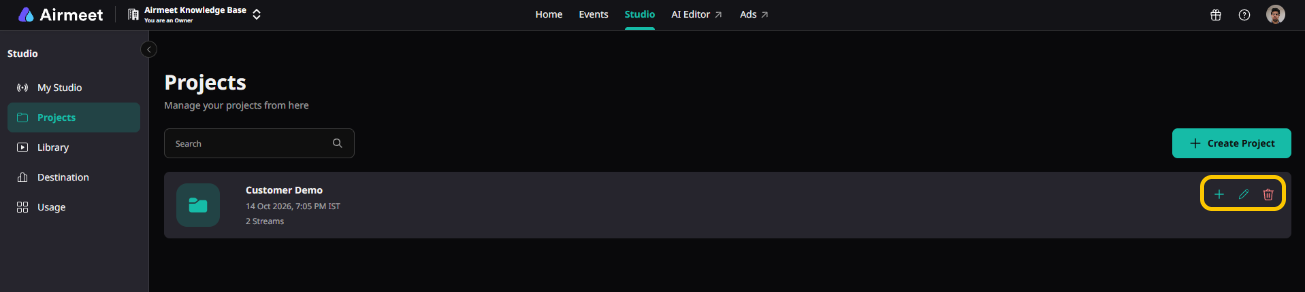
From the main Projects page, you can manage existing Projects using the available actions.
You can:
- Add broadcasts to an existing Project.
- Edit the Project.
- Delete a Project.
- Open a Project to view all broadcasts associated with it.
Projects provide a simple way to group related AirStudio broadcasts, making recurring series and content initiatives easier to organize and access.
Need more help? Contact support@airmeet.com or visit our 24*5 Customer Support Lounge.
Was this article helpful?
That’s Great!
Thank you for your feedback
Sorry! We couldn't be helpful
Thank you for your feedback
Feedback sent
We appreciate your effort and will try to fix the article