AirStudio lets you create professional podcasts directly from your Airmeet dashboard. With Podcast, you can record your podcast in high quality, broadcast it live to configured destinations, or do both at the same time.
You can schedule your Podcast, configure recording options and streaming destinations, invite producers and speakers, enter the Studio, and access recordings after the Podcast ends.
This article covers the complete Podcast workflow.
1. Create a new Podcast
From your Airmeet dashboard:
- Navigate to Studio from the top navigation.
- Open My Studio.
- Click New Podcast.
The My Studio dashboard also displays your existing Streams, Recordings, and Podcasts, along with their current status.
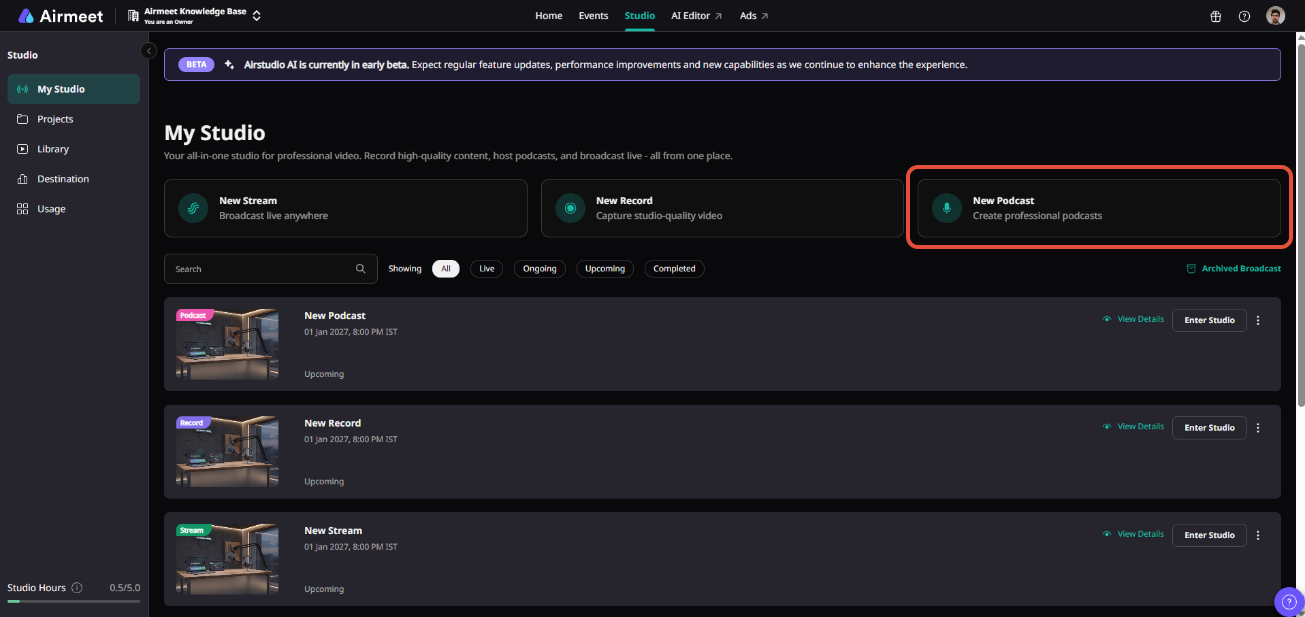
You can use the available filters to find content based on its status, such as Live, Ongoing, Upcoming, or Completed.
2. Add your Podcast details
On the New Podcast page, configure the basic details of your Podcast.
Enter or configure the following:
- Podcast Name: Give your Podcast a recognizable name.
- Schedule: Select the date and time when you plan to host the Podcast.
- Destination: Optionally select where you want your Podcast to be broadcast live.
- Cloud Recording: Enable this option to capture the complete Podcast recording in the cloud.
- Local Recording: Enable this option to capture high-quality individual recordings locally from participants' devices.
- Add to Project: Optionally associate the Podcast with an existing project to keep related content organized.
Once the required information is added, click Create Podcast.
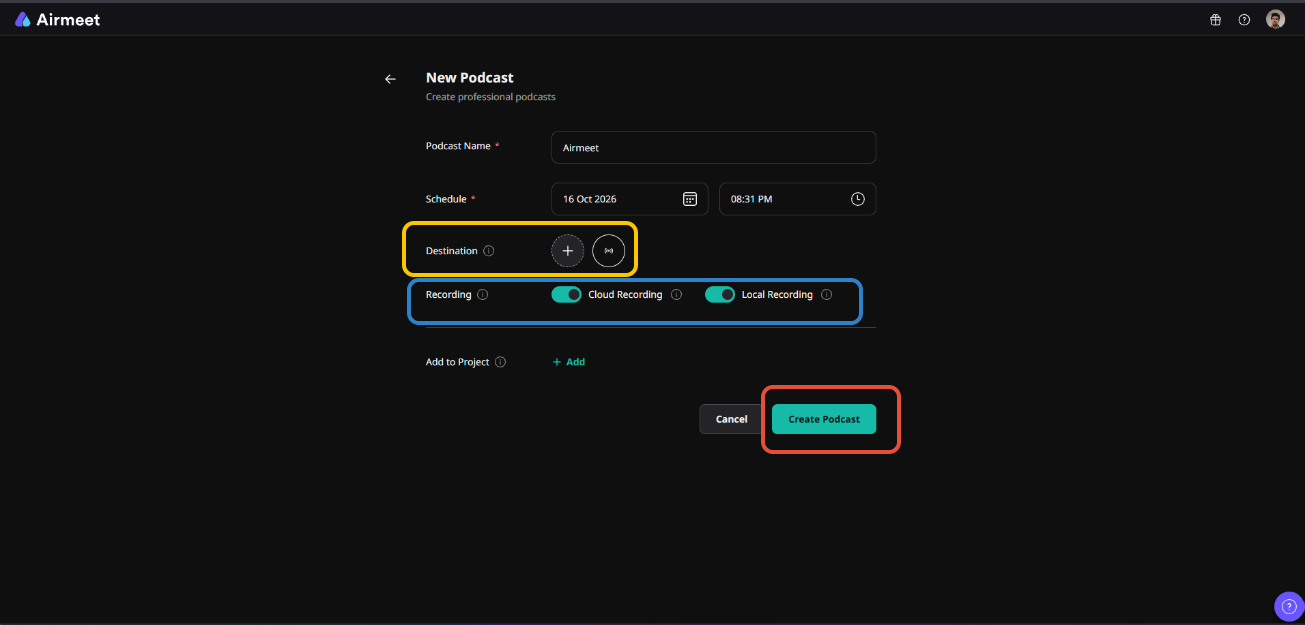
Note: Podcast supports both recording and streaming destinations. You can record your Podcast, broadcast it to a configured destination, or use both capabilities together.
3. Manage your Podcast
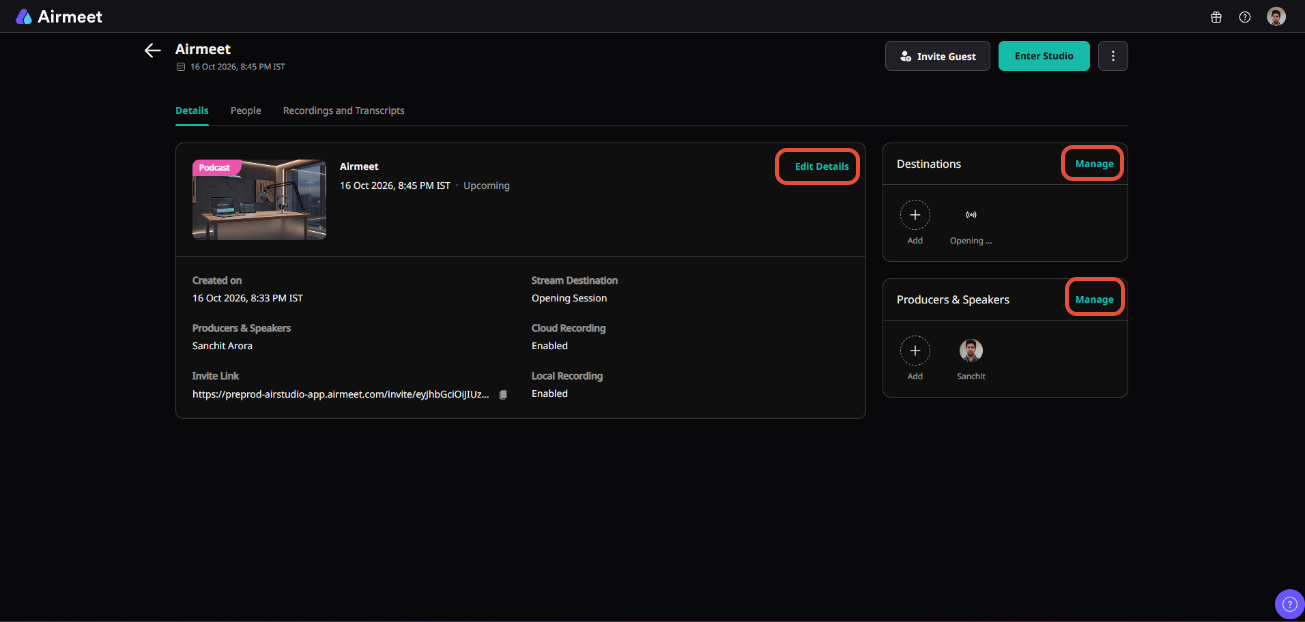
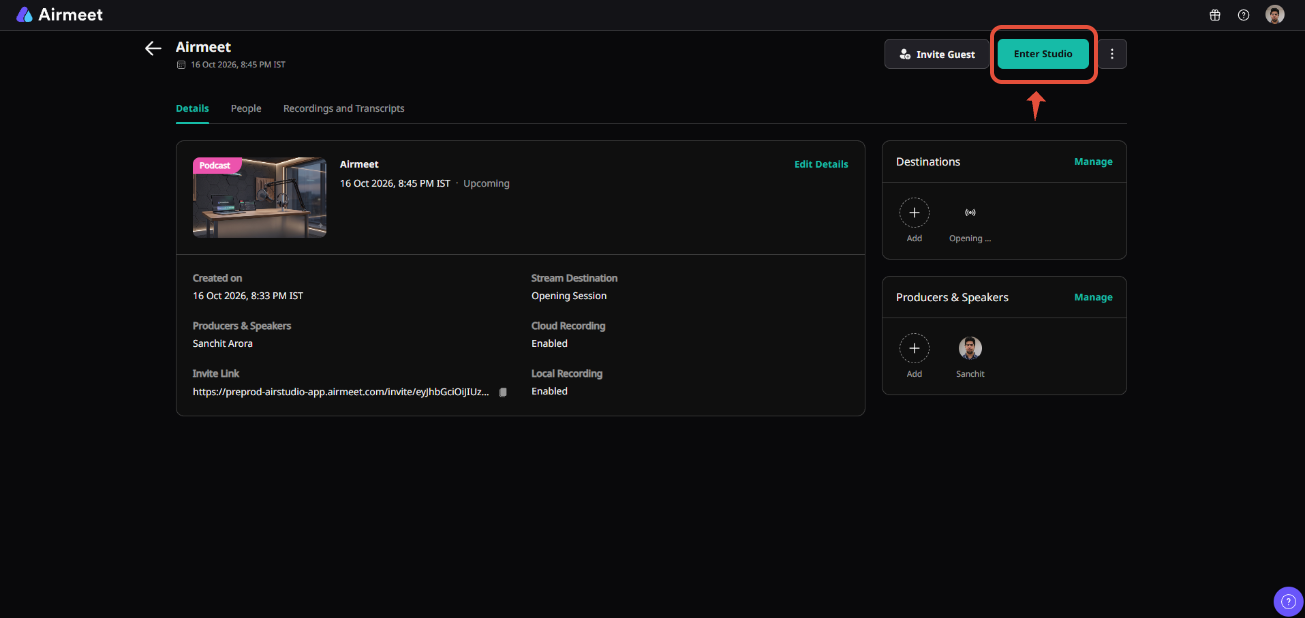
After creating the Podcast, you'll be taken to its management page. From here, you can manage the Podcast before and during the session.
The page is organized into three sections:
Details | People | Recordings and Transcripts
3.1. Details
The Details tab gives you an overview of the Podcast, including:
- Podcast name
- Scheduled date and time
- Current status
- Creation date
- Stream destination
- Cloud Recording status
- Local Recording status
- Producers and speakers
- Guest invite link
You can also select Edit Details to update supported Podcast information.
3.2. Destinations
The Destinations section shows where your Podcast will be broadcast.
Click Add or Manage to configure your streaming destinations.
If you only want to record the Podcast and don't want to broadcast it live, you can run the Podcast without adding a destination.
3.3. Recording settings
Your Podcast can also generate recordings independently of its streaming destination.
The Details page displays the recording modes configured for the Podcast:
- Cloud Recording: Shows whether cloud recording is enabled or disabled.
- Local Recording: Shows whether local recording is enabled or disabled.
This gives you the flexibility to broadcast and record the Podcast simultaneously, or use only the capabilities required for your production.
3.4. Producers & Speakers
The Producers & Speakers section gives you quick access to the people associated with the Podcast.
Click Add or Manage to invite or manage participants.
4. Invite producers and speakers
Open the People tab to manage everyone involved in producing your Podcast.
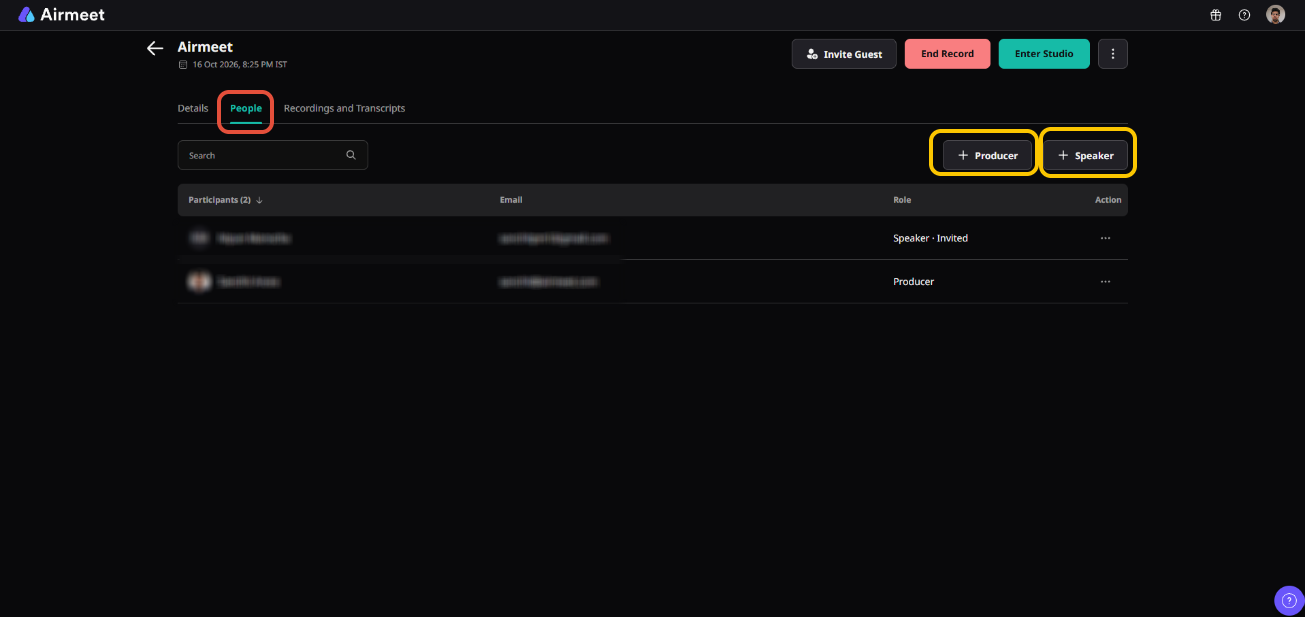
You can add two types of participants:
- Co-producer: A community team member who can help manage and produce the Podcast.
- Speaker: Joins the Studio as an on-screen participant in the Podcast.
Note: Only organizers assigned as Co-producers can enter the Studio. Organizers who are not assigned as Co-producers will not be able to access it. Currently, there is no limit to the number of organizers who can be assigned as Co-producers..
The participant list displays their name, email, role, and invitation status where applicable.
Use the Action (•••) menu beside a participant to access additional participant management options.
You can also use Invite Guest at the top of the page when you need to invite someone to the Podcast.
5. Enter the Studio and start your Podcast
When you're ready to set up your Podcast, click Enter Studio.
Inside AirStudio, you can prepare your speakers, camera, microphone, layouts, branding, and other production elements before starting.
Depending on your configuration, your Podcast can:
- Be recorded without being broadcast.
- Be broadcast to configured destinations.
- Be recorded and broadcast simultaneously.
Once the Podcast starts, its status changes to Ongoing. When your Podcast is complete, click End Podcast.
Ending the Podcast stops the active Podcast session. Make sure your recording and live broadcast are complete before ending it.6. Access Podcast recordings
After your Podcast ends, open: Podcast → Recordings and Transcripts
This section contains the recordings generated during your Podcast.
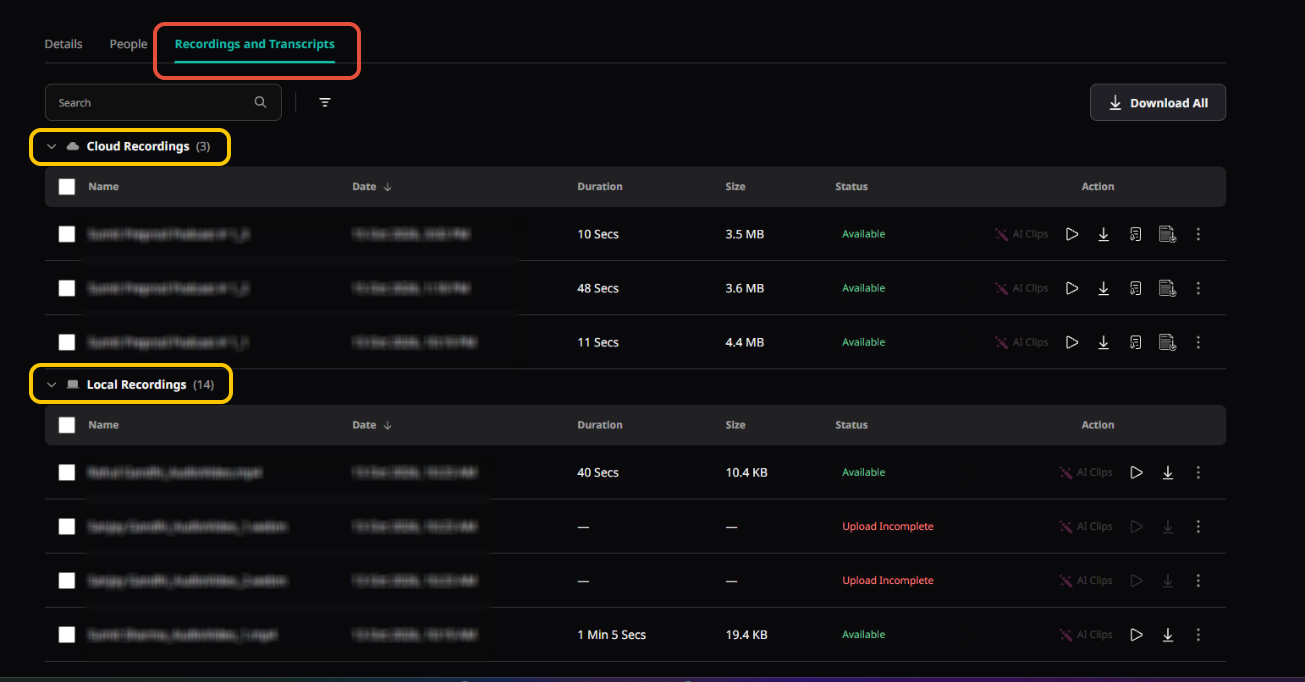
The recordings available depend on the recording options enabled for the Podcast.
6.1. Cloud Recordings
If Cloud Recording was enabled, the complete recording generated for the Podcast appears under Cloud Recordings.
For each recording, you can view information such as:
Name | Date | Duration | Size | Status | Actions
When a recording has finished processing, its status changes to Available.
6.2. Local Recordings
If Local Recording was enabled, individual high-quality recordings captured from participants' devices appear under Local Recordings.
A participant may have multiple local recording files if their recording is split into multiple segments during the Podcast.
6.3. Manage your recordings
Once a recording is available, use the actions beside it to perform supported operations such as previewing or downloading the recording.
If multiple recordings are available, use Download All to download them together.
You can also use Search and the available filtering options to locate a specific recording.
Podcast workflow at a glance
My Studio → New Podcast → Add Podcast details → Configure destination and/or recording → Add Co-producers & Speakers → Enter Studio → Start Podcast → Record and/or Broadcast → End Podcast → Recordings and Transcripts
AirStudio Podcast combines recording and live broadcasting in a single workflow, giving you the flexibility to create a recorded Podcast, broadcast it live, or do both simultaneously.
Need more help? Contact support@airmeet.com or visit our 24*5 Customer Support Lounge.
Was this article helpful?
That’s Great!
Thank you for your feedback
Sorry! We couldn't be helpful
Thank you for your feedback
Feedback sent
We appreciate your effort and will try to fix the article