The Branding feature in AirStudio allows you to personalize your live streams, recordings, and podcasts by adding custom text, logos, backgrounds, and graphics.
You can customize these elements for individual shots to maintain consistent branding and create professional-looking content.
This article explains how to add and manage branding elements in AirStudio.
1. Access Branding
To access Branding:
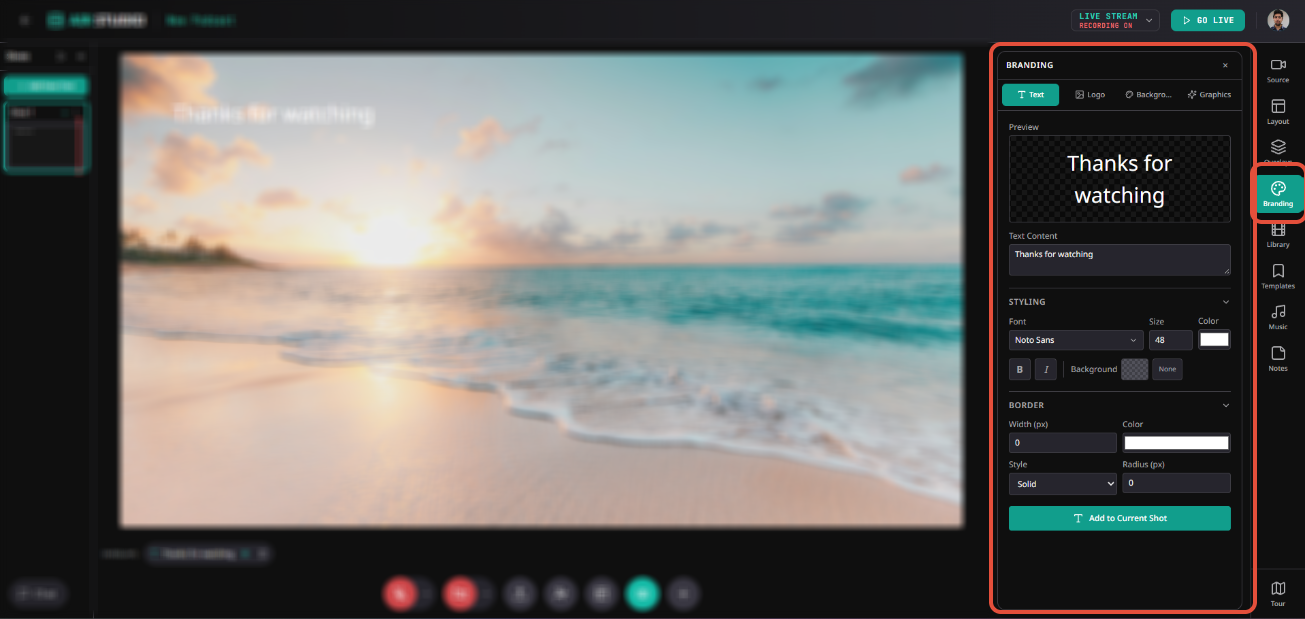
Enter AirStudio and select a shot.
Click Branding from the right-hand toolbar.
Choose from the available options: Text, Logo, Background, or Graphics.
2. Text
The Text option allows you to add custom text to a particular shot, such as titles, announcements, or closing messages.
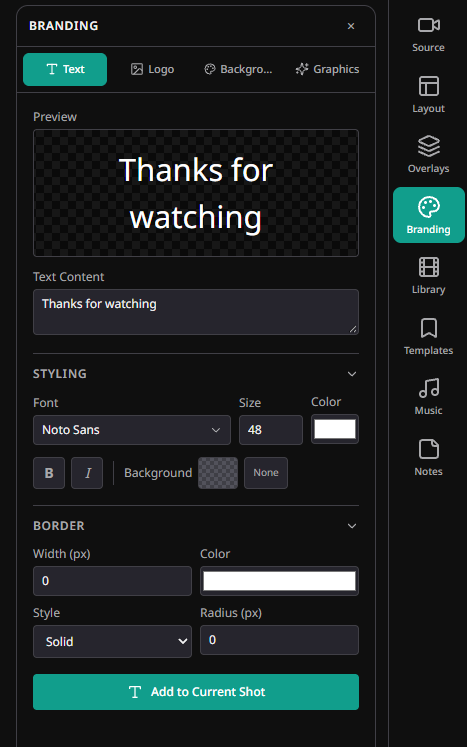
2.1. Add Custom Text
Navigate to Branding → Text.
Enter your message in the Text Content field.
Customize its appearance using the available settings.
Review the text in the Preview section.
Click Add to Current Shot.
2.2. Text Customization
| Setting | Description |
|---|---|
| Font | Choose the font family. |
| Size | Adjust the text size. |
| Color | Select the text color. |
| Formatting | Apply bold or italic formatting. |
| Background | Configure the text background or select None. |
| Border Width | Adjust the border thickness in pixels. |
| Border Color | Choose the border color. |
| Border Style | Select the border style, such as Solid. |
| Border Radius | Adjust the roundness of the border corners. |
3. Logo
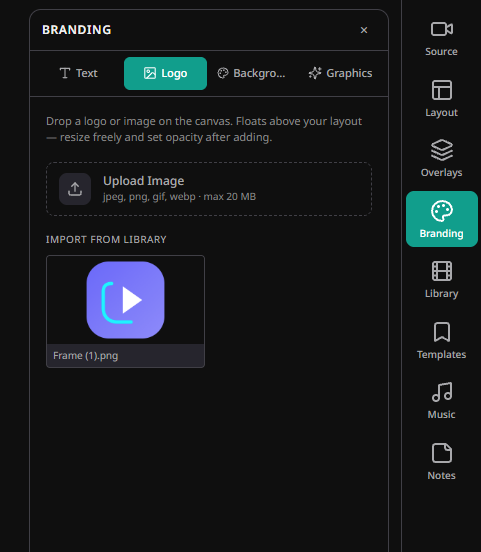
The Logo option allows you to add your brand logo or any image directly to the shot canvas.
Logos float above the layout and can be freely resized and repositioned.
3.1. Add a Logo
Navigate to Branding → Logo.
Click Upload Image to upload a file from your computer, or select an existing image from Import from Library.
Add the image to your shot canvas.
Resize and position it as required.
Adjust its opacity after adding it.
Supported File Formats
JPG / JPEG
PNG
GIF
WebP
Maximum file size: 20 MB.
Note: You can use this option to add logos, watermarks, or other branding images to your shot.
4. Background
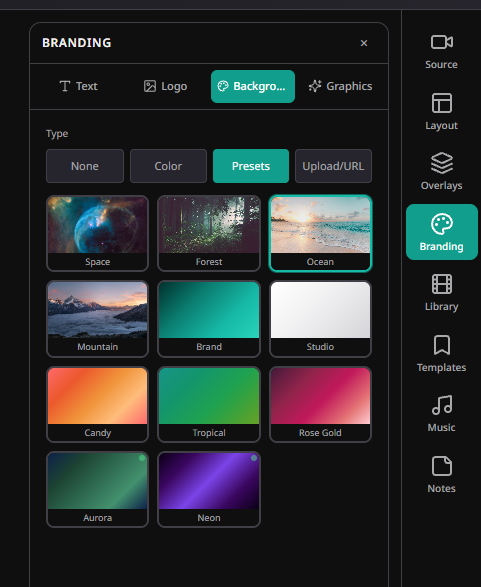
The Background option allows you to customize the background of a particular shot.
You can use the same background customization options available under Layout → Background.
4.1. Available Background Options
| Option | Description |
|---|---|
| None | Remove the background. |
| Color | Apply a solid background color. |
| Presets | Choose from predefined background designs. |
| Upload/URL | Add a custom background image from your computer or a URL. |
4.2. Apply a Background
Navigate to Branding → Background.
Select the preferred background type.
Choose a preset, color, or custom image.
Apply the background to your selected shot.
5. Graphics
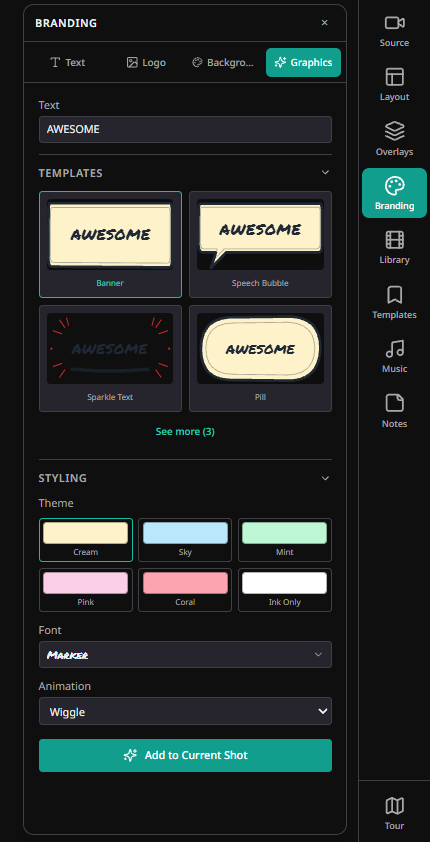
The Graphics option allows you to add decorative text-based graphics using predefined templates.
These graphics can be used for announcements, highlights, reactions, and other creative elements.
5.1. Add Graphics
Navigate to Branding → Graphics.
Enter your message in the Text field.
Select a graphic from the available templates.
Customize its appearance using Styling.
Add the graphic to your current shot.
5.2. Available Graphic Templates
| Template | Description |
|---|---|
| Banner | Display text inside a banner-style graphic. |
| Speech Bubble | Present text in a conversation-style bubble. |
| Sparkle Text | Highlight text with decorative effects. |
| Pill | Display text inside a rounded graphic. |
| Ribbon | Present text within a ribbon-style design. |
| Cloud | Display text inside a cloud-shaped graphic. |
| Checklist | Highlight text using a checklist-style graphic. |
Click See less / See more, where available, to browse the template options.
5.3. Graphic Customization
Expand Styling to personalize your graphic.
| Setting | Description |
|---|---|
| Theme | Choose a predefined color theme, such as Cream, Sky, Mint, Pink, Coral, or Ink Only. |
| Font | Select the font family for the graphic text. |
| Animation | Choose an animation effect, such as Wiggle. |
6. Manage Branding Elements
After adding branding elements, you can manage them within the selected shot.
To edit or remove an existing element:
Select the shot containing the branding element.
Open Show Shot Elements from the bottom toolbar.
Locate the text, logo, or graphic you want to manage.
Select the element and use its available controls to edit or remove it.
For logos and other canvas elements, you can also adjust their placement and size directly on the canvas.
Note: Branding elements are managed at the shot level. Changes to one shot do not automatically update branding elements in other shots.
7. Troubleshooting Common Branding Issues
| Issue | Recommended Solution |
|---|---|
| Text is not visible | Check the text color, background, and placement. |
| Logo is not appearing | Verify the uploaded file format and confirm it has been added to the shot. |
| Logo appears too large or small | Resize the image directly on the canvas. |
| Background is not displaying | Check the selected background type and ensure the correct shot is selected. |
| Graphic text is difficult to read | Try a different theme, font, or graphic template. |
| Branding elements overlap | Reposition or resize the elements on the canvas. |
| Unable to find an added element | Open Show Shot Elements and verify that the correct shot is selected. |
Branding Workflow at a Glance
Enter Studio → Select Shot → Open Branding → Choose Text, Logo, Background, or Graphics → Customize → Add to Current Shot → Manage Elements
AirStudio Branding helps you create visually consistent and professional content by customizing individual shots with your preferred text, logos, backgrounds, and graphics.
Need more help? Contact support@airmeet.com or visit our 24*5 Customer Support Lounge.
Was this article helpful?
That’s Great!
Thank you for your feedback
Sorry! We couldn't be helpful
Thank you for your feedback
Feedback sent
We appreciate your effort and will try to fix the article