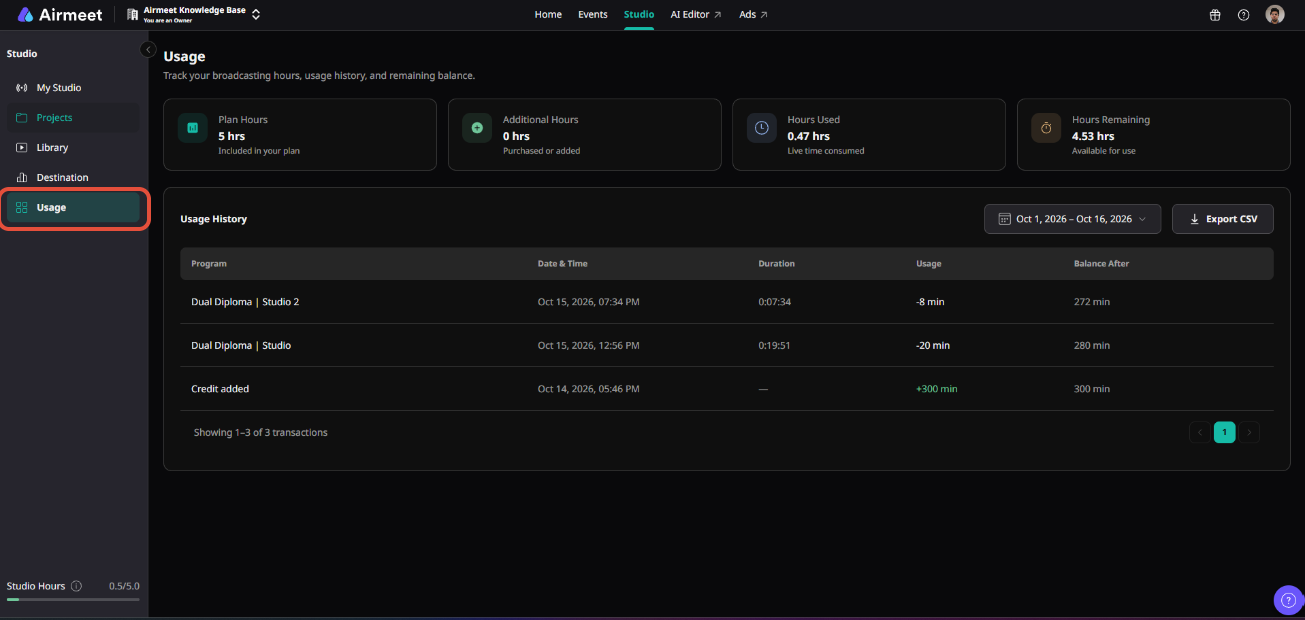
The Usage tab in AirStudio helps organizers track their allocated Studio hours, consumed hours, remaining balance, and detailed usage history.
Studio hours are consumed based on the actual time your Studio session is running. Whether you're streaming, recording, or doing both simultaneously, the session runtime is deducted from your available Studio hours.
This article explains how Studio usage is calculated and how to monitor your available hours.
1. Access the Usage tab
From your AirStudio dashboard:
- Navigate to Studio.
- Select Usage from the left navigation.
The Usage dashboard provides an overview of your Studio hour allocation and consumption.
2. Understand your Studio hours
At the top of the Usage page, you'll find four key metrics:
2.1. Plan Hours
Plan Hours are the Studio hours included as part of your Airmeet plan.
For example, if your plan includes 10 hours, these hours form part of your available Studio balance.
2.2. Additional Hours
Additional Hours are Studio hours purchased or added in addition to the hours included in your plan.
These hours are added to your overall available Studio balance.
2.3. Hours Used
Hours Used shows the total Studio time that has already been consumed.
Usage is calculated based on the actual runtime of your Studio sessions.
2.4. Hours Remaining
Hours Remaining shows how much Studio time is currently available for future use.
Your available balance is calculated based on your allocated hours minus the Studio hours already consumed.
3. How Studio hours are consumed
Studio usage starts when the production starts and is calculated based on the actual running time of the session.
Studio hours can be consumed when you:
- Stream a live broadcast.
- Record a session.
- Record and stream simultaneously.
If recording and streaming are happening simultaneously within the same Studio session, the session duration is counted as Studio runtime rather than charging separately for each activity.
For example, if you record and stream simultaneously for 30 minutes, 30 minutes of Studio usage is consumed.
Note: Simply scheduling a Stream, Record, or Podcast does not consume Studio hours. Usage is based on the actual running time of the production.
4. Track your Usage History
The Usage History section provides a detailed breakdown of Studio hour consumption.
For each session, you can view:
Program | Date & Time | Duration | Usage | Balance After
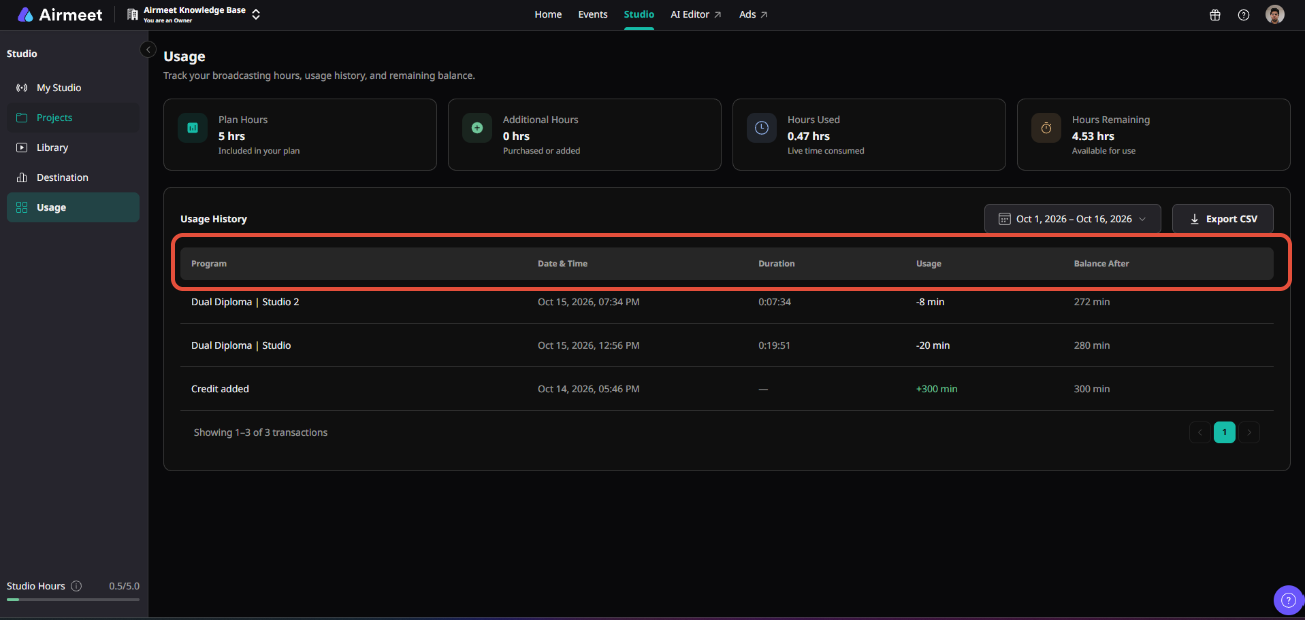
This makes it easier to understand when and where your Studio hours were consumed.
The Balance After column shows your remaining Studio balance after the corresponding session usage was deducted.
5. Filter usage by date
Use the date selector in the Usage History section to review Studio usage for a specific period.
This can help you monitor consumption across different time periods and understand how your team is using its allocated Studio hours.
6. Export your usage history
Click Export CSV to download your Studio usage history.
The exported data can be used for internal tracking, reporting, or reviewing Studio consumption across your organization.
7. Get additional Studio hours
If you're running low on Studio hours or need additional capacity for upcoming productions, contact your Airmeet Customer Success Manager (CSM) or Airmeet Support. Additional Studio hours can be added based on your requirements.
Need more help? Contact support@airmeet.com or visit our 24*5 Customer Support Lounge.
Was this article helpful?
That’s Great!
Thank you for your feedback
Sorry! We couldn't be helpful
Thank you for your feedback
Feedback sent
We appreciate your effort and will try to fix the article