

TABLE OF CONTENTS
- 1. Overview
- 2. Enable Local Recording
- 3. Access Individual Speaker Recordings
- 4. Download Recordings
- 5. Important Recommendations
- 6. Frequently Asked Questions
This is an Add-on Feature.
Kindly reach out to your respective Customer Success Manager to get it enabled for your event.
1. Overview
Individual Speaker Local Recording allows organizers to generate separate recordings for each speaker who participates in a Live Session.
In addition to the full session recording, Airmeet also creates:
- Individual speaker local recordings
- Individual screen share recordings (if a speaker shares their screen during the session)
This makes it easier to repurpose content, share recordings with speakers, and create clips without editing the complete session recording.
Note: Individual Speaker Local Recording is currently available only for Live Sessions.
2. Enable Local Recording
Step 1: Navigate to Sessions → Session Settings → Session Recordings
Step 2: Enable the Local Recording toggle.
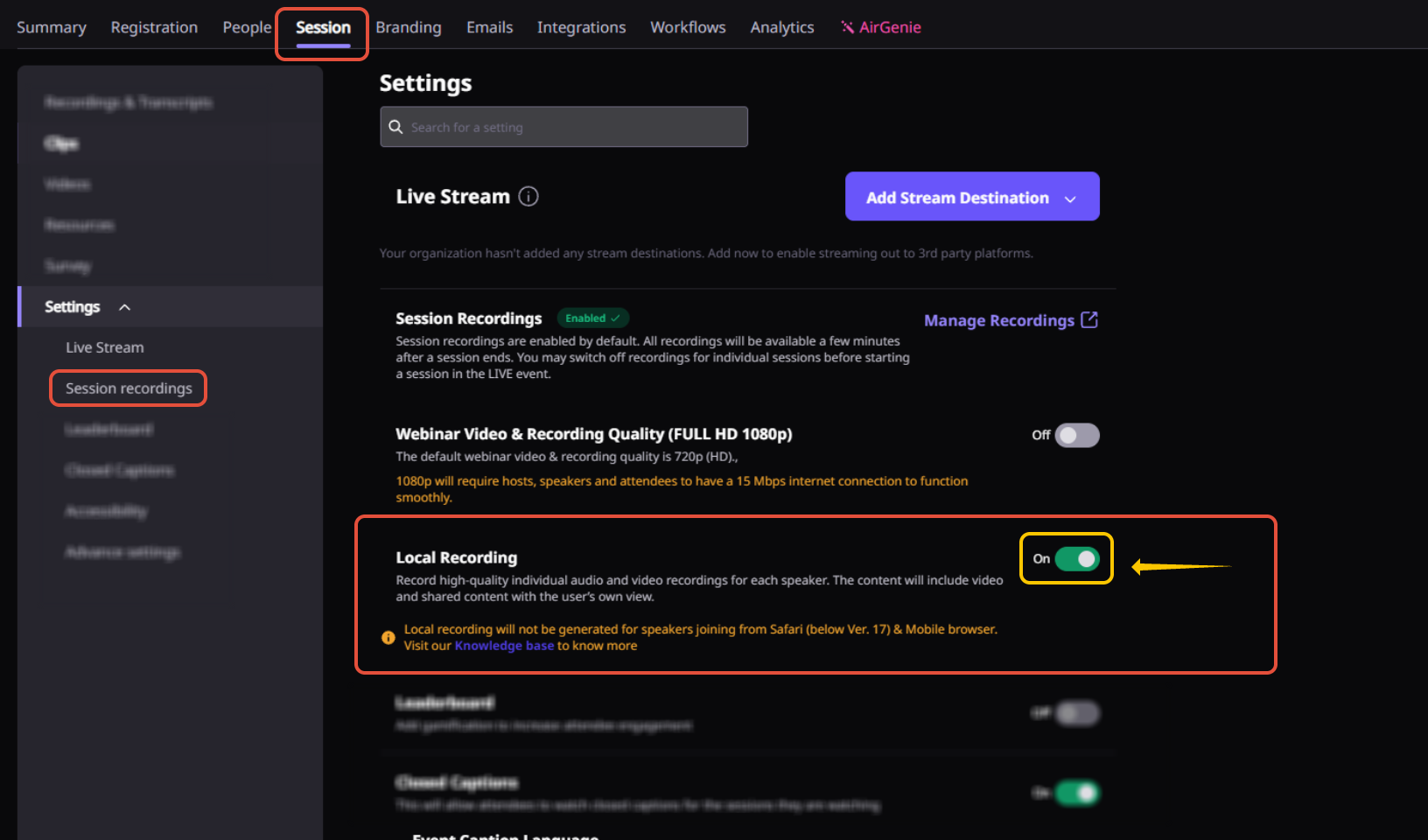
Once enabled, Airmeet will automatically generate separate recordings for each speaker who joins the stage during the live session.
3. Access Individual Speaker Recordings
After the session has ended and recording processing is complete:
Step 1: Navigate to Sessions > Recordings & Transcripts
Step 2 : Locate the session for which you want to view recordings.
Step 3 : Click on "People" icon
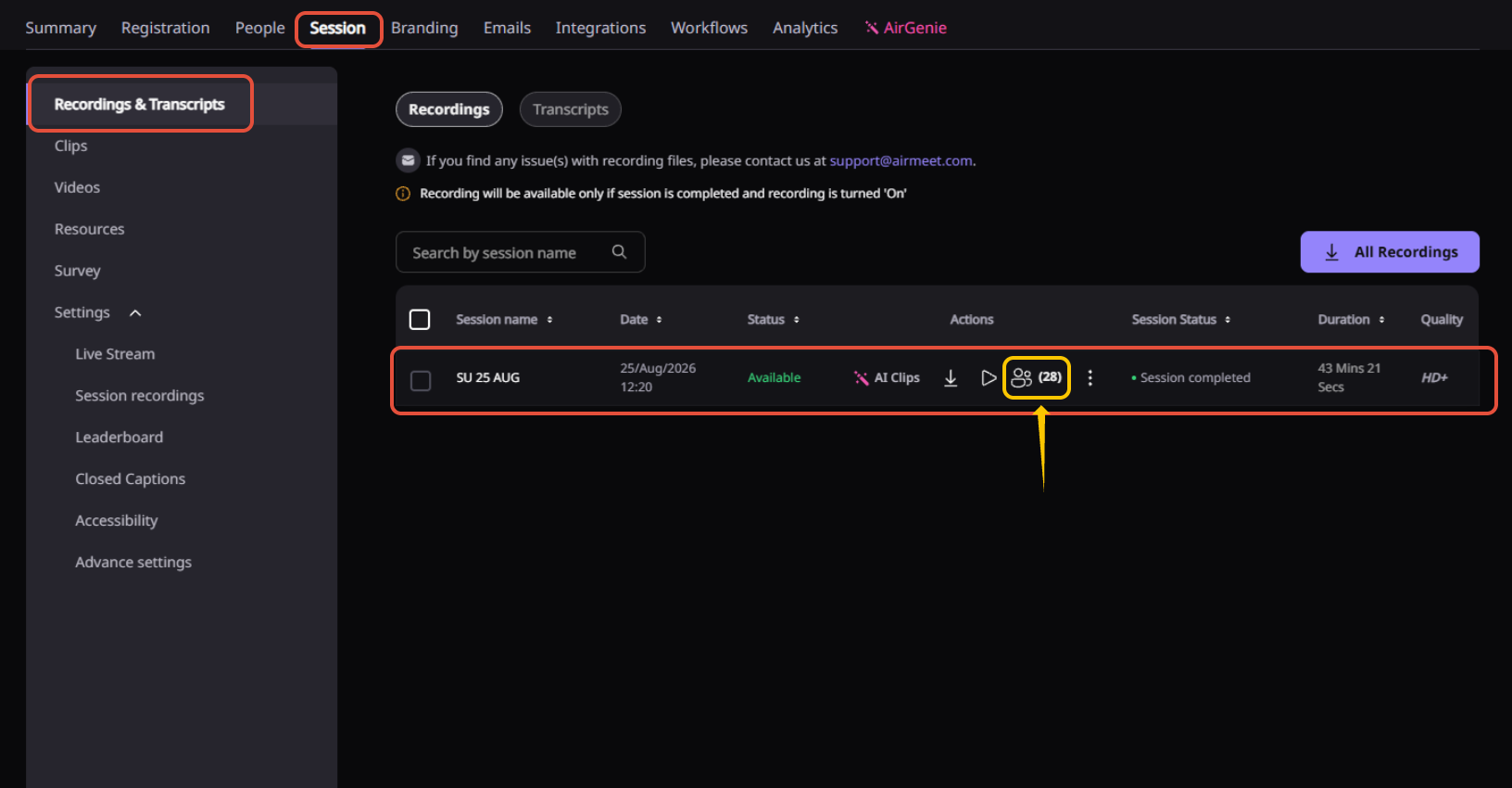
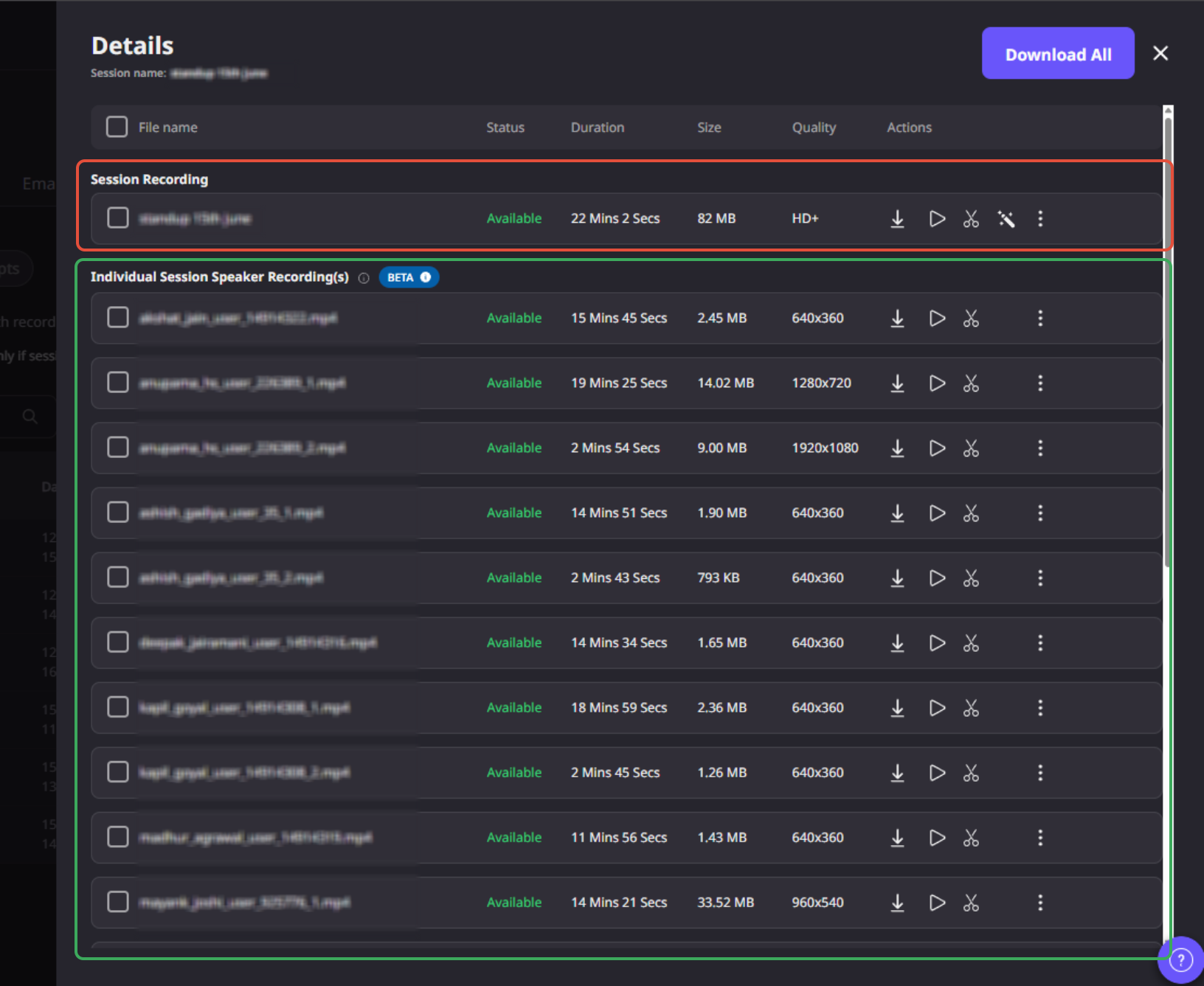
Step 4 : A recording details window will open displaying:
- Session Recording : The complete recording of the session.
- Individual Speaker Local Recordings : Separate recordings for each speaker who appeared on stage.
- Individual Screen Share Recordings : Separate recordings for any screen-sharing activity performed by speakers during the session.
4. Download Recordings
You can:
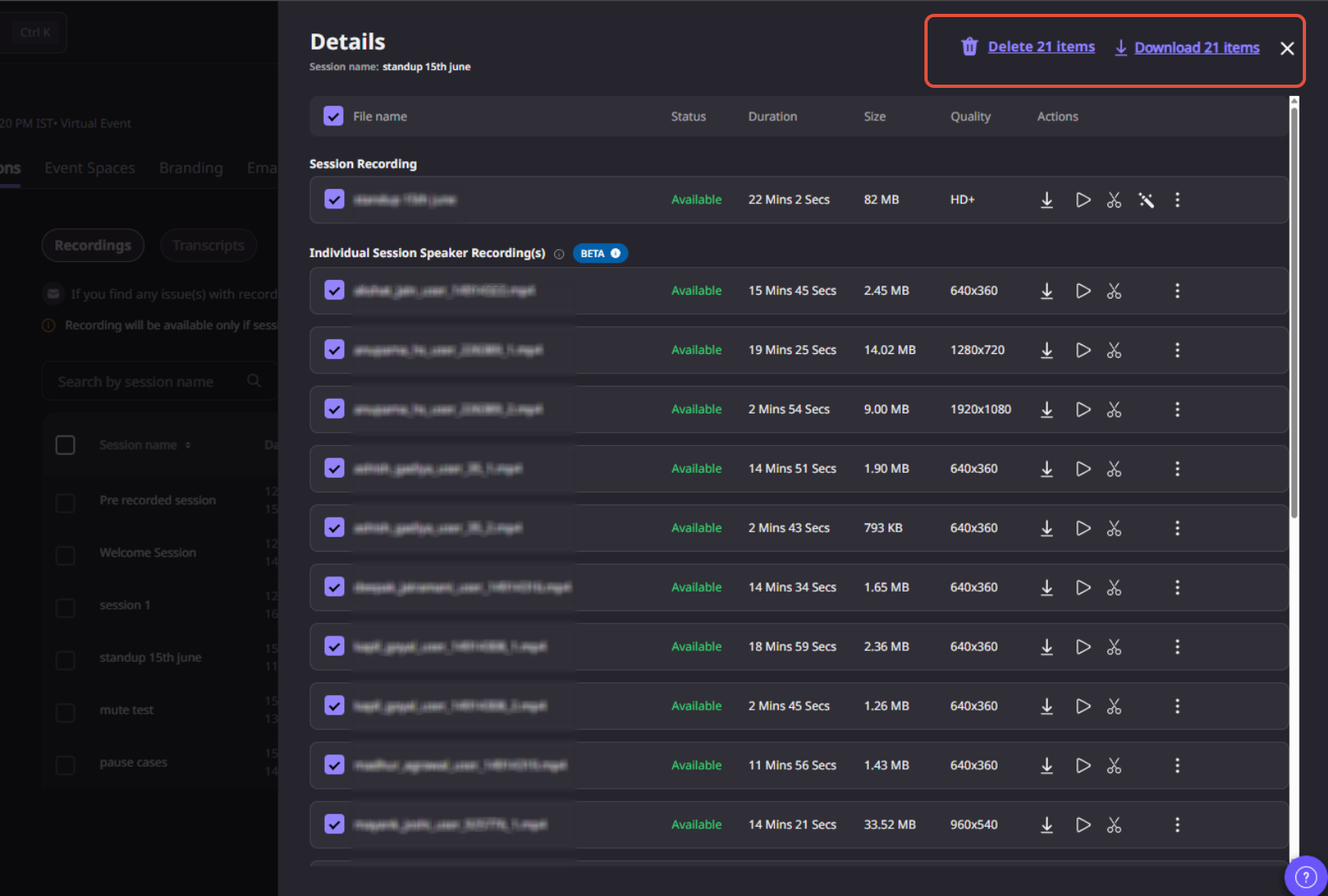
- Download an individual recording
- Play a recording before downloading
- Download multiple recordings
- Download all recordings using the Download All option
4.1. Understanding Local Recording Statuses
You can track the status of each Local Recording from the Recordings section of your Airmeet dashboard. The status will automatically update as the recording is uploaded, processed, and made available.
Uploading
The recording is currently being captured or uploaded. You may see this status while the speaker is still in the session or while their recording is being uploaded.
What to do: Keep the session browser tab open and allow the upload to complete.
Upload incomplete
The complete recording could not be uploaded. This can happen if the speaker closes the browser tab, leaves before the upload finishes, or the session ends while part of the recording is still pending upload. If the speaker rejoins the event and the upload resumes, the status will change back to Uploading.
What to do: Ask the speaker to rejoin the event using the same browser and device to allow the pending recording to continue uploading.
Note : Upload expires in 7 days . Speaker must complete this upload within 7 days. Once it expires, this recording cannot be uploaded again.
Processing
The recording has been successfully uploaded and is being prepared for viewing and download.
This status typically appears after the speaker leaves the session, moves to backstage, or the session is paused or ended and the upload has completed.
What to do: No action is required. Allow some time for the recording to finish processing.
Available
The recording has been successfully uploaded and processed. It is now ready to view or download from the dashboard.
What to do: No further action is required.
5. Important Recommendations
5.1. Recording Segmentation
A new recording file may be generated if:
- A speaker disconnects for more than 15 seconds
- A speaker leaves and rejoins the stage after 15 seconds
- The session is paused and later resumed
- During Live session if a speaker is at the backstage, that part is also recorded as a blank screen without any audio or video.
In such cases, multiple recordings may be available for the same speaker.
5.2. Screen Share Recordings
Screen-share recordings are generated only when a speaker shares their screen during the session.
5.3. Session Requirement
This feature is supported only for Live Sessions and is not available for:
- Pre-recorded Sessions
- RTMP Sessions
- Session as Video Call
5.4. Recommended Setup
For the Best Recording Quality, Use an updated mid-to-high-range laptop, enable hardware acceleration in Chrome, close other applications and video conferencing tools, and maintain a stable high-speed internet connection throughout your session.
Read more : What is the recommended setup for local recording enabled session(s)?
6. Frequently Asked Questions
a. Will I still receive the full session recording?
Yes. The complete session recording will continue to be generated alongside all individual speaker recordings.
b. Can I download recordings for a specific speaker?
Yes. Each speaker recording can be downloaded independently.
c. Are screen-share recordings generated automatically?
Yes. If a speaker shares their screen during the session, Airmeet automatically generates a separate screen-share recording.
d. Why do I see multiple recordings for the same speaker?
Multiple files may be created when a speaker disconnects for more than 15 seconds or when the session is paused and resumed.
e. How much processing time does it take to generate individual recording.
It usually takes 15-30 mins to generate all individual recording approximately depending upon whenever it's uploaded from the speaker ends
f. What is the recording quality for an individual speaker?
The individual recording quality depends upon various factors like speaker camera quality, speaker resolution during the session and speaker background.
We recommend keeping a clean background and having limited speakers on stage for higher resolution.
Need more help? Contact support@airmeet.com or visit our Customer Support Lounge.
Was this article helpful?
That’s Great!
Thank you for your feedback
Sorry! We couldn't be helpful
Thank you for your feedback
Feedback sent
We appreciate your effort and will try to fix the article