The Overlays feature in AirStudio allows you to enhance your live streams, recordings, and podcasts with visual elements such as scrolling tickers, information cards, countdown timers, clocks, and recording indicators.
You can customize these elements and add multiple overlays to individual shots to make your production more engaging and informative.
This article explains how to add, customize, edit, and remove Lower Thirds and Widgets in AirStudio.
1. Access Overlays
To access Overlays:
Enter AirStudio and select a shot.
Click Overlays from the right-hand toolbar.
Choose between Lower Thirds and Widgets.
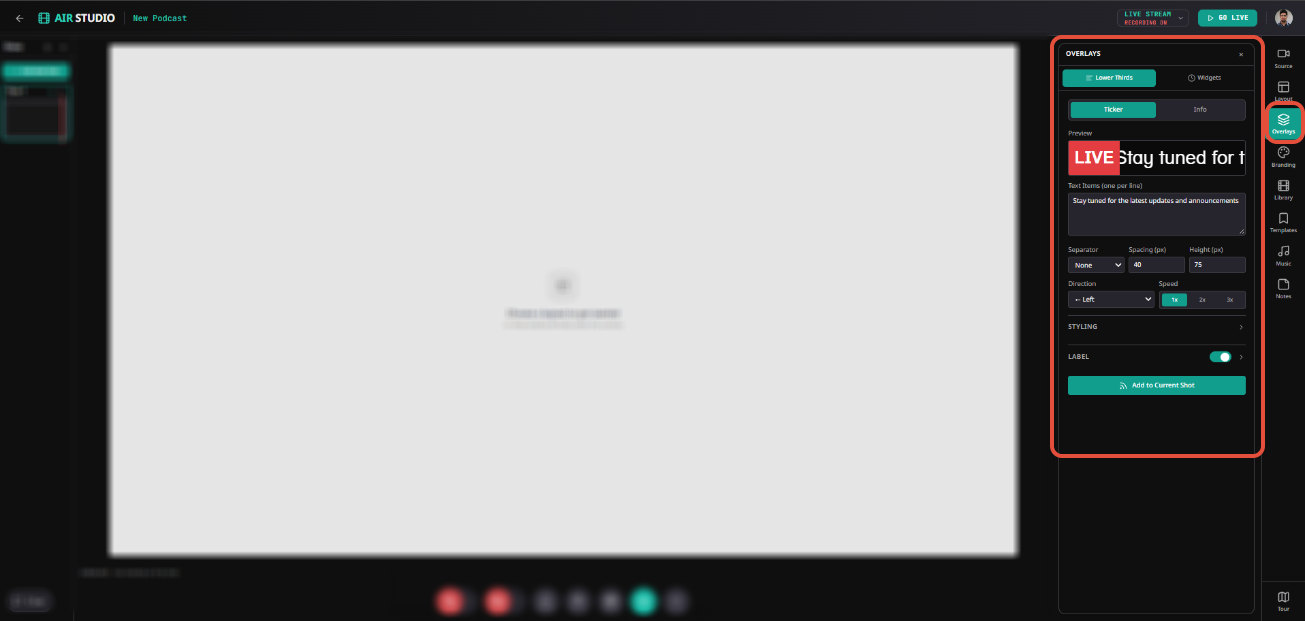
The Overlays panel contains two main sections:
Lower Thirds: Add scrolling tickers or information cards.
Widgets: Add clocks, dates, countdown timers, and recording indicators.
2. Lower Thirds
Lower Thirds allow you to display information on screen during your production.
There are two types of Lower Thirds: Ticker and Info.
2.1. Ticker
A Ticker displays scrolling text on screen, making it useful for announcements, updates, or important messages.
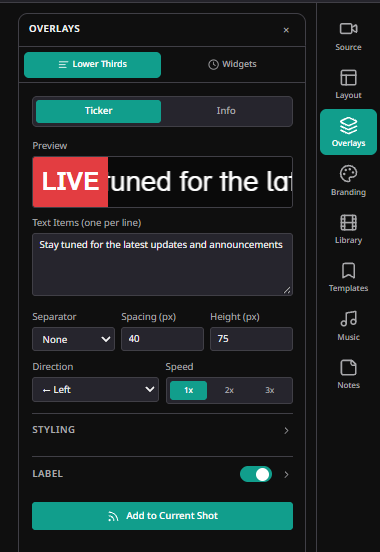
To add a Ticker:
Navigate to Overlays → Lower Thirds → Ticker.
Enter your message under Text Items, with one item per line.
Configure the available settings.
Review the ticker in the Preview section.
Click Add to Current Shot.
a. Ticker Customization Options
| Setting | Description |
|---|---|
| Text Items | Add one or multiple scrolling messages. |
| Separator | Choose how individual text items are separated. |
| Spacing | Adjust the spacing between text items in pixels. |
| Height | Set the ticker bar height. |
| Direction | Choose the scrolling direction. |
| Speed | Select 1x, 2x, or 3x scrolling speed. |
b. Styling
Expand Styling to customize the ticker's font, text size, color, bold/italic formatting, bar color, and opacity.
c. Label
Enable Label to display a fixed label alongside the scrolling text, such as LIVE or BREAKING NEWS.
You can customize:
Label text
Font size and family
Label background color
Label text color
2.2. Info
The Info overlay displays information cards on screen, ideal for announcements, speaker introductions, product updates, or key messages.
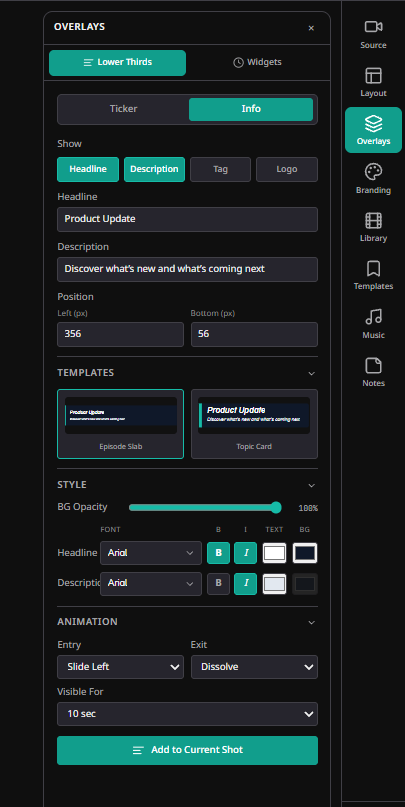
To add an Info overlay:
Navigate to Overlays → Lower Thirds → Info.
Choose the information you want to display.
Enter the relevant content.
Select a template and customize its appearance.
Click Add to Current Shot.
Info Customization Options
| Setting | Description |
|---|---|
| Headline | Add the primary message or title. |
| Description | Add supporting information. |
| Tag | Display a short label or category. |
| Logo | Include a logo in the information card. |
| Position | Adjust horizontal and vertical placement using Left and Bottom values. |
| Templates | Choose a predefined design, such as Episode Slab or Topic Card. |
| Style | Customize the visual appearance of the information card. |
| Animation | Configure how the information card appears on screen. |
Use the Show options to select which elements appear in your Info overlay.
3. Widgets
Widgets allow you to display dynamic information within your production, such as live time, dates, countdowns, and recording indicators.
You can add multiple widgets to a particular shot.
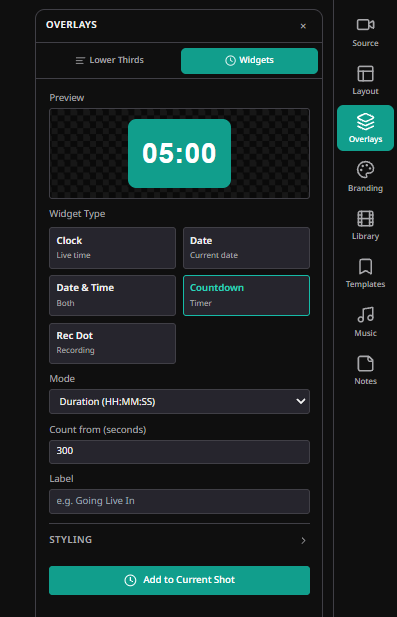
3.1. Available Widget Types
| Widget | Description |
|---|---|
| Clock | Display the current time. |
| Date | Display the current date. |
| Date & Time | Display both date and time. |
| Countdown | Display a countdown timer. |
| Rec Dot | Display a recording indicator. |
3.2. Add a Widget
Navigate to Overlays → Widgets.
Select the required Widget Type.
Configure its available settings.
Review the widget in the Preview section.
Click Add to Current Shot.
3.3. Widget Customization
Available settings depend on the selected widget.
For example, the Countdown widget includes:
Mode: Select the countdown display format, such as Duration (HH:MM).
Count from (seconds): Enter the starting countdown duration.
Label: Add optional text, such as Going Live In.
Expand Styling to customize the widget's appearance.
Note: You can add multiple widgets to the same shot to display different information simultaneously.
4. Edit or Remove Overlays
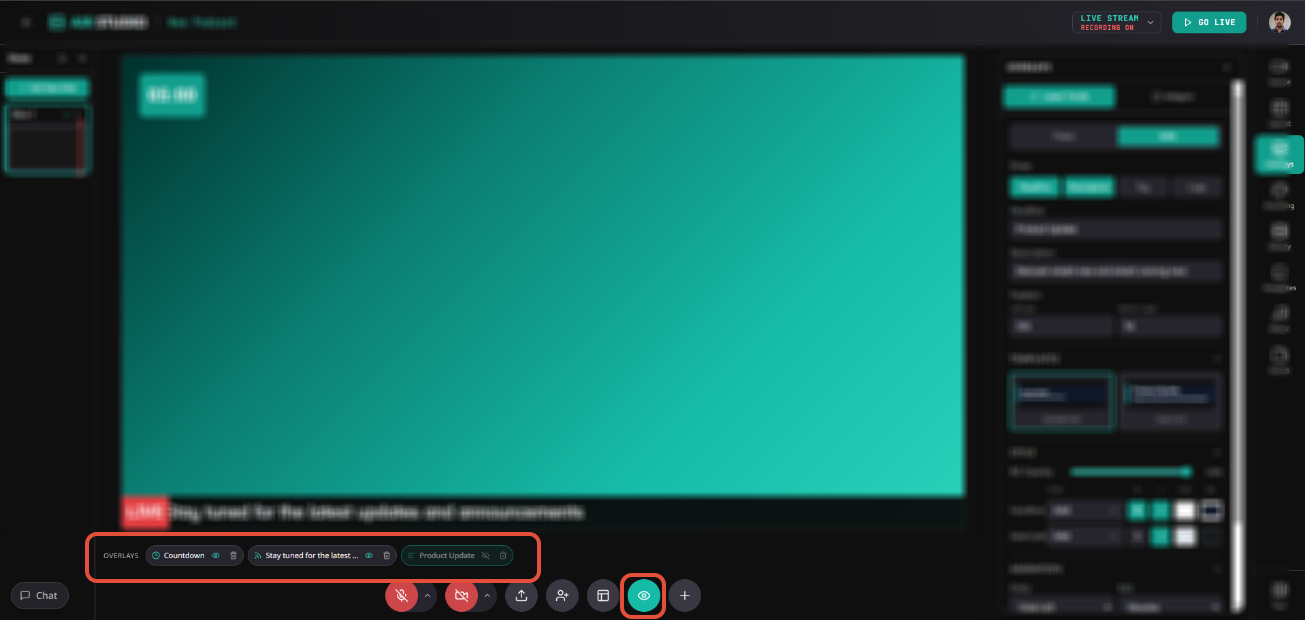
Once an overlay is added to a shot, you can manage it using the Shot Elements panel in the bottom Producer Toolbar.
4.1. Edit an Overlay
To modify an existing overlay:
Select the shot containing the overlay.
Click Show Shot Elements (eye icon) in the bottom toolbar.
Locate and select the overlay you want to edit.
Open its available settings and update the content, styling, or position.
Apply or save the changes, where prompted.
You can modify settings such as ticker text, label appearance, information card content, and widget configurations, depending on the overlay type.

4.2. Remove/Hide an Overlay
To remove/Hide an overlay from a shot:
Select the shot containing the overlay.
Open the Overlay Elements panel.
Locate the overlay you want to remove.
Select its Delete or Hide option.

Note: Removing an overlay affects only the selected shot. Overlays added to other shots remain unchanged.
4.3. Manage Multiple Overlays
You can add multiple Lower Thirds and Widgets to the same shot.
Use the Shot Elements panel to identify and manage individual elements. Make sure overlays are positioned appropriately to avoid overlapping important content.
5. Troubleshooting Common Overlay Issues
| Issue | Recommended Solution |
|---|---|
| Overlay is not visible | Ensure the overlay has been added to the correct shot and check its position. |
| Ticker text is not scrolling | Verify the ticker direction, speed, and text items. |
| Ticker label is missing | Enable Label and check the label text and styling. |
| Info overlay content is missing | Verify that the required Headline, Description, Tag, or Logo options are enabled. |
| Overlay text is difficult to read | Adjust the font size, text color, background color, or opacity. |
| Widget is not displaying correctly | Check the selected widget type and its configuration. |
| Countdown duration is incorrect | Verify the Count from (seconds) value and selected mode. |
| Overlays overlap with other elements | Adjust their positioning or modify the shot layout. |
| Unable to edit or remove an overlay | Confirm that the correct shot is selected and locate the overlay in the Shot Elements panel. |
Overlays Workflow at a Glance
Enter Studio → Select Shot → Open Overlays → Choose Lower Thirds or Widgets → Configure Settings → Preview → Add to Current Shot → Manage via Shot Elements
AirStudio Overlays help you display announcements, important information, and dynamic visual elements while maintaining a professional and consistent production experience.
Need more help? Contact support@airmeet.com or visit our 24*5 Customer Support Lounge.
Was this article helpful?
That’s Great!
Thank you for your feedback
Sorry! We couldn't be helpful
Thank you for your feedback
Feedback sent
We appreciate your effort and will try to fix the article